PRO: Updating Logos (Docs & Marketplace)
 Updated
Updating Company Logo
Use this guide to update your Market Logo and/or Document Logo (such as PO or Invoice).
Here are a couple of things to be aware of when it comes to uploading an image into Cultivera Pro:
- 4 MB is the file size limit that will successfully upload & .jpg, .jpeg, .png files tend to work best (instead of a pdf)
- You'll want to use images that are a perfect square, or as close to a perfect square as possible (500 x 500, 1000 x 1000, 1500 x 1500 pixels, etc.). That's not to say an image that isn't a perfect square won't successfully upload into Cultivera, however, the further away that image is from being a perfect square, the more likely it is that the image will upload a bit skewed.
- Any images with transparency are rendered as black within our software. Please be sure to remove a transparent background from your image file.
Updating the Logo for Documents
The logo that appears on your documents, such as the PO or Invoice, can be updated from the Company Profile page.
- Navigate to the Company Profile (this can be accessed from any module by clicking on the dropdown arrow next to your name in the upper right corner).

- Under the Logo section, click on "Select a file..."
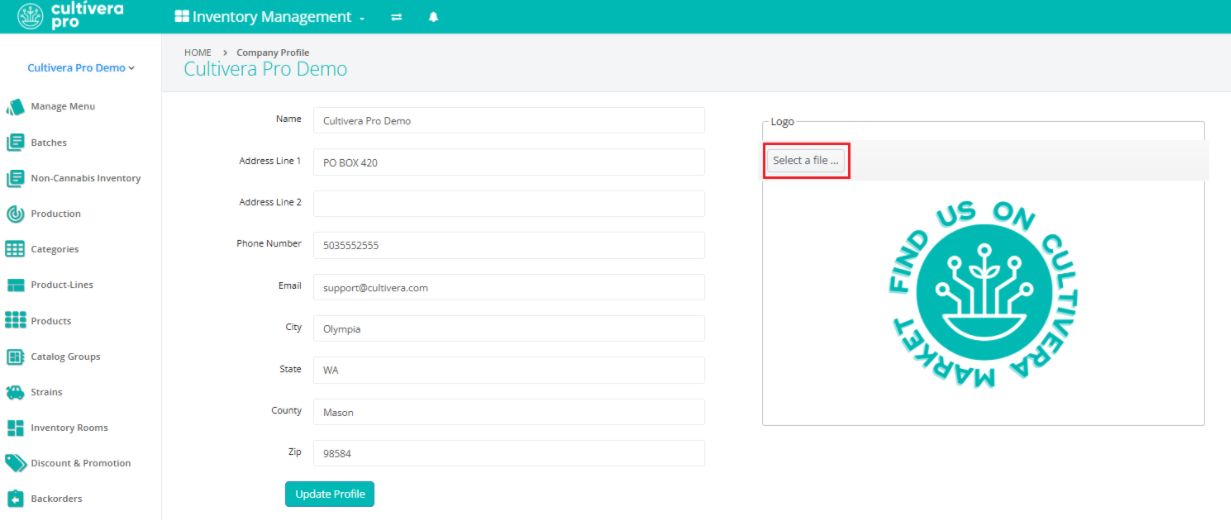
- Select the intended Logo image file from File Explorer and select "Open".
- Select 'Update Profile' before navigating away from the page.
Updating the Logo for Marketplace
The logo that appears on your Marketplace can be managed from the Configuration > Marketplace Settings page.
- Navigate to Configuration > Marketplace Settings.
- Under the Logo section, click on "Select a file..."
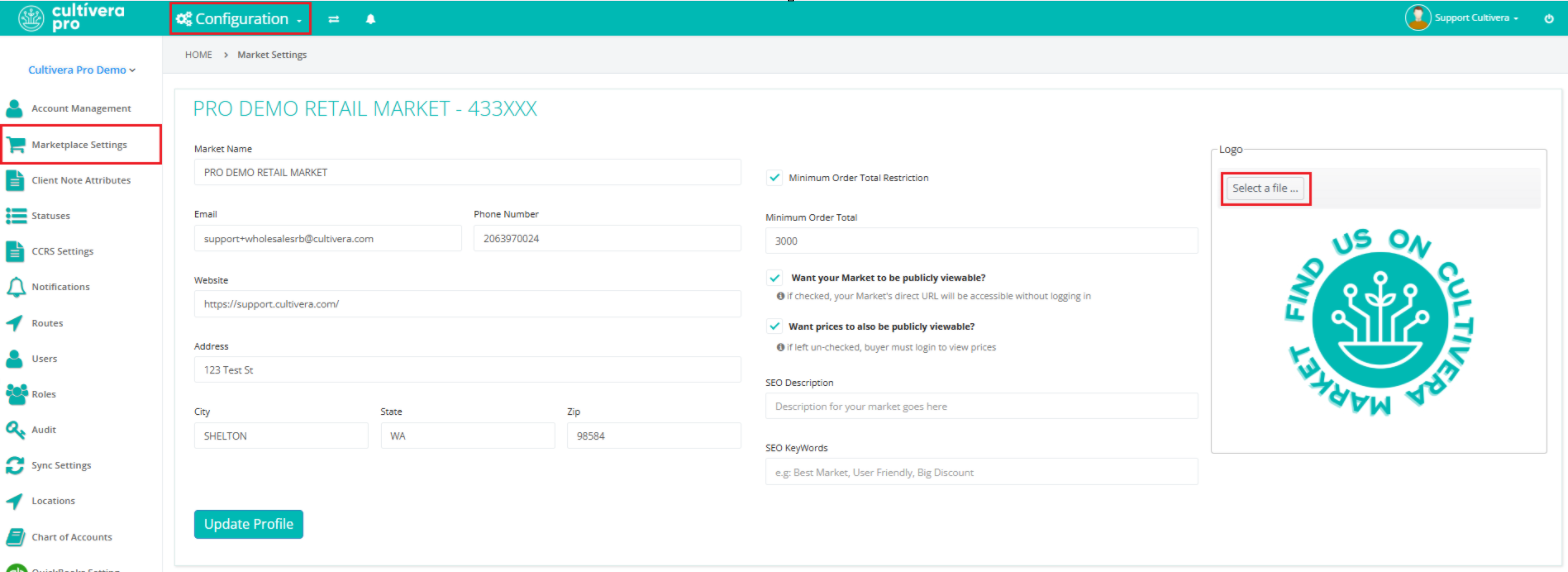
- Select the intended Logo image file from File Explorer and select "Open".
- Select 'Update Profile' before navigating away from the page.
If you have any questions, please don’t hesitate to reach out to our support team at support@cultivera.com for assistance.
