PRO: Fulfillment - Transfer Inbound "Import from Excel"
 Updated
Importing Inbound Transfers via Excel
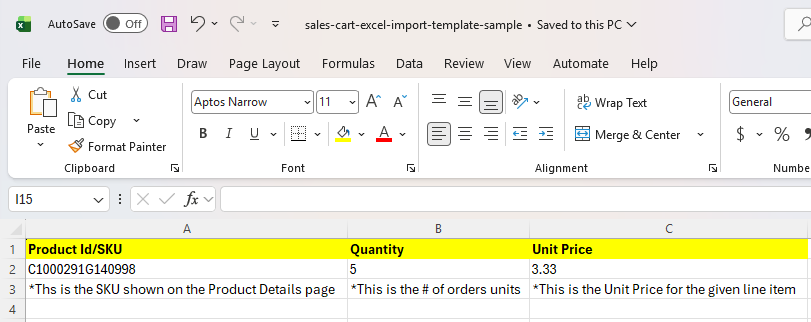
If you navigate to Sales > Carts and view the cart detail page, you will find an "Import cart from Excel" button, which can be utilized to upload an Excel sheet that lists the Product ID#/SKU# of the product you would like to add, the Quantity of that line item, as well as the Unit Price.
This is an example of what the Excel spreadsheet should look like:
You can find your Product's SKU# by navigating to Inventory Management > Manage Menu and clicking on that product's name to be redirected to the Product Details page; the SKU will be listed on the top left of the page:

Download a sample Excel spreadsheet from here
