PRO: Configuration - Resetting Passwords for Locked Accounts
 Updated
Resetting Passwords for Locked Accounts
If the User Account was locked due to "too many failed login attempts", this indicates they likely need to reset their password.
Follow these steps to reset the password for a user account:
- Navigate to the Cultivera PRO login webpage for your state.
- Select "Forgot Password".
- Enter the email address of the user who is attempting to reset their password.
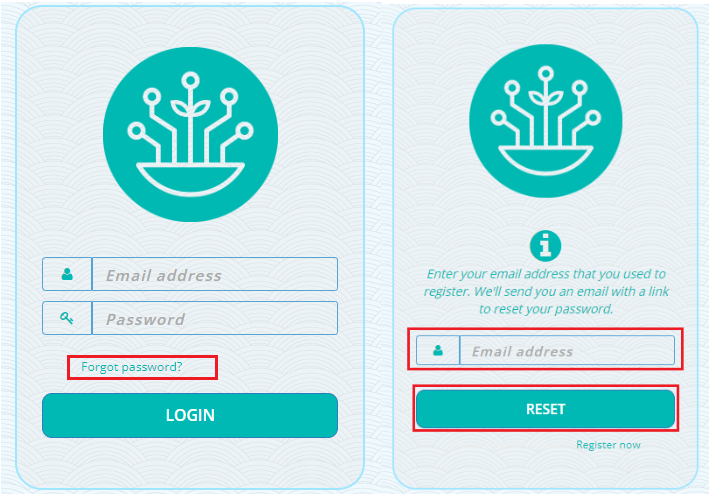
- Follow the instructions in the 'Reset Password' email, then reattempt to log into your system.
Please note, if the Password Reset, Forgot Password, or Login pages/links ever act funky by sending you to the same page, a blank page, or a different page than expected, please clear your browser's cache and cookies, then restart your browser and try again.
Alternatively, if you'd prefer not to clear your browser's cache and cookies, you can instead copy the link from the "Reset Password" email, then paste it into a new incognito/private browser window ([CTRL + SHIFT + N] is the shortcut to open an incognito window if you're using Chrome on PC). The incognito/private browser window will have its own fresh set of cache/cookies, so that the link should then take you to the intended Reset Password page.
