PRO (WA): Fulfillment - Fulfillment Board
 Updated
The Board in Fulfillment shows every order your team is working on in one place, sorted by stage, with how long each order has been in its current stage. Use it to see what's late, what's due today, and where orders are piling up.
Opening the Board
- Go to Fulfillment.
- In the left menu, click Board.
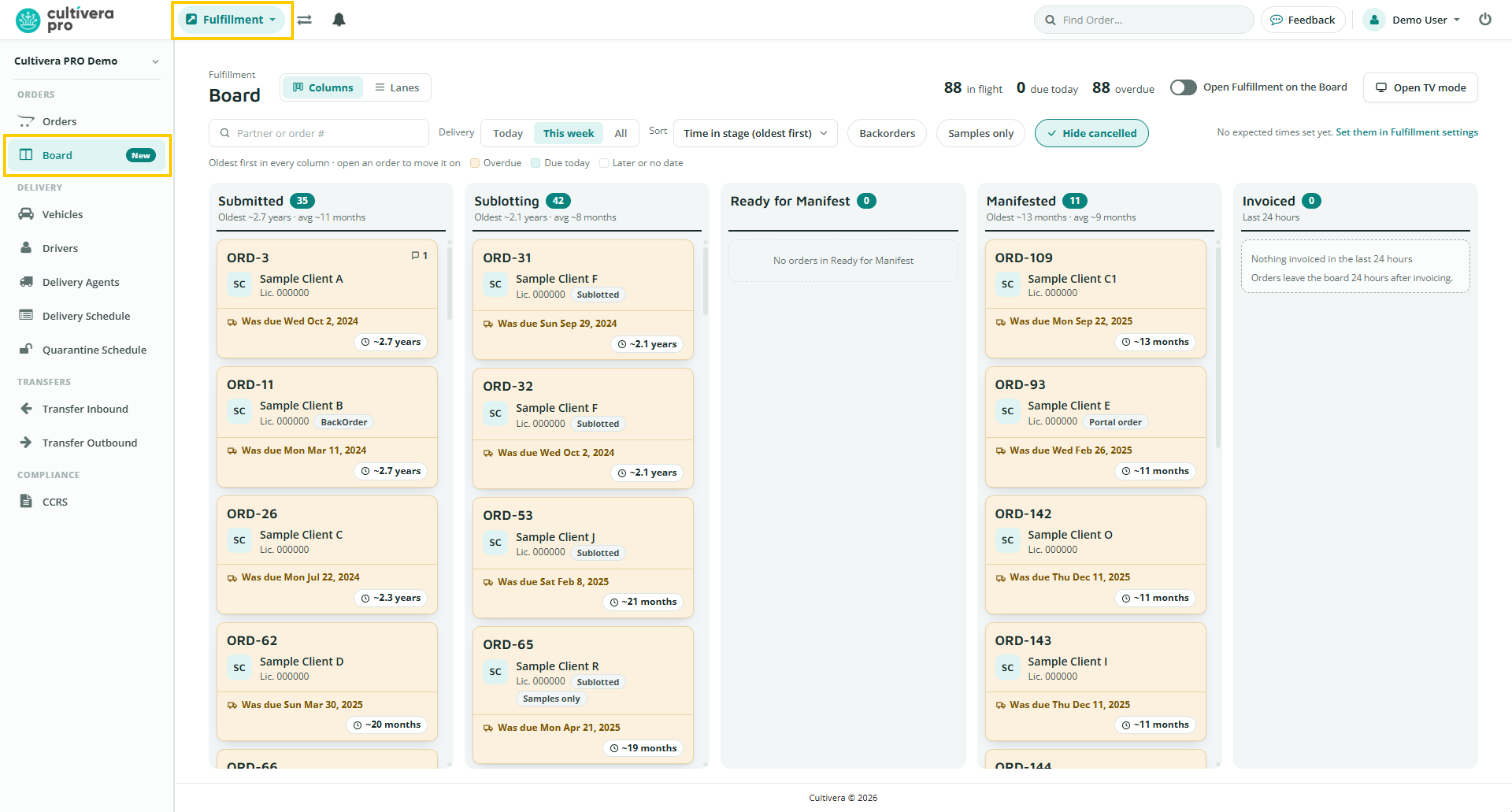
The Stages
Orders are grouped into five stages:
- Submitted
- Sublotting: orders that are partially sublotted or Sublotted
- Ready for Manifest: Orders flagged as Ready for Manifest
- Manifested: includes Quarantined orders
- Invoiced: orders invoiced in the last 24 hours. Orders leave the Board 24 hours after invoicing.
The top of the Board shows how many orders are in flight, due today, and overdue.
Reading an Order Card
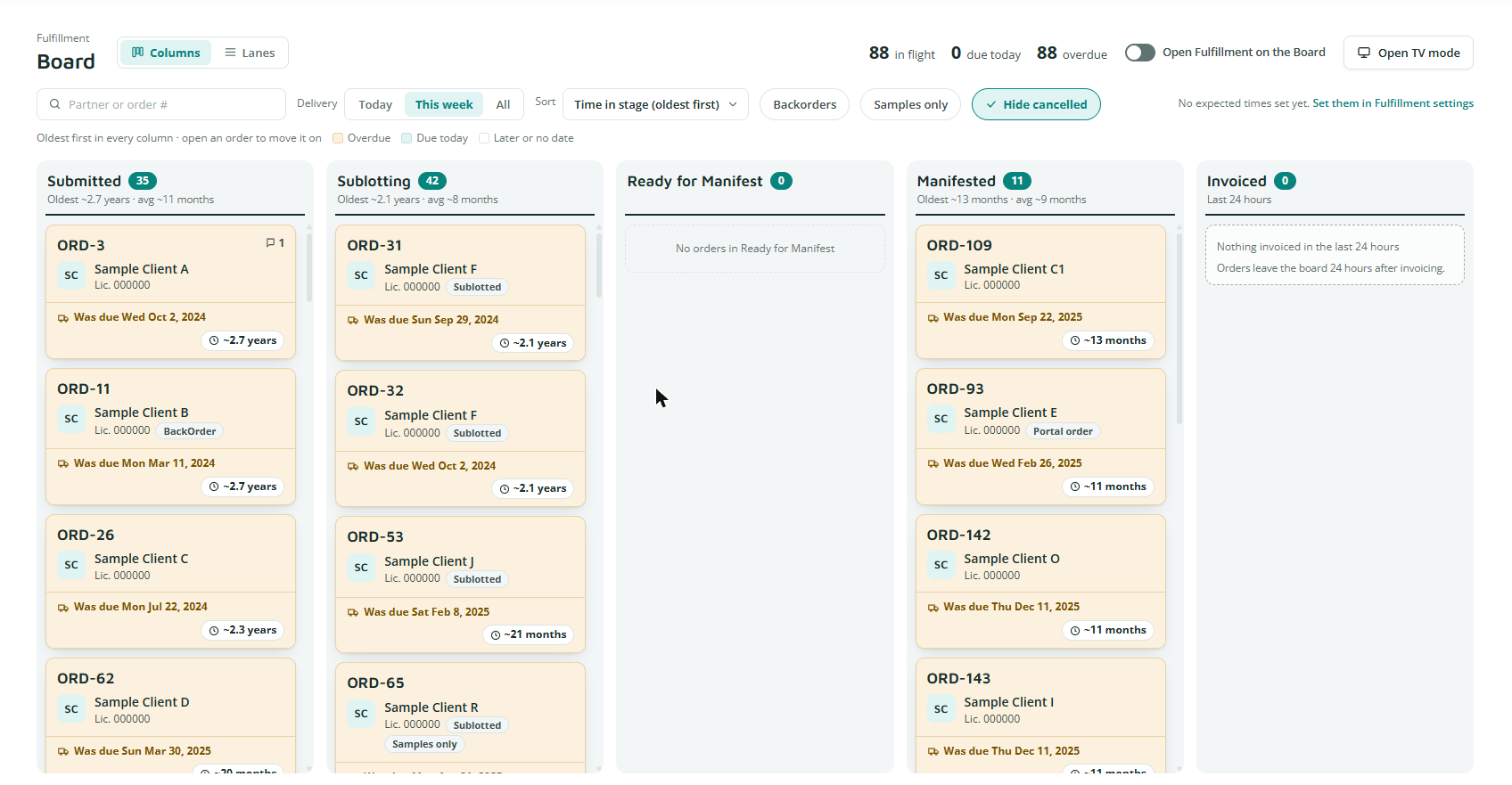
Each card shows the order number, the client and license number, any tags (BackOrder, Samples only, Portal order, or Sublotted / Partially sublotted), a note count when the order has notes, the delivery date, and the time the order has spent in its current stage.
Card colors show the delivery date at a glance:
- Tan: the delivery date has passed (Overdue).
- Teal: the order is due today.
- White: due later, or no delivery date.
Choosing a Style: Columns or Lanes
Use the Columns / Lanes switch next to the page title. Pro remembers the style you pick.
Columns
Each stage is a column. The column header shows how many orders it holds, the oldest order, and the average time in that stage.
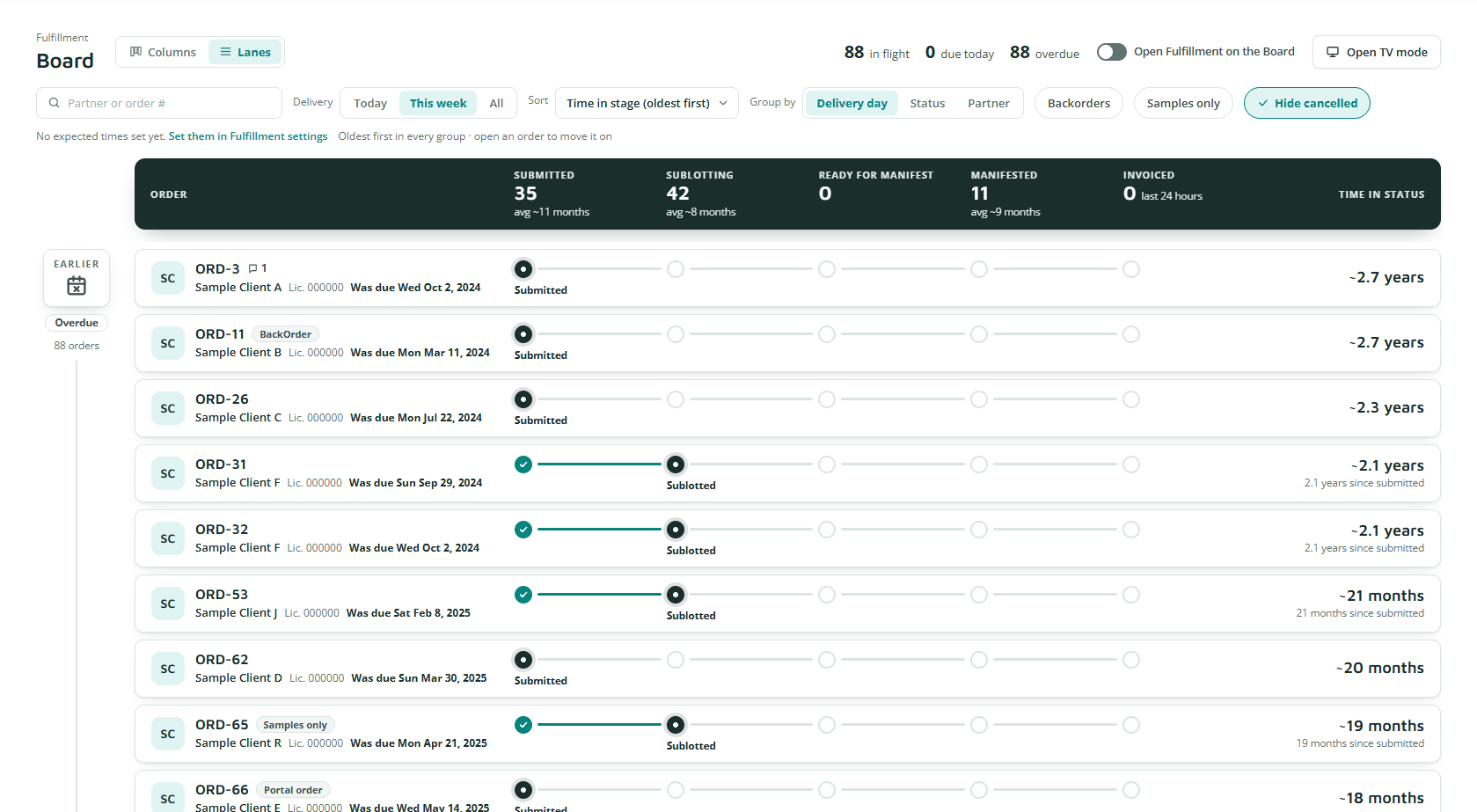
Lanes
Orders are listed in rows. The dark band across the top shows the count and average time for each stage. Each row has a track that shows the stages the order has finished and the stage it's in now, with its time in status on the right.
Use Group by to group the rows by Delivery day, Status, or Partner.
Searching, Filtering, and Sorting
- Search: type a client name or order number in the Partner or order # box.
- Delivery: show orders due Today, This week or All.
- Sort: Time in stage (oldest first), Order # (lowest or highest first), or Due date (soonest or latest first). Your choice is saved as your default.
- Backorders and Samples only show just those orders. Hide cancelled is on by default.
Flagging Orders that Run Long
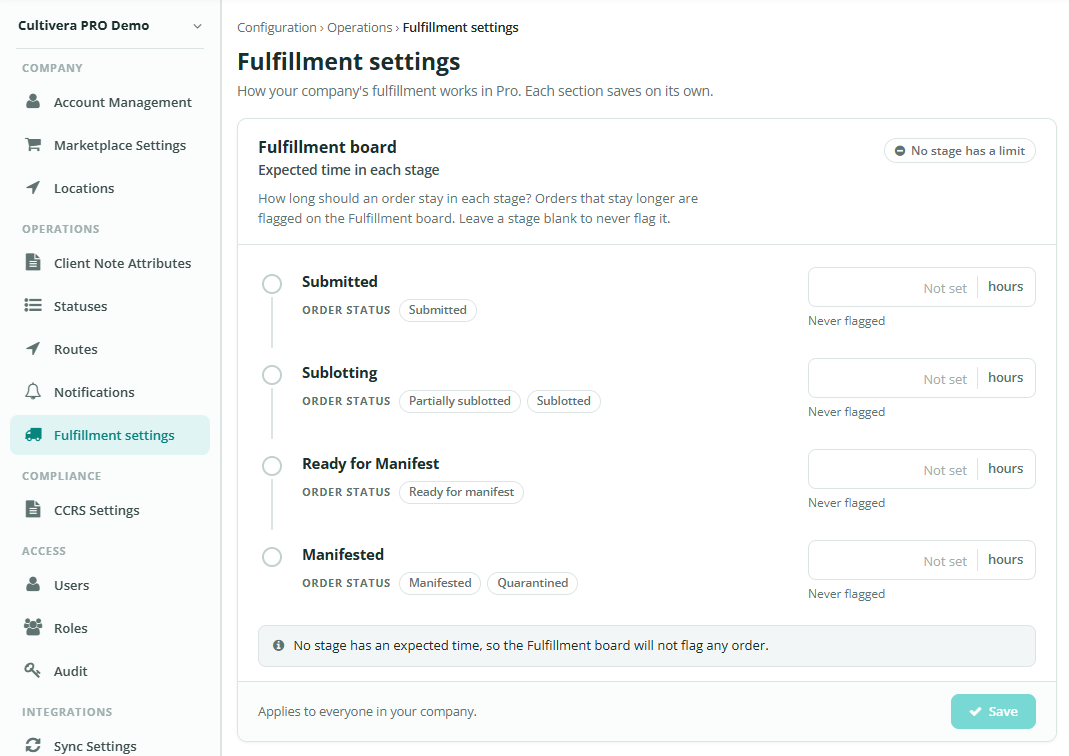
You can set how many hours an order should usually spend in each stage. When an order stays longer, the Board flags its time so you can see which orders are running behind, along with a count of orders over target.
- Go to Configuration › Operations › Fulfillment settings. You can also click Set them in Fulfillment settings on the Board.
- Under Fulfillment board, enter the expected hours for each stage: Submitted, Sublotting, Ready for Manifest, and Manifested.
- Click Save.
Showing the Board on a TV
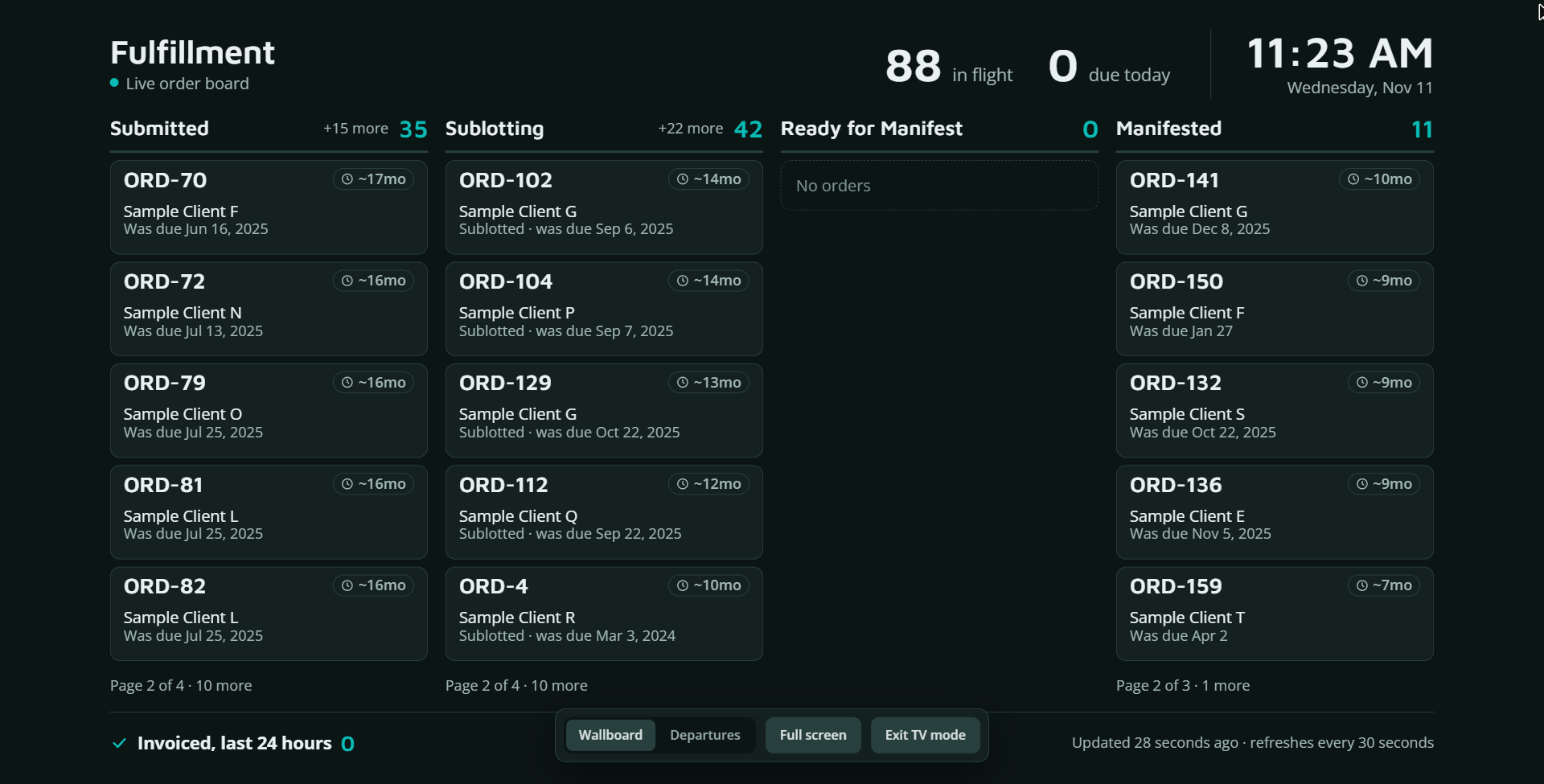
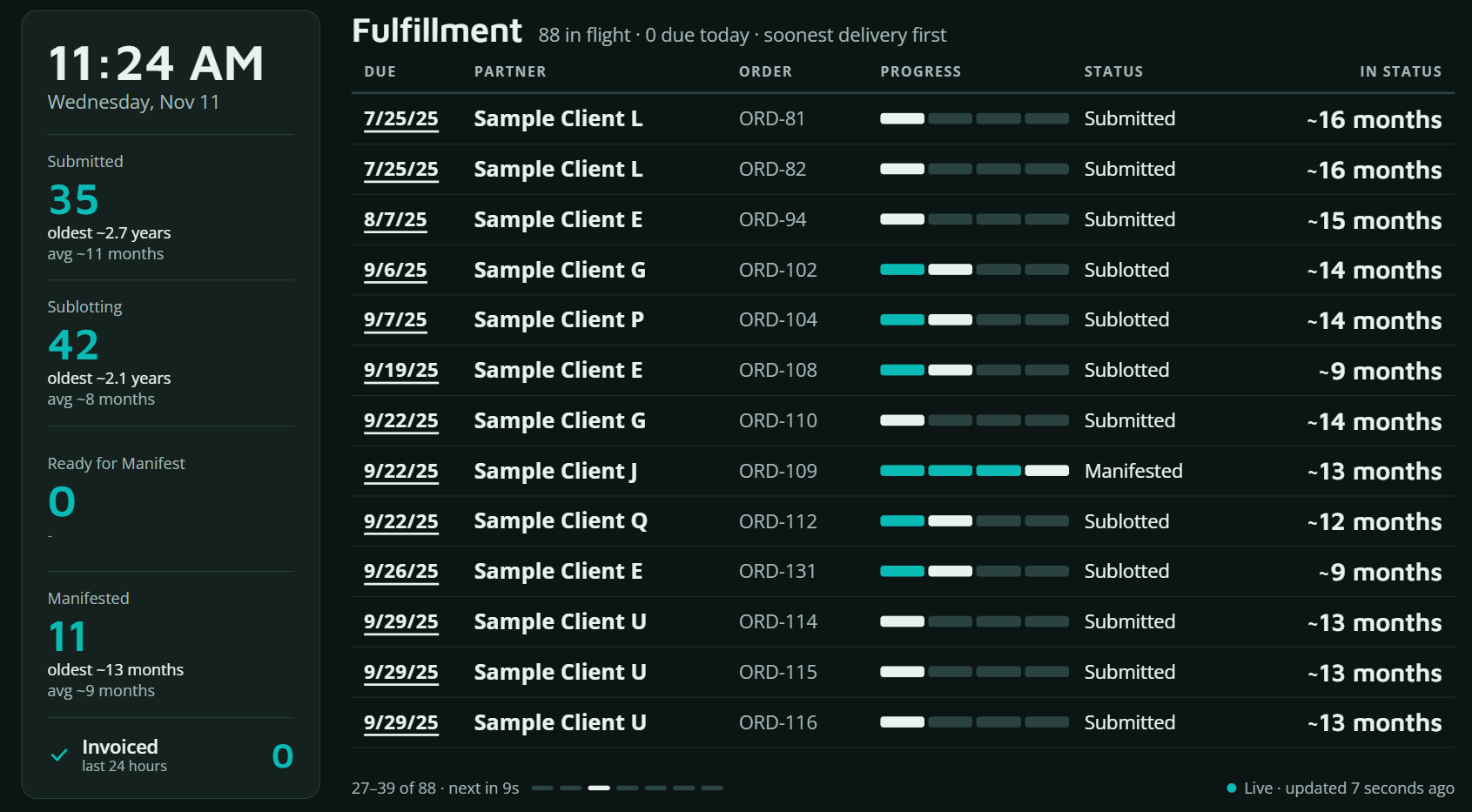
TV mode is a full-screen view made for a screen in the warehouse or office. It refreshes itself every 30 seconds, keeps the screen awake, and nothing on it can change an order.
- Sign in to Pro on the TV's browser with a normal Pro login.
- Go to Fulfillment › Board and click Open TV mode.
- Move the mouse to show the controls at the bottom of the screen:
- Wallboard: a column for each stage, with today's invoiced orders along the bottom.
- Departures: one list with the soonest delivery first, and each stage's count, oldest, and average on the left.
- Full screen fills the screen.
- Exit TV mode goes back to the Board.
When there are more orders than fit, TV mode pages through them on its own.
Screens are shown with sample data.
