Cultivera Exchange (Seller): Listing Products via Cultivera PRO Inventory Management > Batches
 Updated
How to List Products on Cultivera Exchange (from PRO)
This guide outlines the process for listing your inventory from Cultivera PRO > Batches > Right-Click Menu onto the Cultivera Exchange.
Verify Inventory Availability in PRO
Before listing, ensure both the Product and the specific Batch are set to "Available" within your PRO system.
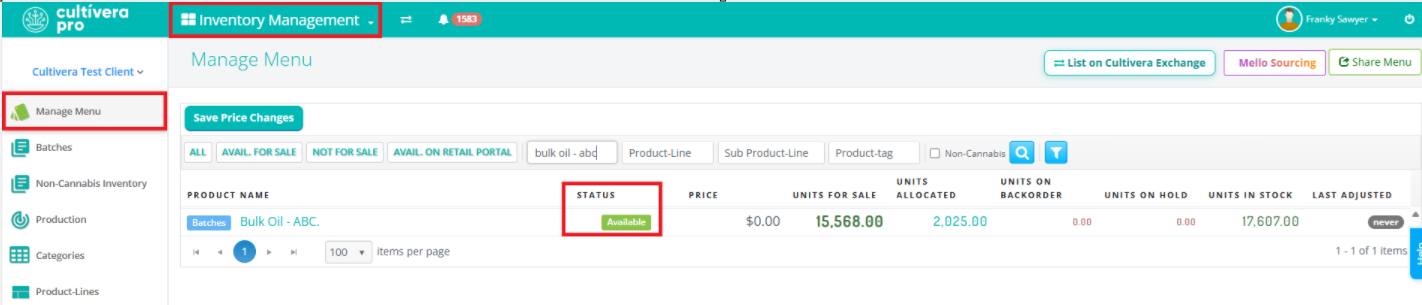
- Navigate to Inventory Management > Manage Menu.
- Locate the product and confirm its "Status" is green and marked as "Available".
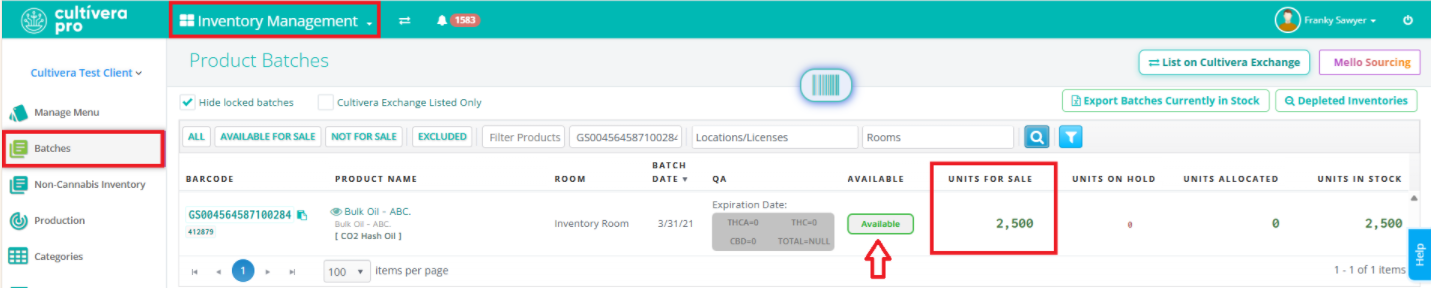
- Navigate to Inventory Management > Batches, and then locate and confirm that the specific Batch is "Available" and has units available for sale.
Create New Listing via Inventory Management > Batches > Right-Click Menu:
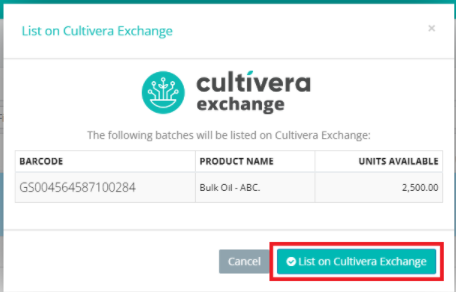
- Within the "Batches" page, right-click on the desired product row and select "List on Cultivera Exchange" from the drop-down menu.
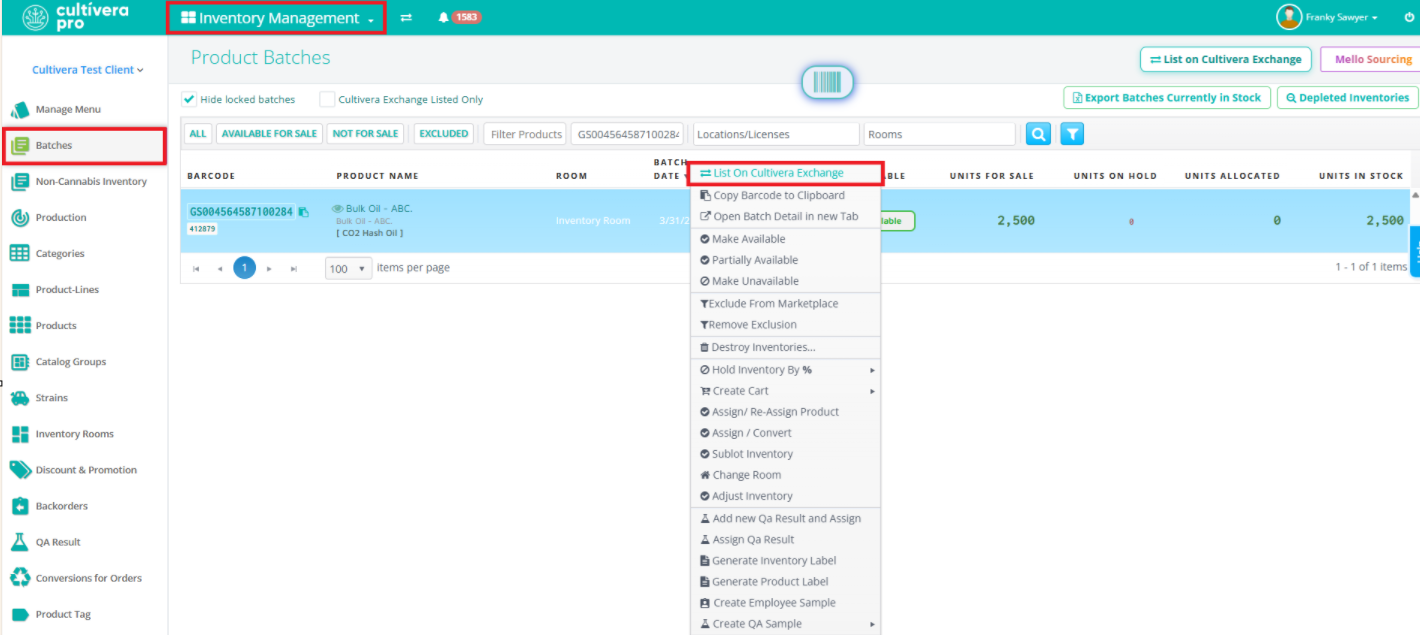
- Confirm the product and barcode, and then select "List on Cultivera Exchange". You will then be routed to Cultivera Exchange to complete the product listing.
Configure Details for Listing:
- Inventory Quantity: Enter the 'Units to List' and select "Next".
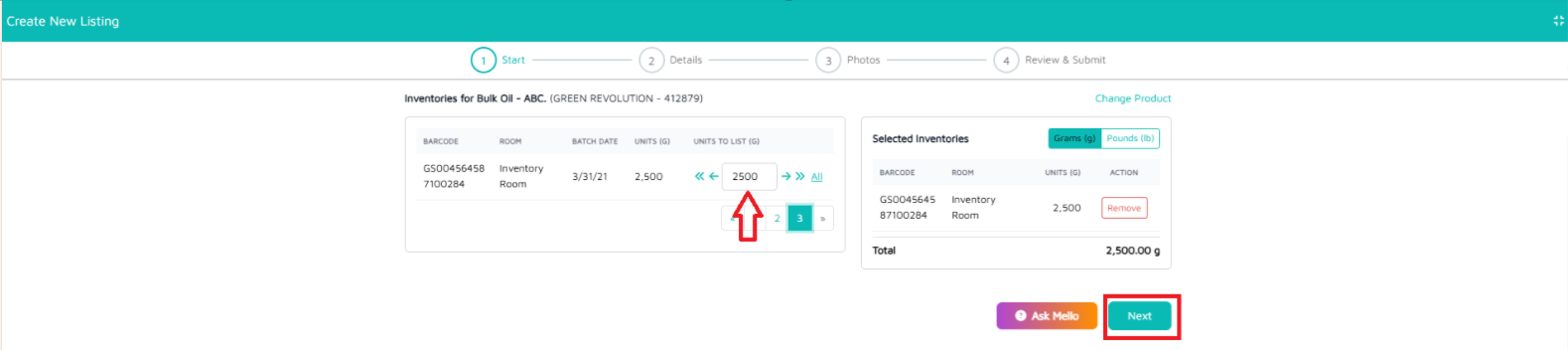
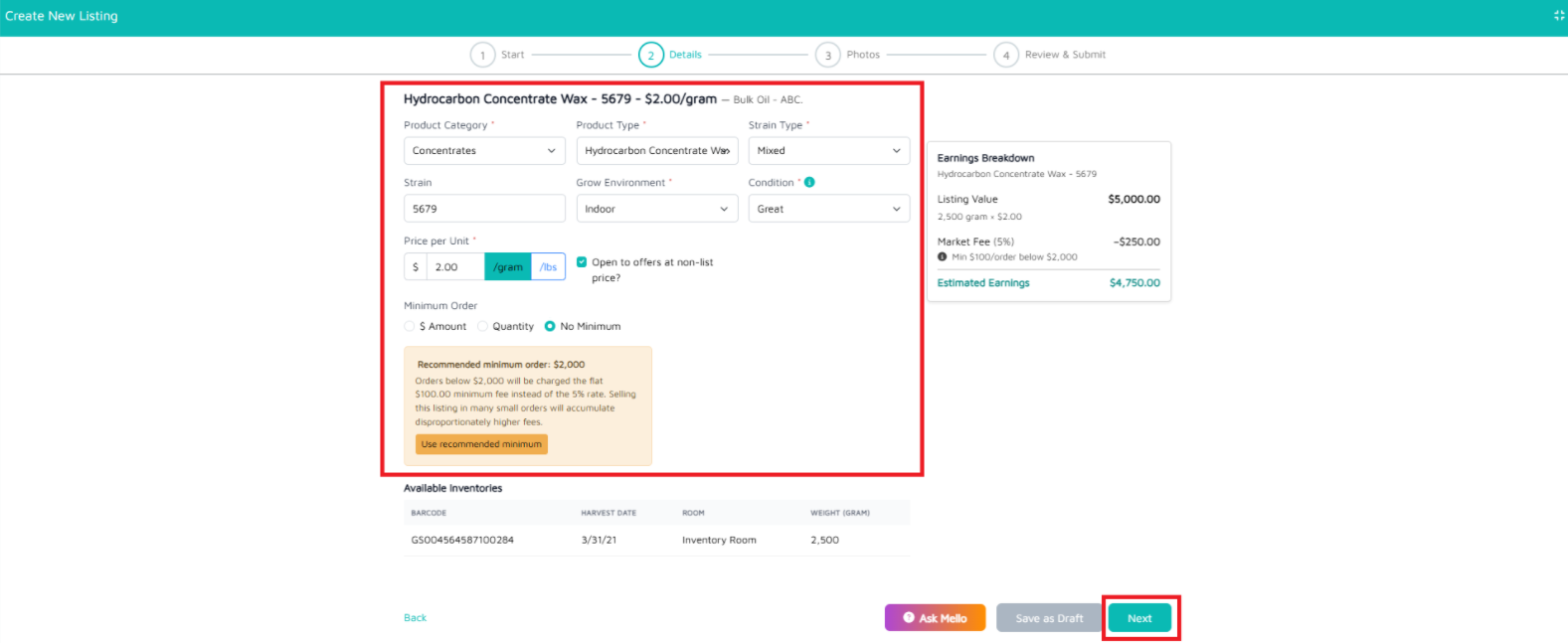
- Required Information: Fill out all mandatory fields. Note that required fields are typically marked with a red asterisk (*).
- Once complete, select "Next".
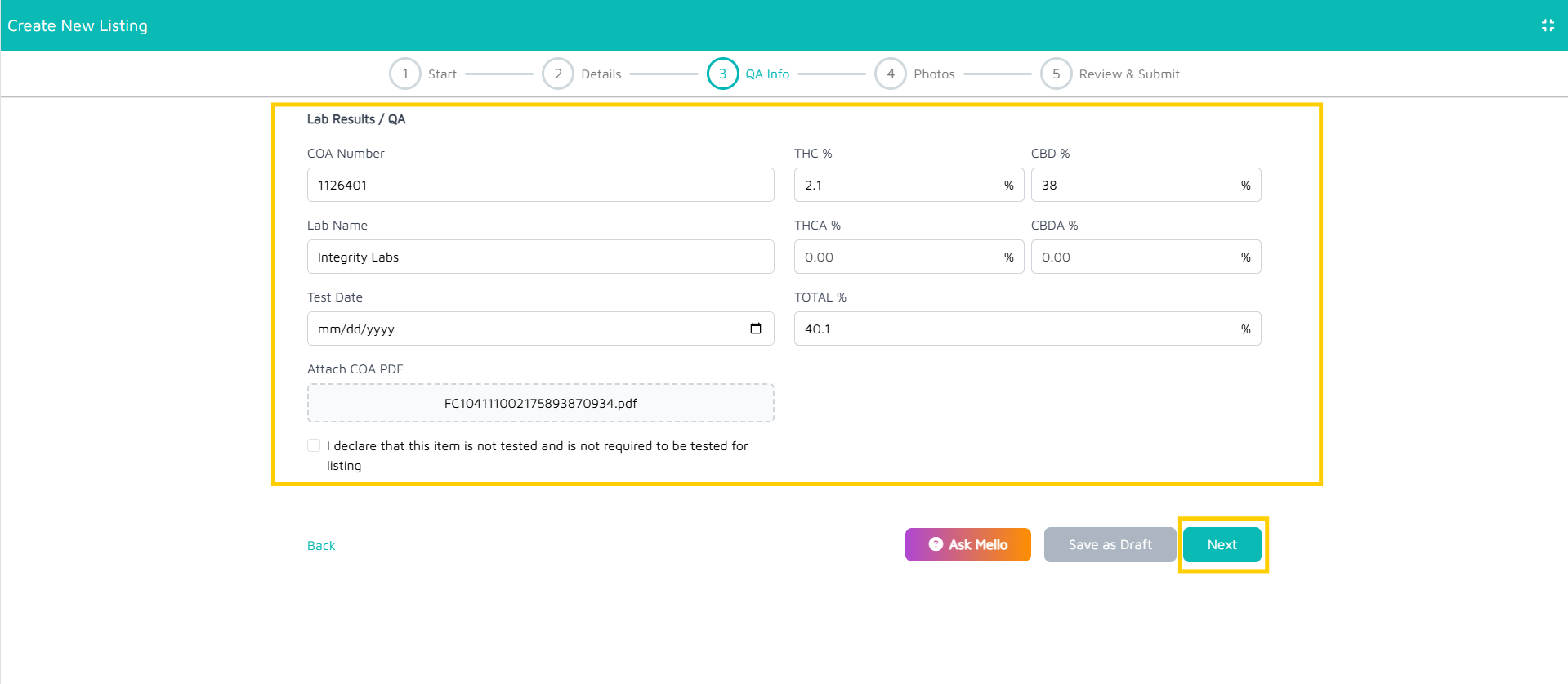
Enter Lab Results/QA Details
PLEASE NOTE: If the product you are attempting to list is accompanied by a QA Result within your PRO system, those results will populate automatically into Cultivera Exchange. However, you will need to manually input the "Lab Name".
If no Lab Results are present, select the checkbox that states, "I declare that this item is not tested and is not required to be tested for listing."
- Lab Results/QA: Enter the specific Lab Result Details for the batch, then select "Next".
Upload Listing Photos
- Upload Photos: You must upload 3 specific product photos to complete the listing:
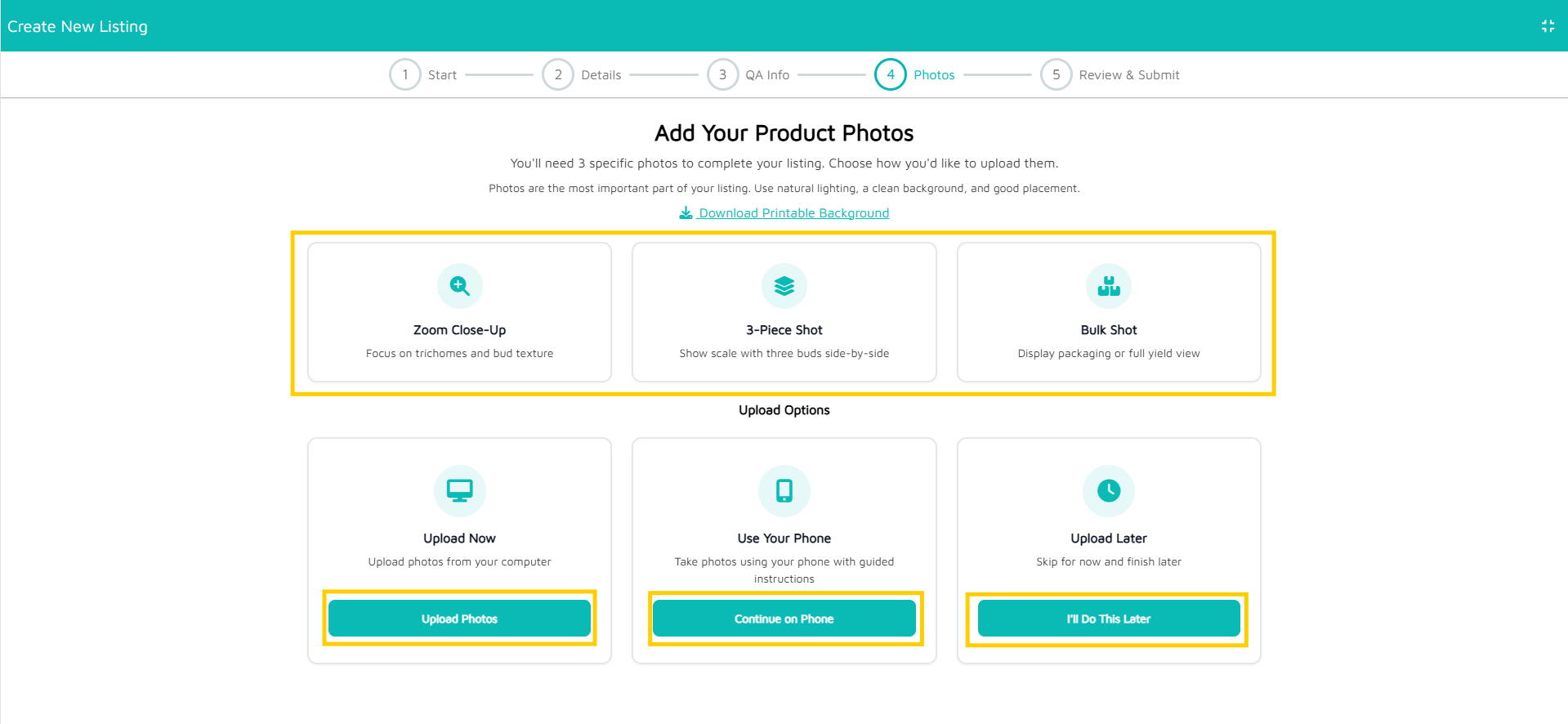
Zoom Close-Up: Focus on trichomes and bud texture
3-Piece Shot: Show scale with three buds side-by-side
Bulk Shot: Display packaging or full yield view
- Photos can be uploaded from your computer or phone and will be accompanied by guided instructions once the preferred upload method has been selected.
Important: If this step is skipped and no photos are added, the listing will automatically be saved as a "Draft" and will not be visible to buyers.
- If uploading photos from your phone, once all 3 photos have been uploaded, navigate back to the Cultivera Exchange site and select the "Close" button.
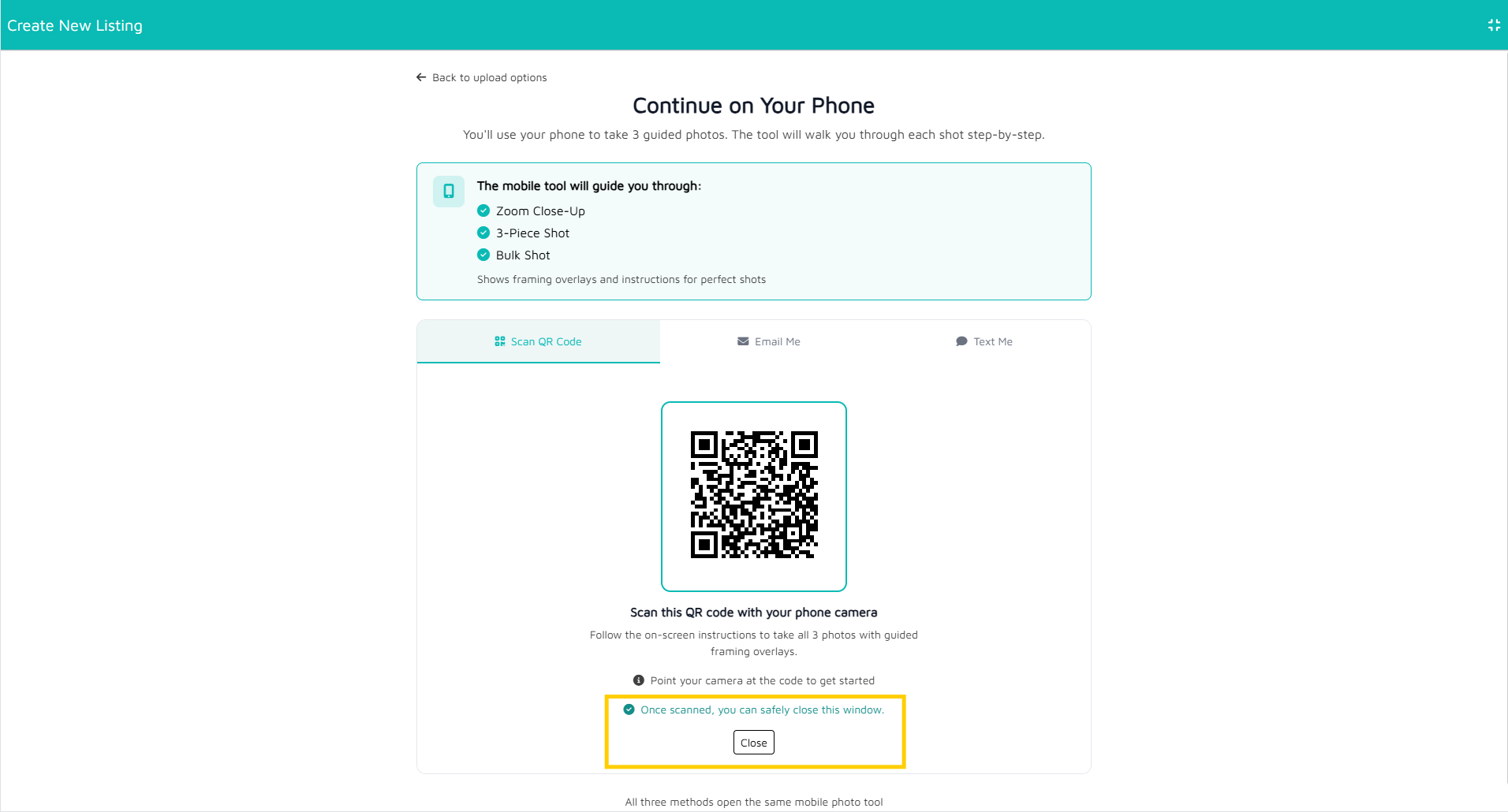
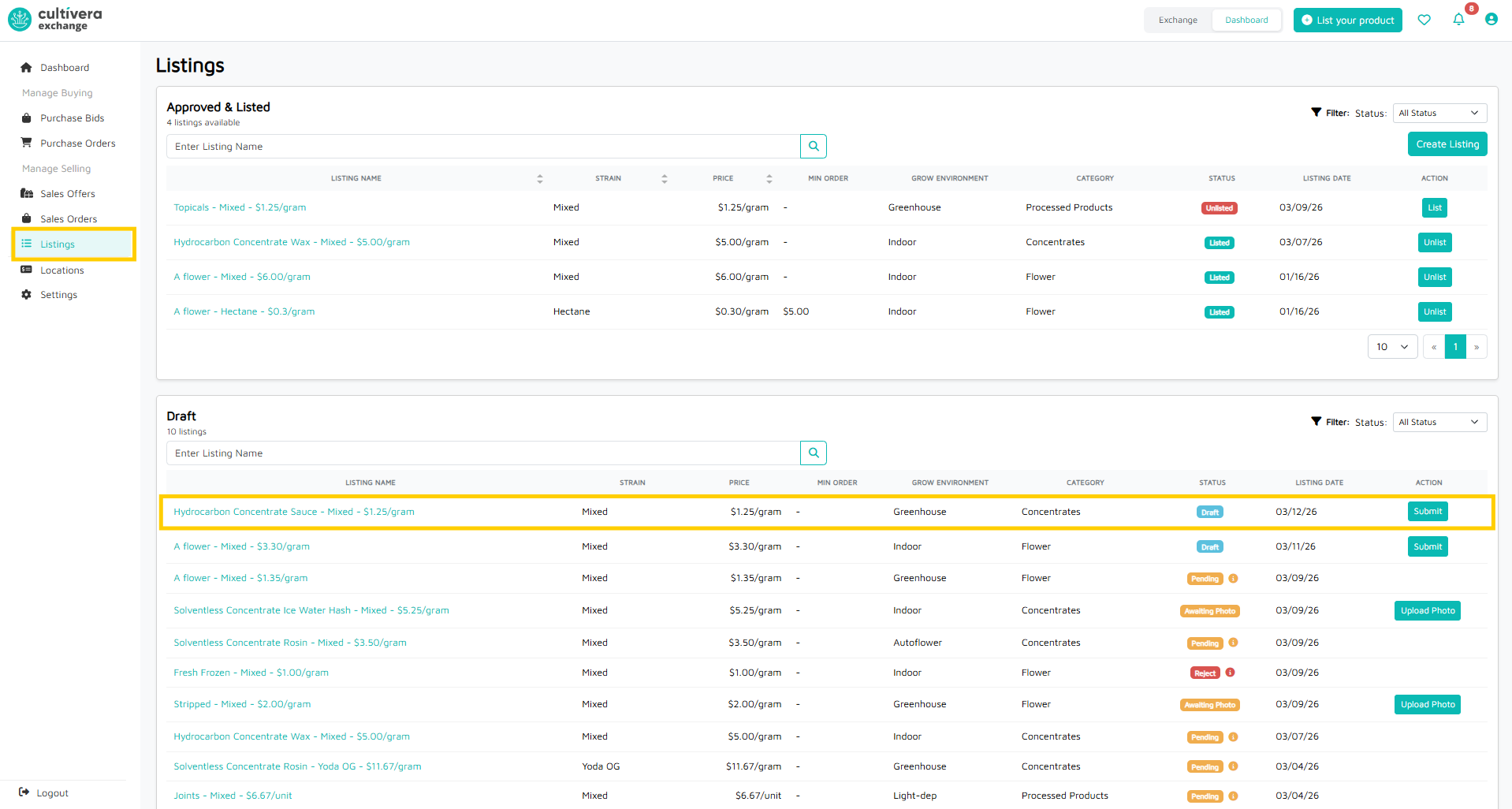
- The listing will reside in Listings > Drafts and will have a status of "Pending" while it's awaiting review by Mello Admin.
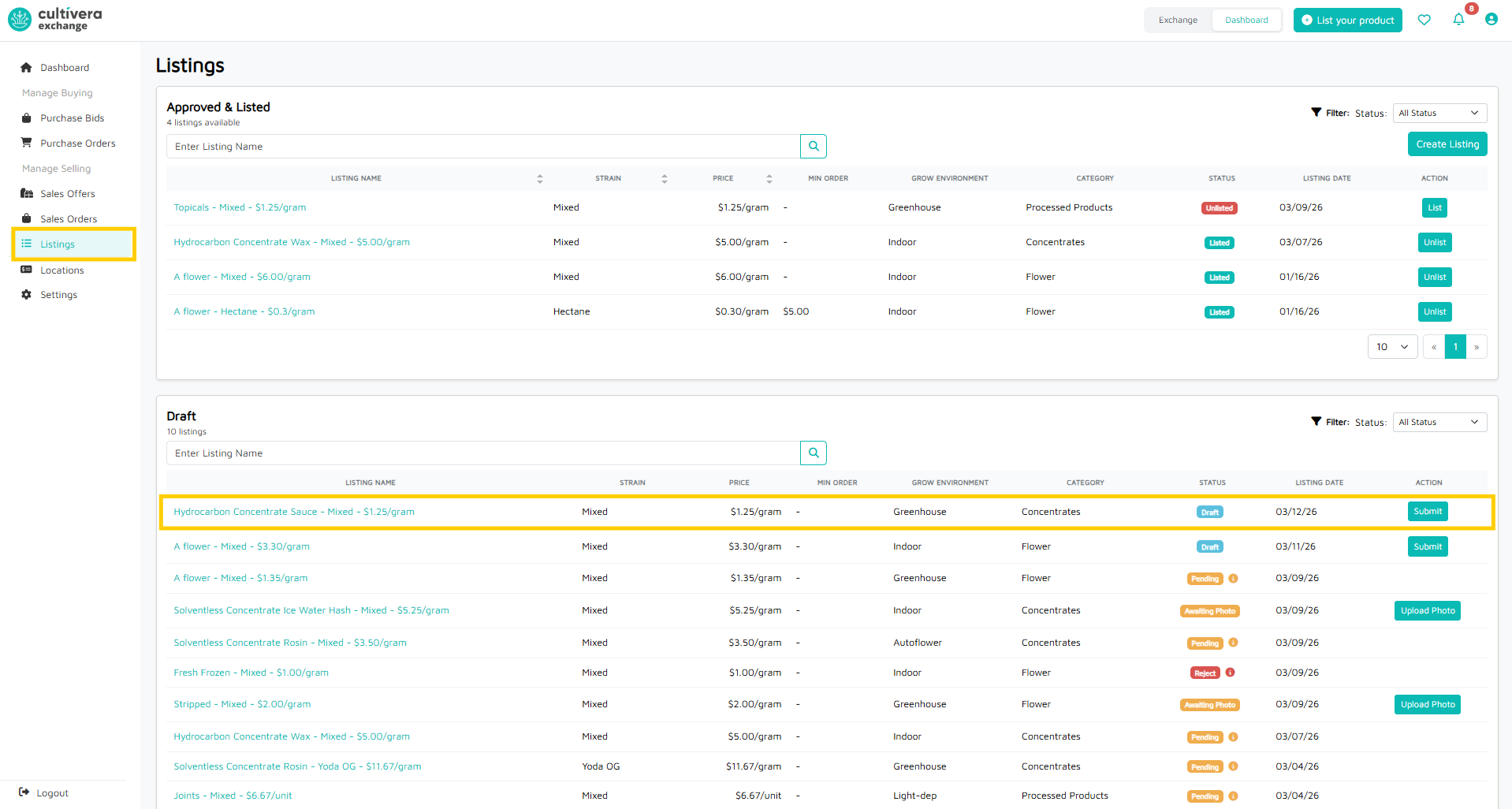
- If uploading photos from your computer, once all 3 photos have been uploaded, select "Submit".
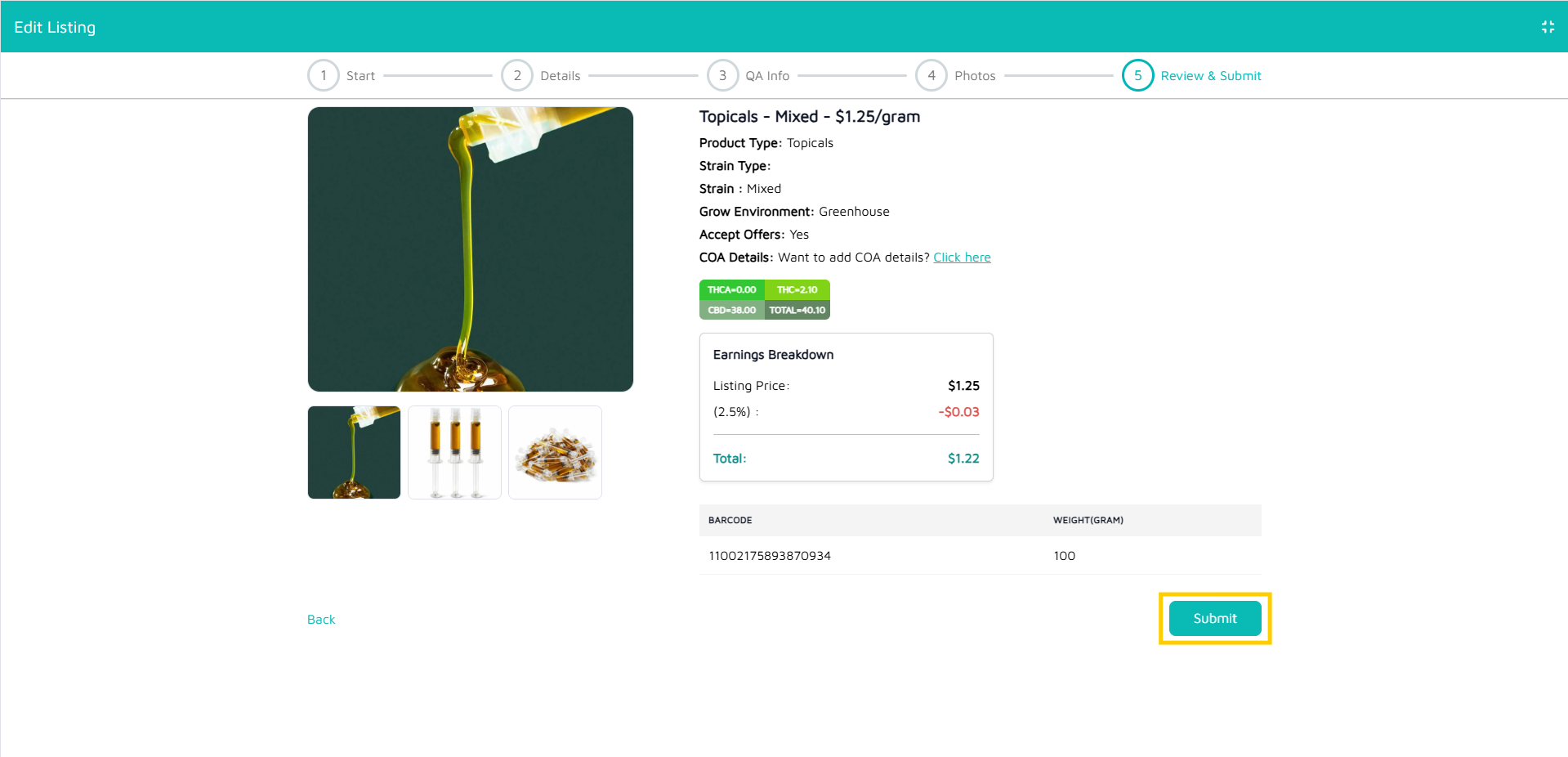
- The listing will reside in Listings > Drafts and will have a status of "Pending" while it's awaiting review by Mello Admin.