PRO: Sending Feedback to Cultivera, with Screenshots
 Updated
Sending Feedback to Cultivera, with Screenshots
The Feedback button lets you tell the Cultivera product team what works and what doesn't, from any screen in Cultivera PRO. Write a note in your own words, add screenshots if they help, and send it. There is no need to be formal.
Everyone can send feedback. No special permission is needed.
Where to Find Feedback
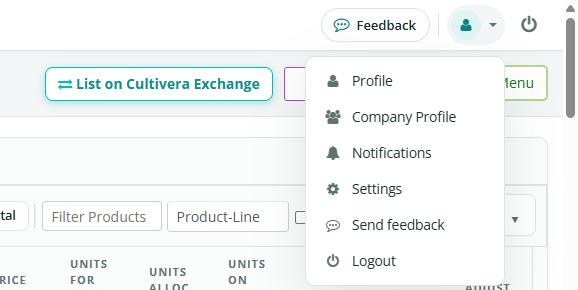
- Select 'Feedback' at the top of any page, next to your profile icon. On a narrow window screen, the button shows only its icon.
- Or open your profile menu and select 'Send feedback'.
How to Send Feedback
- On the page you want to tell us about, select 'Feedback'. The Share feedback panel opens on the right.
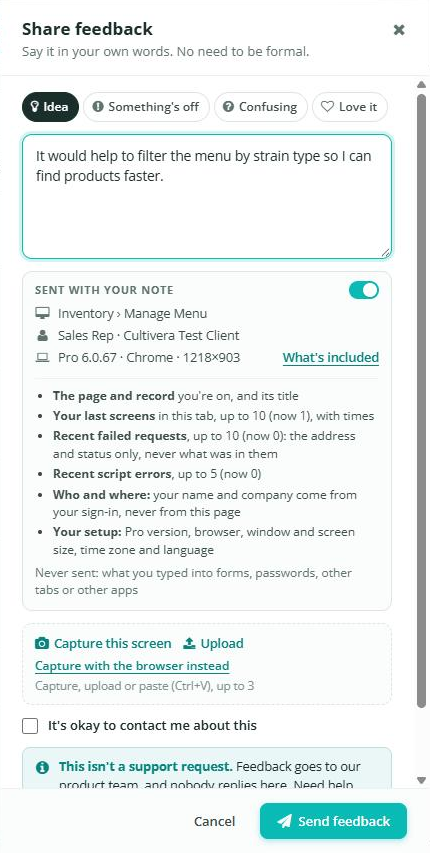
- Optionally, choose what kind of note it is: Idea, Something's off, Confusing, or Love it.
- Write your note in the text box. You can write up to 4,000 characters.
- Check the Sent with your note section. It shows the page you are on, your name and company, and your Cultivera PRO version and browser. Select 'What's included' to see the full list. To leave the page details out, turn the switch off.
- Optionally, add up to three screenshots (see Adding Screenshots below).
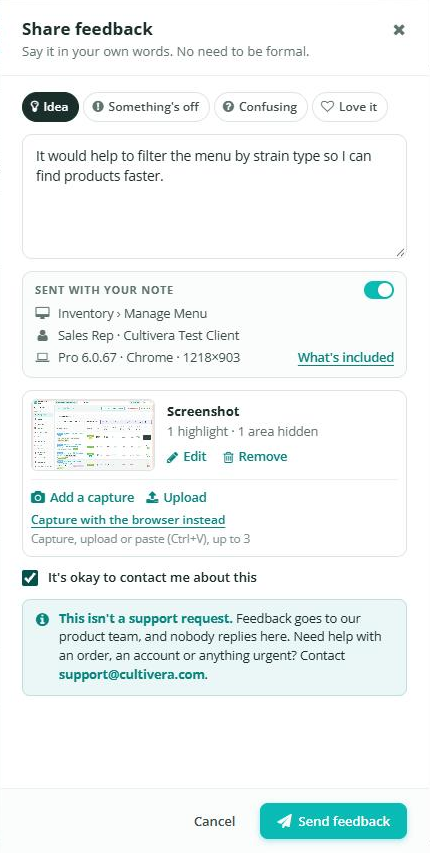
- Tick 'It's okay to contact me about this' if you are happy for the team to contact you about your note. It is off unless you tick it.
- Select 'Send feedback'.
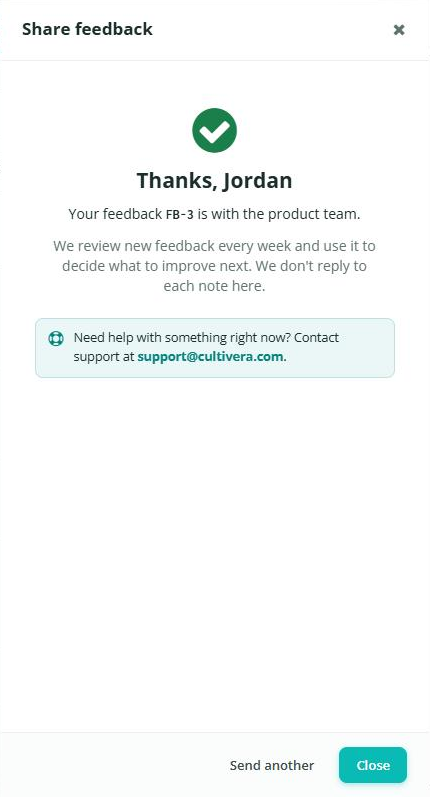
Once it is sent, you will see a thank-you message with a reference number for your note (for example, FB-1042). Select 'Send another' to write another note, or 'Close'.
Adding Screenshots
A screenshot helps the team see exactly what you mean. You can add up to three, each up to 2 MB:
- Capture this screen: takes a picture of the page you are on. The feedback panel is not included.
- Capture with the browser instead: uses your browser's own screen capture. Use this if the picture from Capture this screen doesn't look right. Your browser asks you to choose what to share.
- Upload: adds an image file (PNG, JPG, or WebP) from your computer.
- Paste: copy an image, then press Ctrl+V while the panel is open.
After you capture the screen, you can mark it up before it is added:
- Select 'Highlight' and drag a box around what you mean.
- Select 'Hide' and drag a box over anything private, such as a name or a price. Hidden areas are covered before the screenshot leaves your computer.
- Use the undo button to remove your last box, or 'Cancel' to discard the screenshot.
- Select 'Use screenshot' to add it to your note.
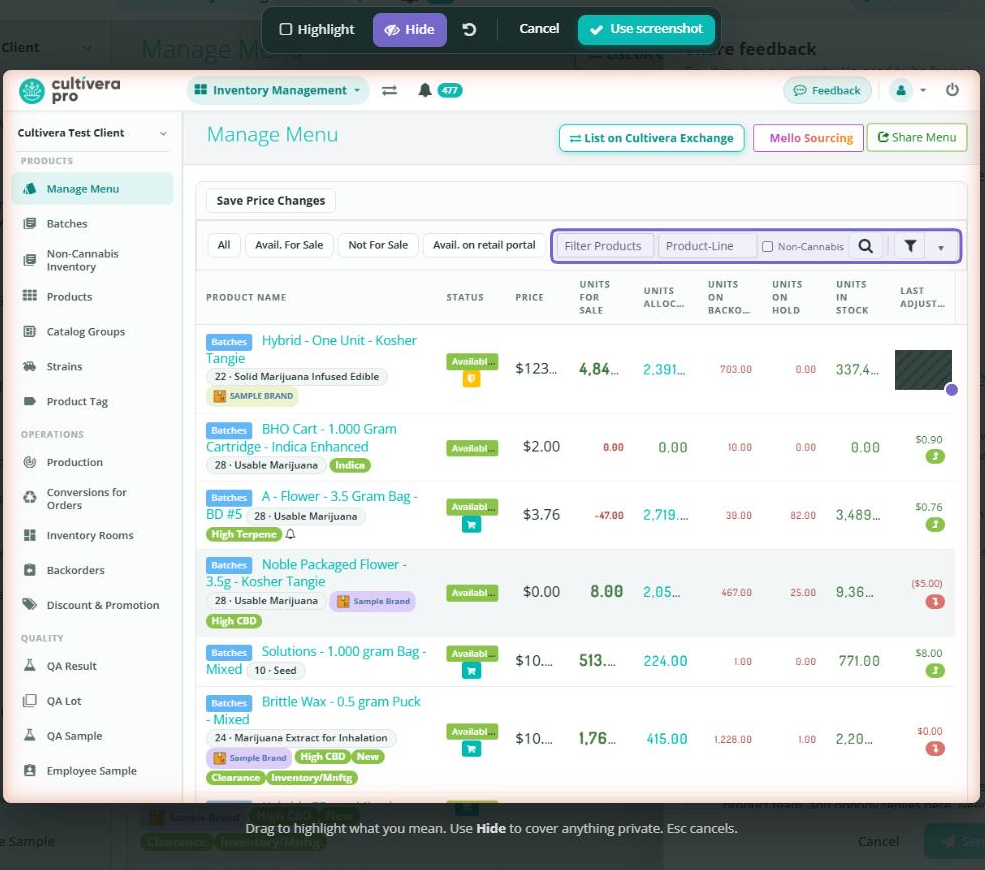
Each screenshot appears in the panel with a short summary, such as "1 highlight · 1 area hidden". Select 'Edit' to change the markup, or 'Remove' to take it out.
What Is Sent with Your Note
When Sent with your note is on, your note includes the following, so the team can see what you saw:
- The page and record you are on, and its title.
- Your last few screens in this tab (up to 10), with times.
- Recent requests that failed (up to 10): the address and status only, never what was in them.
- Recent script errors (up to 5).
- Your name and company, taken from your sign-in.
- Your setup: Cultivera PRO version, browser, window and screen size, time zone and language.
When it is off, only your Cultivera PRO version is sent with your note.
Never sent: what you typed into forms, passwords, other tabs, or other apps.
What Happens Next
The Cultivera product team reviews new feedback every week and uses it to decide what to improve next. Nobody replies to feedback directly. If you ticked 'It's okay to contact me about this', someone from the team may get in touch about your note.
