Greenlight: Reviewing and Approving an Order from Your Vendor (Buyer Guide)
 Updated
Greenlight: Reviewing and Approving an Order from Your Vendor
When your vendor's sales rep sends you an order through Greenlight, you receive an email or text message with a link. The link opens the order in your browser on a phone or a computer. You do not need to sign in or create an account.
From the order page, you can review each item, ask your rep for changes, send them messages and approve the order.
Reviewing the Order
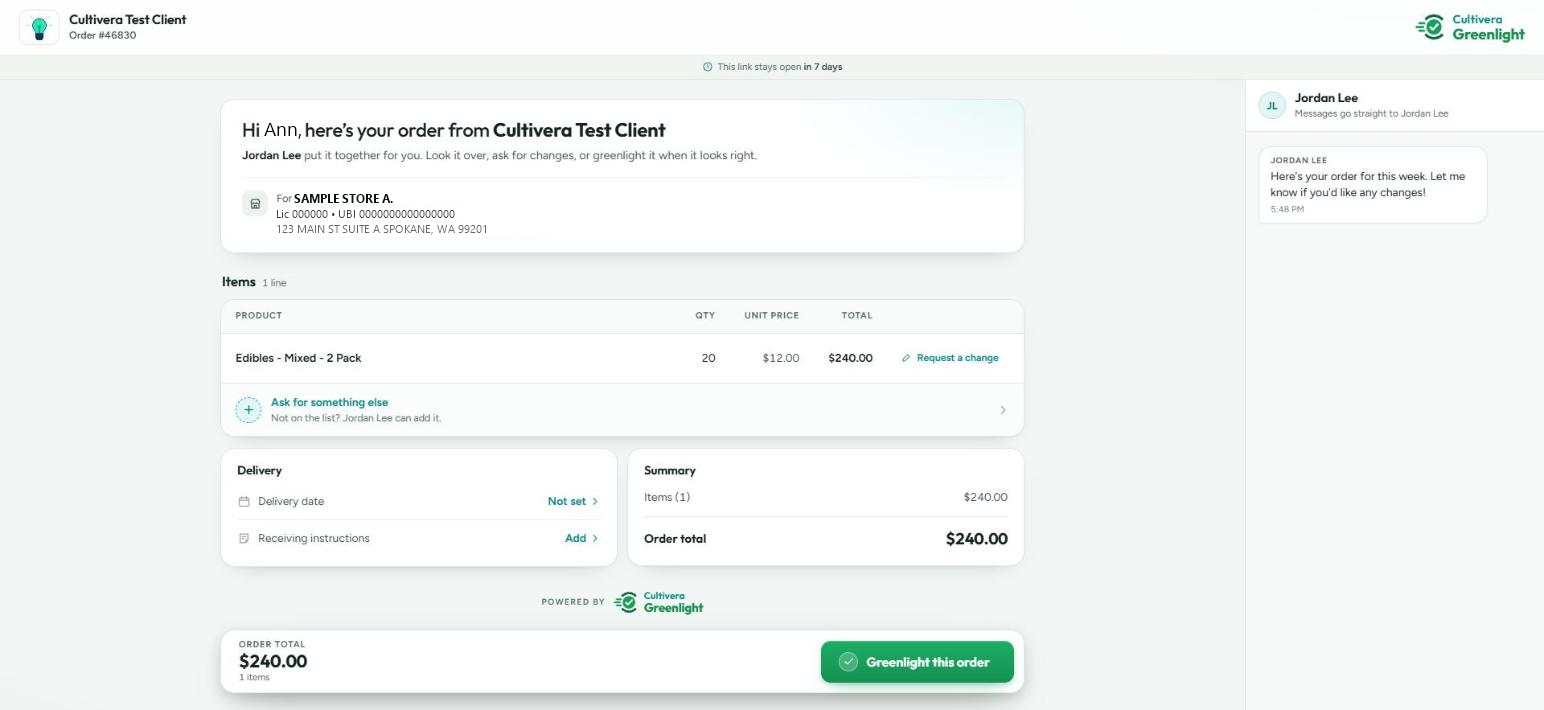
The top of the page shows your vendor's name and logo, the rep who sent the order, the order number and your store's details (trade name, license number and address). If your rep included a note, it appears as their first message in the messages panel. A banner near the top shows how long your link stays open.
Each item shows the product, size, quantity, unit price, and line total. Samples are marked 'Trade Sample' and shown as a credit (a minus amount). The totals show the items, any discounts, samples, and adds up to the order total.
Asking for Changes
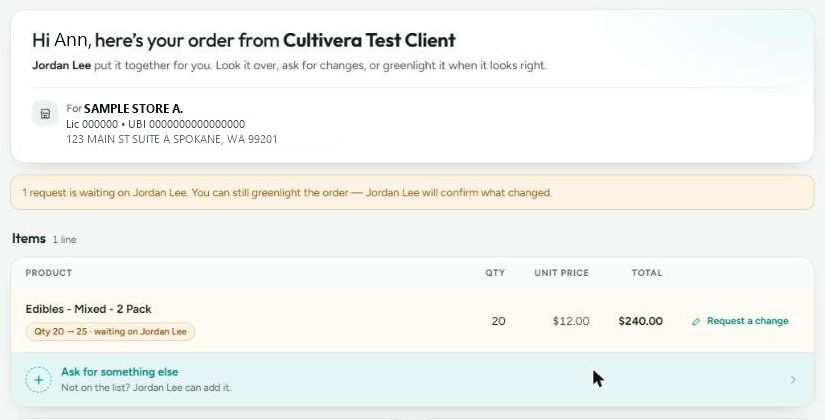
- Select 'Request a change' on an item to see its options. You can:
- Request a quantity change.
- Ask to remove the item.
- Request the item as a sample.
- Comment on the item for your rep.
- To ask for a product that is not on the order, use 'Ask for something else' and describe what you need.
- To suggest a delivery date or add receiving instructions (such as dock hours or a gate code), tap the delivery row.
Your request shows as waiting on your rep until they accept or decline it. Suggested delivery dates show as awaiting your rep's confirmation. The page updates on its own when your rep responds or changes the order, so you do not need to reload it.
Messaging Your Rep
Open the messages to write to your rep. On a phone, tap the messages button to open them; on a computer, they appear beside the order. A badge on the messages button shows when your rep has replied.
Approving the Order
- When the order looks right, select 'Greenlight this order' at the bottom of the page.
- Type your name in the 'Type your name to approve' box, then select 'Approve'. The button shows the order total.
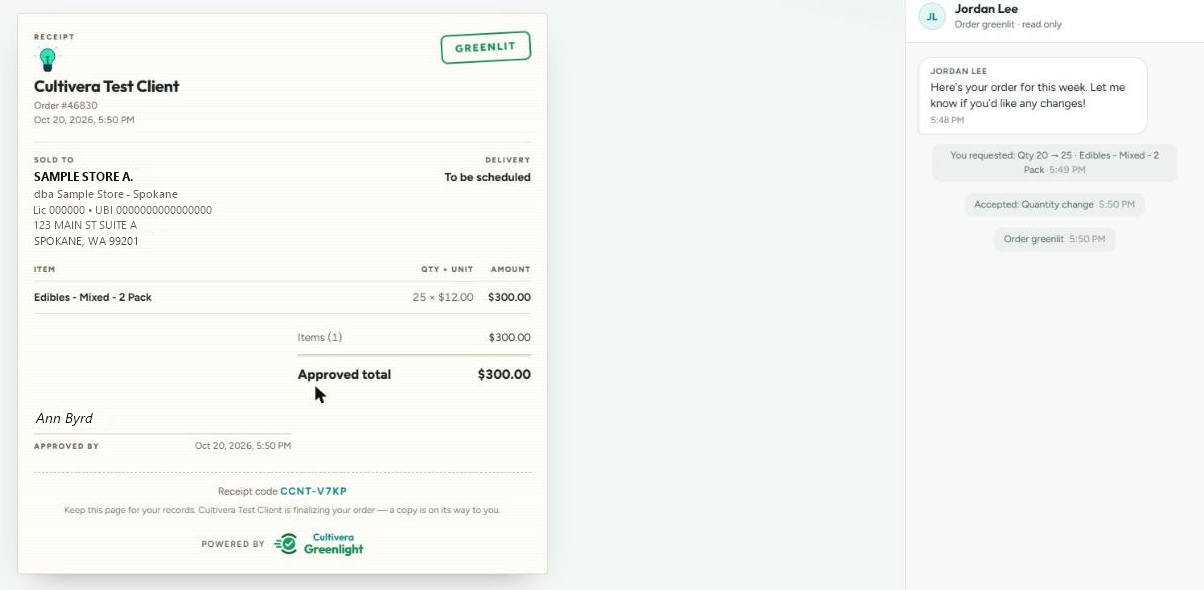
- The page becomes your receipt. It shows your store details, the items and totals, your name with the date you approved, and a receipt code. You can open it again from the same link or print it.
If Your Link Does Not Work
- The link has expired: select 'Send me a new link'. A new link is sent to the email (or phone) your vendor has on file for you.
- The link was replaced: your rep sent you a newer link. Use the most recent email or text message.
- The link was turned off: contact your rep.
- You have a code from a text message: go to greenlight.cultivera.app and enter the code to open your order.
