PRO (WA): Sales - Greenlight: Sharing a Cart with a Buyer
 Updated
Greenlight: Sharing a Cart with a Buyer
Greenlight lets you send a cart to your buyer for review and approval before you submit it. The buyer opens the order from a link in their email or text message. They do not need to sign in or have a Cultivera account. From that link, the buyer can review every line, ask for changes, message you, and approve the order with their name.
You stay in control of the cart: the buyer's requests only change the cart when you accept them, and you still submit the order from Cultivera PRO.
How to Share a Cart with a Buyer
- Navigate to Sales > Build Cart, select the client, and add the products to the order.
- You can also open an existing cart in Build Cart.
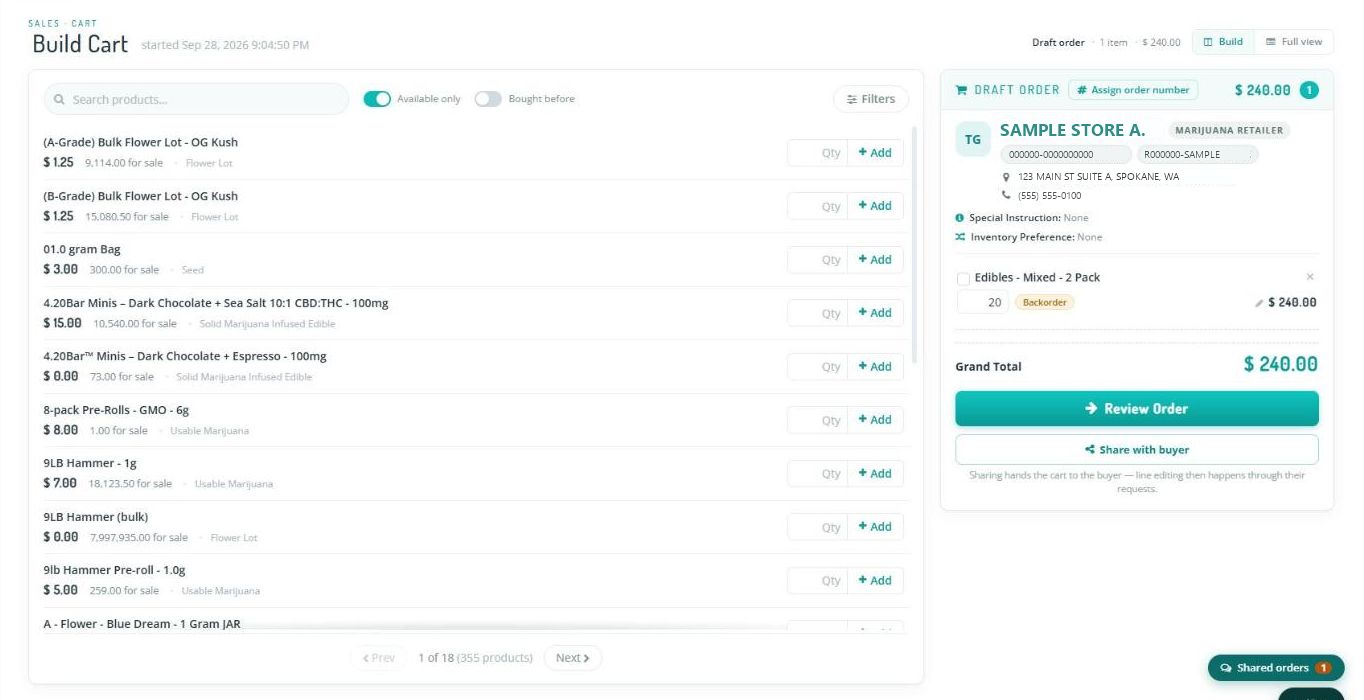
- Select 'Share with buyer'.
- In the share window, the client's contacts are listed with their name, title, email, and phone number. For each contact you want to send the order to, check 'Email', 'SMS' or both.
- 'SMS' is greyed out for a contact who has no phone number on file. That contact can only be sent an email.
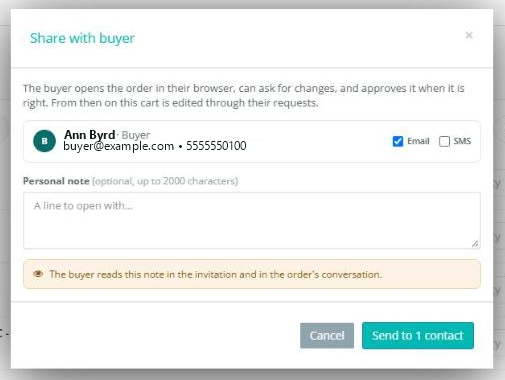
- (Optional) Type a personal note. The buyer will see this note in the invitation email and as your first message in the order's conversation.
- Select 'Send to 1 contact'. The button shows how many contacts you selected.
- The 'Shared — copy the links now' pane opens with each contact's link and a 'Copy' button. Copy a link here if you also want to send it another way (for example, in a message to the buyer), then select 'Done' or 'Open the shared order'.
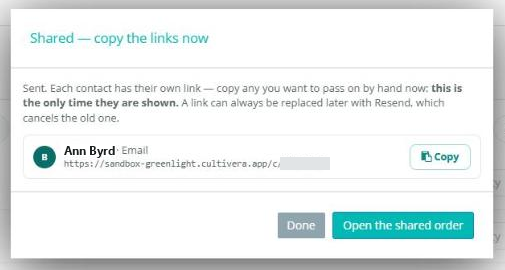
- To open the Shared Order page, select 'Open the shared order' in the pane, or later select 'View shared order' in Build Cart. There you can follow the buyer's activity and respond to their requests. See PRO (WA): Sales - Greenlight: Managing a Shared Order.
What the Buyer Receives
- The email names you and your company, includes your personal note, and a link to the order. Replies to the email go to your email address.
- The text message reads similar to: "Jordan at Cedar Valley Farms sent you an order to review:" followed by a short link.
- Each contact gets their own link. Messages, requests, and the approval are recorded under that contact's name.
Order Number
A shared cart receives its order number when it is shared. The cart in PRO shows 'ORDER# ' with a Draft tag, and the buyer sees the same order number. When you submit the order, it keeps that same number.
Link Expiration
A Greenlight link stays active while the buyer keeps using it. It expires after 7 days without use, and after 30 days at most. When a buyer opens an expired link, they can select 'Send me a new link'. The new link is sent only to the email (or phone) on file for that contact, and you are notified.
If you select 'Resend' or 'Revoke' for a contact, their previous link stops working.
