Cultivera Pro (WA) 6.0.87 Release Notes
 Updated
See every open order and how long it's been waiting on the new Fulfillment Board, let inbound transfers fill in products you've matched before, and edit a client right from their overview. Many of these changes came straight from your feedback.
Fulfillment Board
Every open order on one screen
The new Board in Fulfillment shows every order your team is working on, sorted into five stages: Submitted, Sublotting, Ready for Manifest, Manifested, and Invoiced in the last 24 hours. Each card shows the order number, the client, the delivery date and how long the order has been in its current stage.
- Spot what's late at a glance. Cards are shaded sand when the delivery date has passed and pale teal when the order is due today.
- Two ways to look. Columns puts each stage side by side. Lanes lists orders in rows you can group by stage, delivery day, status or client. Pro remembers the style you pick.
- Sort it your way. Show the longest-waiting orders first, or sort by order number or due date. Your choice is saved as your default.
- Search and filter by client or order number, delivery date, backorders, samples or orders that are running over.
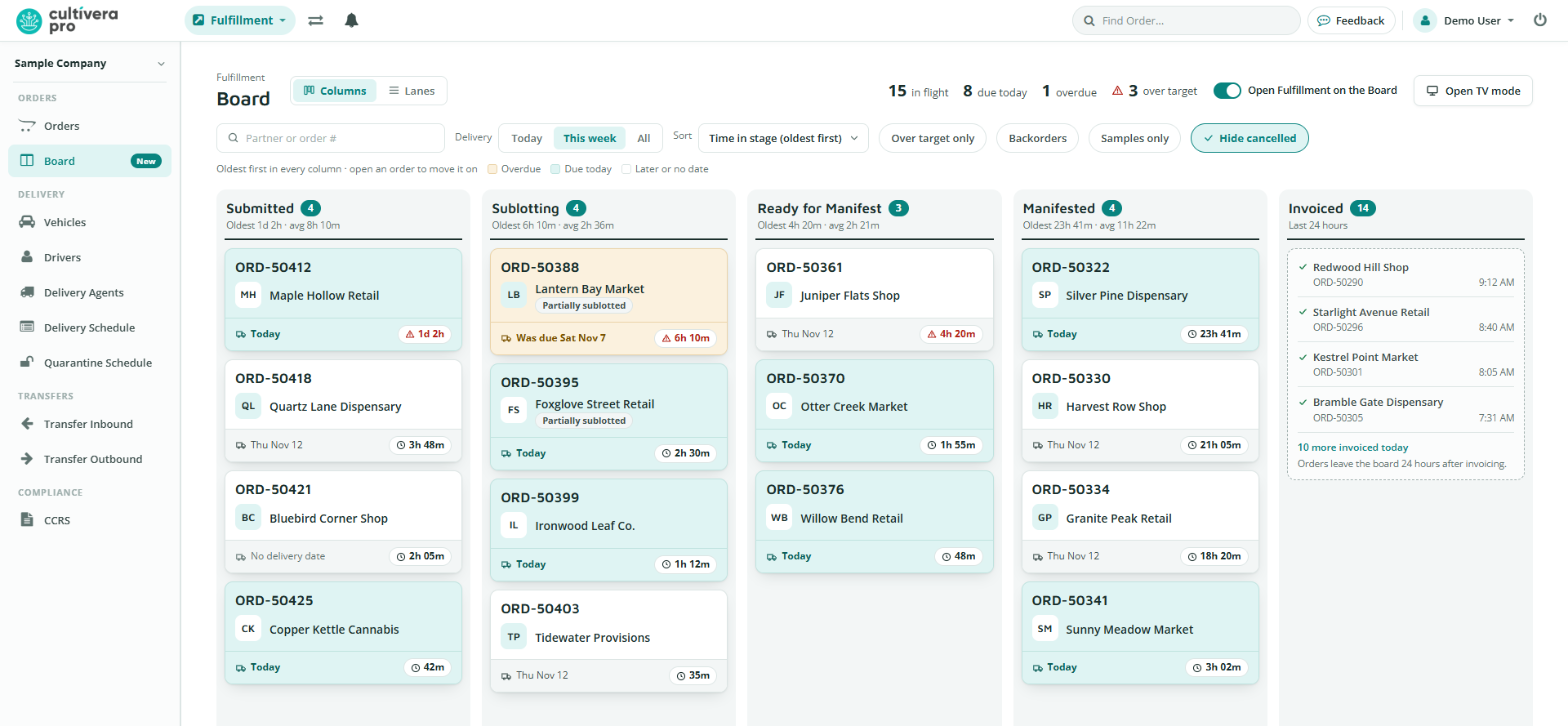
Columns style. Each stage shows how many orders it holds, the oldest one, and the average wait.
The Board is for viewing. Open an order from it to move it along, just as you do today. The Orders list is still where Fulfillment opens, and you can switch on Open Fulfillment on the Board if you'd rather start there.
Orders that were already open before this update show their time with a "~" because their start time is an estimate. New orders are timed exactly.
Know which orders are running behind
Tell Pro how many hours an order should usually spend in each stage, and the Board flags any order that's been there longer, along with a count of orders over target. Set the hours under Configuration › Operations › Fulfillment settings. Stages you leave blank are never flagged, and nothing is flagged until you set your hours.
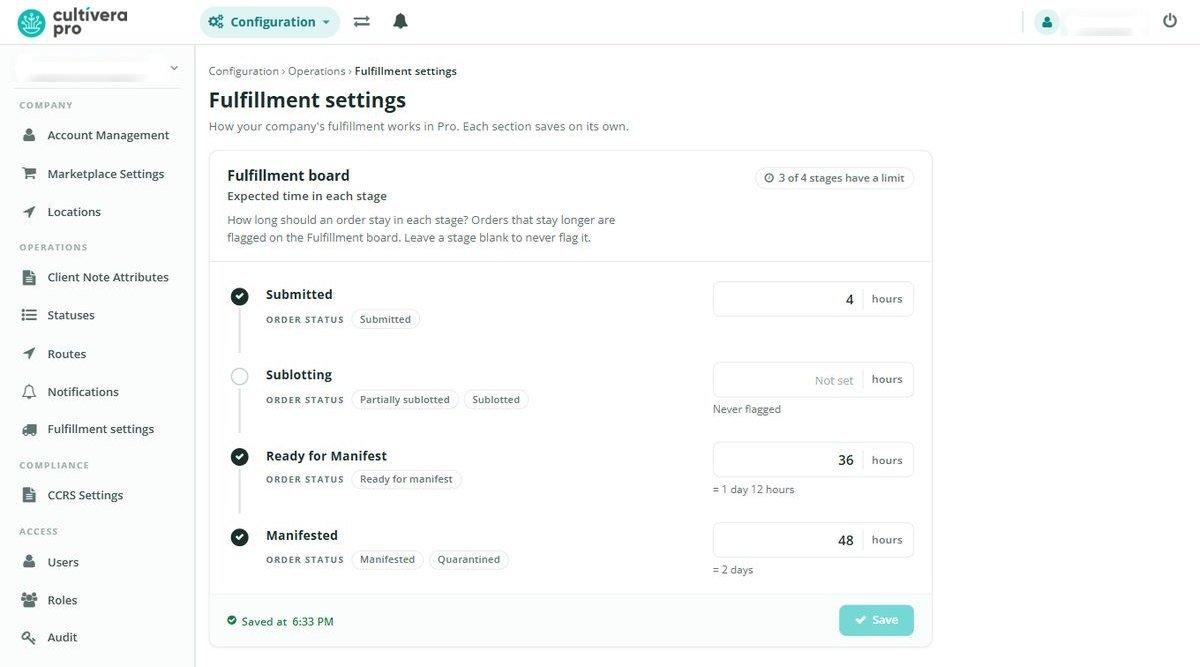
Set the expected time for each stage, or leave one blank.
Put the Board on a TV
Choose Open TV mode for a full-screen view made for a warehouse or office screen. Pick a column layout or a list ordered by delivery date. It refreshes itself every 30 seconds, keeps the screen awake, and nothing on it can change an order. Sign in with a normal Pro login on the TV.
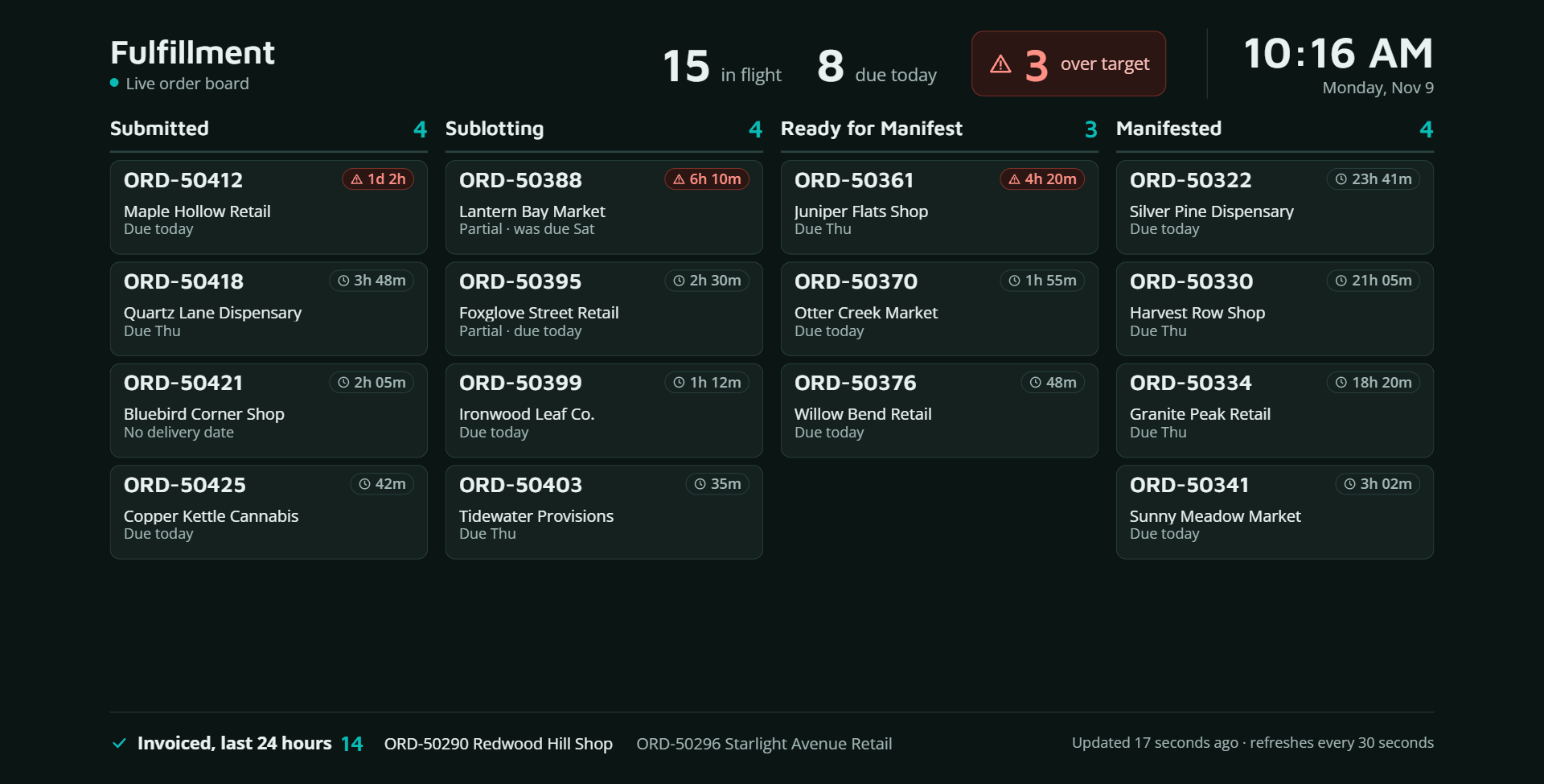
TV mode is easy to read from across the room.
Clearer order pages
On a Fulfillment order, each product now sits on its own tinted band with its allocations on a card below, so products and allocations no longer blur together.
Transfers
Inbound transfers remember your products
When you open a pending inbound transfer, Pro now fills in the product on each line using the product you chose the last time the same sender sent you the same item. Those lines are tinted and marked Auto-matched so you can check them before accepting, and Mark all as reviewed clears the reminder in one click. Pick a different product at any time.
Sales & Clients
Edit a client right where you see it
On the Client Overview you can now update details without going to a separate page:
- Edit client opens the client's information in a window. License and UBI stay read-only.
- Delivery preferences, including accepted days and times, instructions and priority, can be edited on the card.
- Contacts can be added, edited or removed from the list.
- Notes can be added with tags, or deleted.
This follows the same Edit client permission as before. The quick client panel on an order stays view-only.
Inventory
Set Min. Order Limit on many products at once
On Manage Menu, select the products you want and set their Min. Order Limit in one step. Each change is recorded in your audit history.
Name a product while you clone it
When you clone a product, you can now set its Label Name and Catalog Name in the same window, so there's nothing to fix afterwards.
Fixes
- A flower conversion can no longer allocate an order line twice. If a backorder had already allocated stock when it was submitted, running a conversion for that line used to allocate it again.
- Return to Direct Parent on Batch Detail now works for batches with several QA results or disposals. When a batch can't go back, you'll see why.
- Typing in the Strain filter on QA Samples now narrows the list. Filters on the QA Sample and Manifest toolbars no longer disappear on smaller screens.
- Exporting an invoice to QuickBooks no longer fails with "The name supplied already exists" when the customer is already in QuickBooks. If the match is inactive, or the name belongs to a vendor or employee, Pro now tells you so.
- The menu now highlights the page you're on when you open it from a link or bookmark.
Screens are shown with sample data.
