(PRO): Inventory Management > QA Results: Managing and Editing Potency Values
 Updated
Managing and Editing Potency Values in QA Results
When QA Results are imported into Cultivera using a Lab Result JSON file, the following cannabinoid values are imported and displayed:
- CBD
- THC
- THCA
- CBDA
- Total (sum of the four imported cannabinoids)
Understanding how these values are calculated and displayed is important for maintaining accurate compliance labels and potency reporting.
Delta 9 THC vs. Total THC
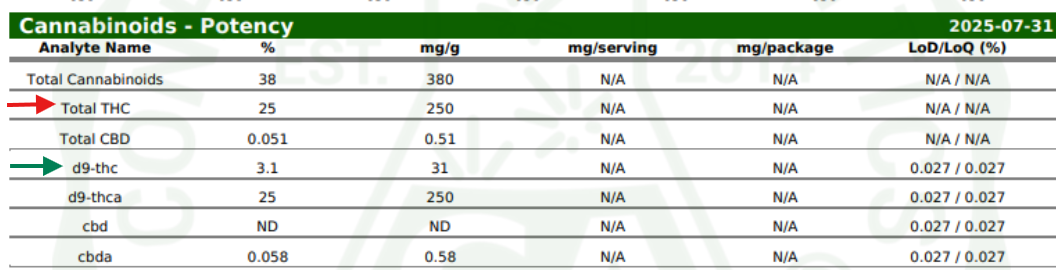
The THC field in QA Results should contain the Delta 9 THC (d9THC) value from the Certificate of Analysis (COA), not the Total THC value.
Understanding the “Total” Field
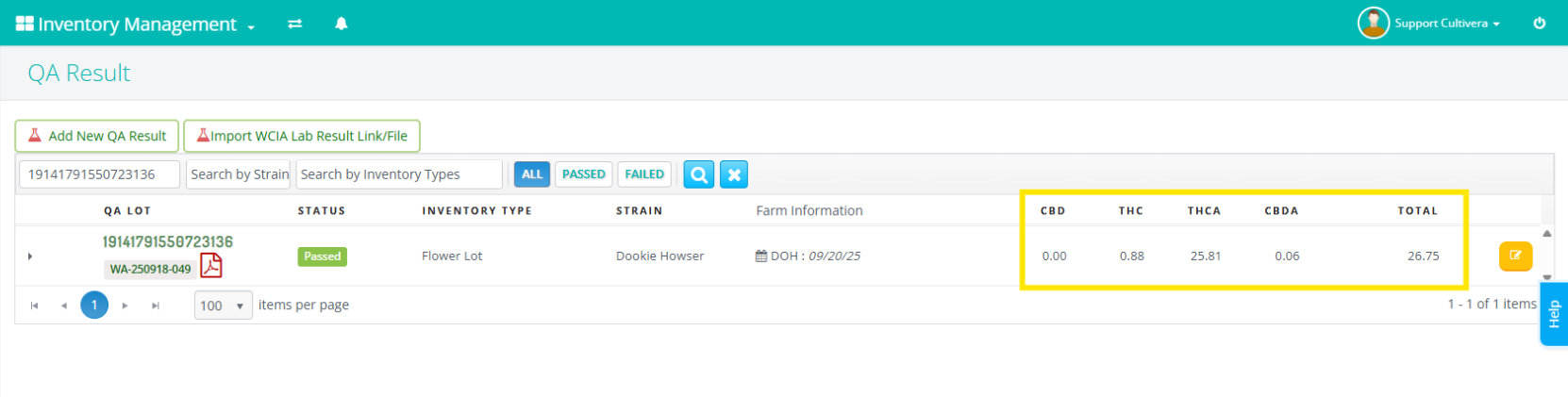
The Total field in QA Results is automatically calculated as the sum of the four imported cannabinoids only:
- CBD
- Delta 9 THC
- THCA
- CBDA
Example
0.00% + 0.88% + 25.81% + 0.06% = 26.75%
Cultivera would display:
- Total = 26.75%
Why COA Totals May Differ
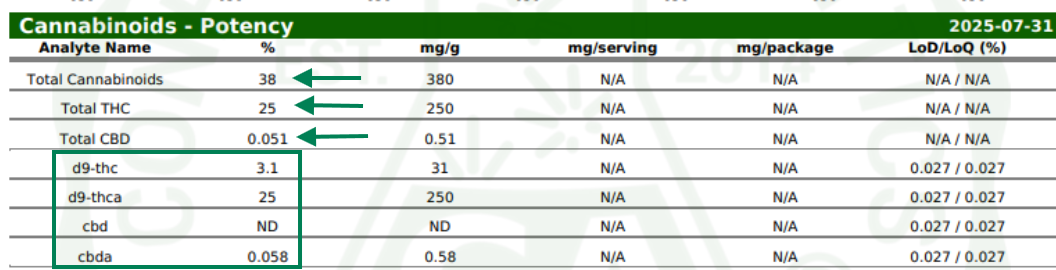
Laboratory COAs may show a higher Total Cannabinoids value because they often include additional cannabinoids such as CBG, CBN, CBC, and other minor cannabinoids.
As standard, Cultivera imports only these values:
- D9THC
- THCA
- CBD
- CBDA
Because of this, the Total shown in Cultivera may not match the Total Cannabinoids value listed on the COA.
Manually Updating Total Cannabinoids
If you want QA Results or labels to reflect the full cannabinoid total from the COA:
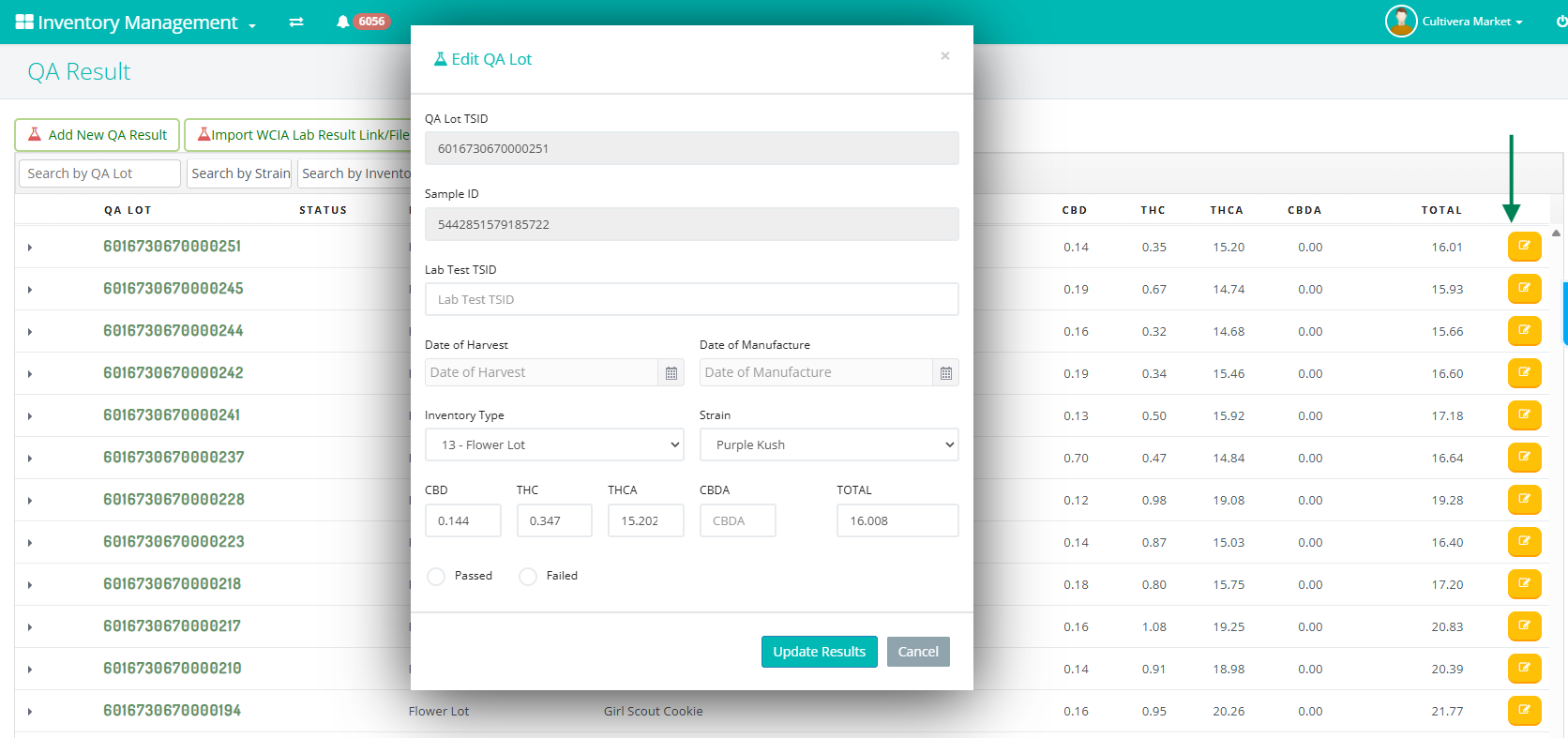
- Find the QA Lot in QA Results.
- Click the yellow Edit button.
- Manually update the Total field with the intended potency value.
- Save the changes by clicking Update Results.
Cultivera does not automatically import full Terpene or Total Cannabinoid values from lab JSON files.
Manually Updating Custom Terpenes and Cannabinoids for Label Templates
If you want your labels to reflect additional potency values you can add them manually to a QA Lot's Terpenes and Cannabinoids section. Please be sure to reach out to Cultivera Support to request adding any additional cannabinoids or terpenes to your system.
- Find the QA Lot in QA Results.
- Right click and select Terpenes and Cannabinoids.
- Manually update the desired field(s) with the intended potency value.
- Save the changes by clicking Update Results.
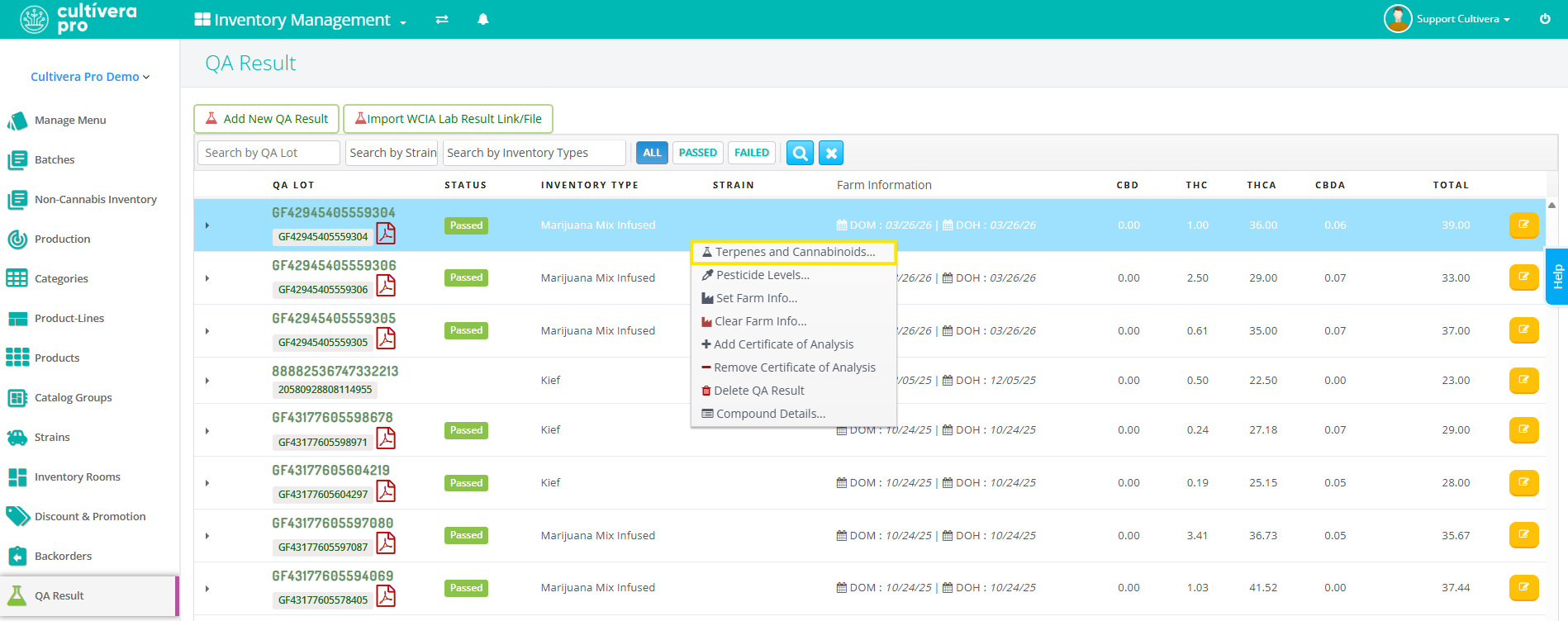
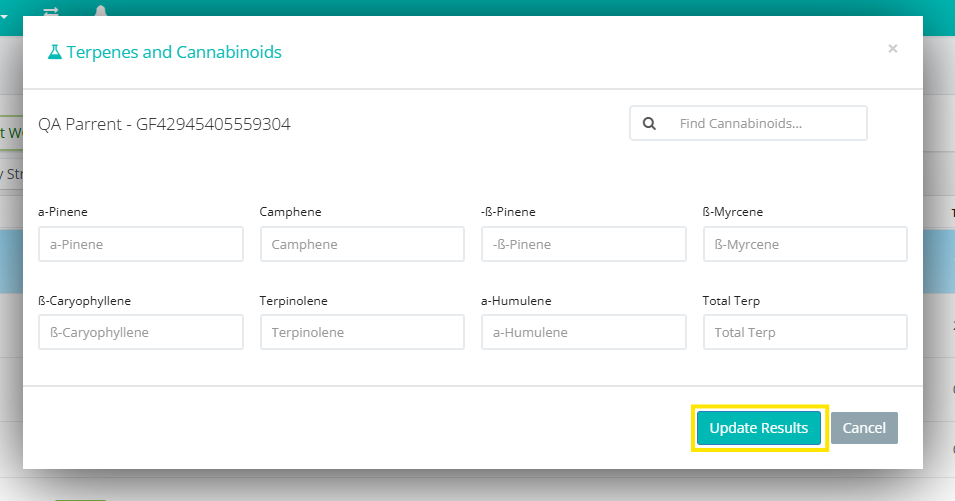
How Cultivera Calculates Total THC and Total CBD on Label Templates
The specific way labels display cannabinoid information, including Total THC and Total CBD, is entirely dependent on the settings and structure of the label template that is being used.
If your label template is configured to display Total THC, or Total CBD, Cultivera automatically calculates the potency value using the following conversion formulas:
Total THC Formula
d9THC + (THCA x 0.877)
Total CBD Formula
CBD + (CBDA x 0.877)
Label Templates With Automatic Conversions
Typically label templates will display a variation of the below potency values:
- THC
- THCA
- CBD
- CBDA
- Total THC
- Total CBD
- Total Cannabinoids
Any templates reflecting "Total THC" or "Total CBD" automatically calculate converted totals for you.
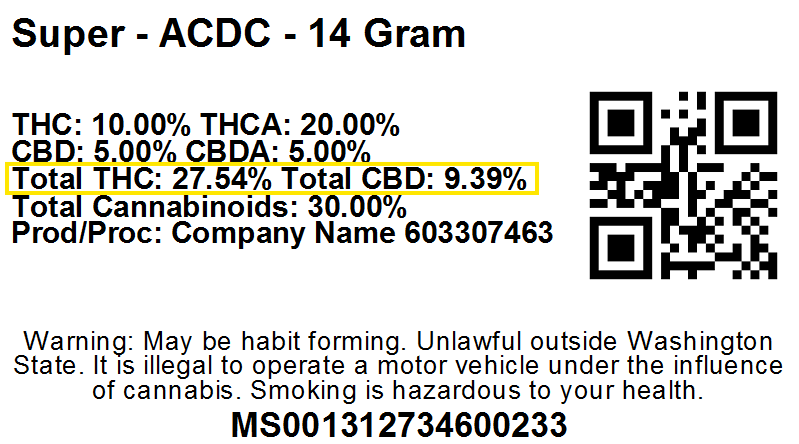
Templates That Display Raw Values
Other label templates may display only the values reflected in QA Results and do not perform automatic conversions.
If your labels are configured this way, the conversion behavior above does not apply.
If you are unsure how your template is configured, please contact Cultivera Support.
Common Issue: Total THC Appears Too High
If the Total THC value on your labels seems excessively high, the THC field in QA Results was likely populated with the Total THC value instead of the Delta 9 THC value. Because Cultivera automatically calculates Total THC using the formula d9THC + (THCA x 0.877), entering an already converted Total THC potency value will result in an inflated calculation.
How to Fix It
- Find the QA Lot in QA Results.
- Click the yellow Edit button.
- Verify the Delta 9 THC value from the COA.
- Update the THC field with the correct d9THC value.
- Save the QA Results.
Important Notes
- Always verify cannabinoid values against the COA from your lab.
- The THC field in QA Results should contain the Delta 9 THC potency value unless your template specifically requires otherwise.
- Cultivera does not currently import a full cannabinoid profile from lab JSON data.
- Any desired adjustments for the Total field to include the sum of additional cannabinoids must be entered manually.
