Cultivera Exchange (Seller): Listing Products on Cultivera Exchange via Cultivera Exchange
 Updated
Listing from Exchange:
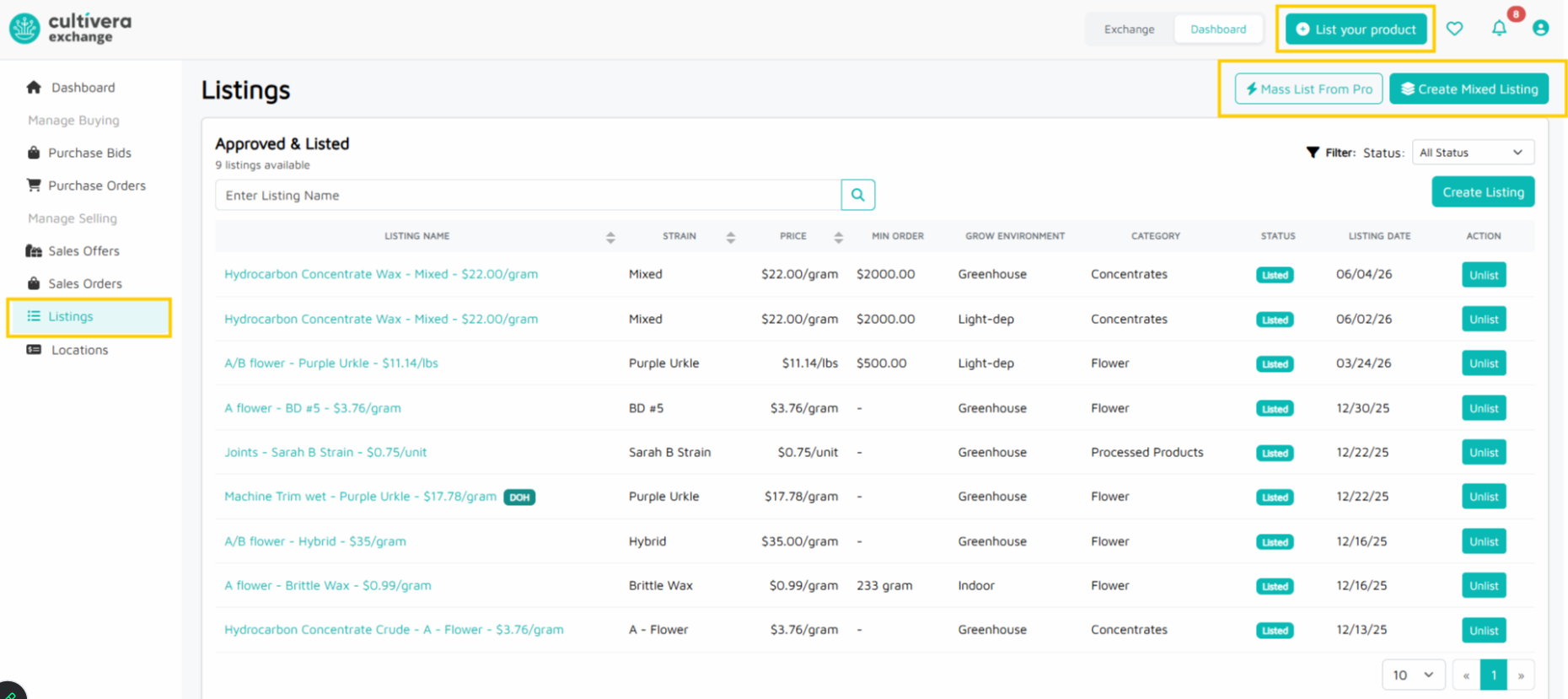
Listings can be created individually via "List Your Product". Alternatively, you can create multiple Listings via the "Mass List From Cultivera Pro" or create a Mixed Listing via "Create Mixed Listing".
Step 1: Choose Your Listing Method
Create a Listing using one of these three options:
- List Your Product - this allows you to create a single Listing.
- Mass List From Cultivera PRO - this allows you to create multiple separate listings in one step.
- Create Mixed Listing - this allows you to create a listing of multiple products in one step (the multiple products/strains are nested under this single "Mixed" Listing).
Step 2: Configure Listing Details
List Your Product -
- Select location
- Select product
- Select inventories
- Configure details (product category, type, strain, price, etc),
- Enter QA Info
- Add photos
- Submit to Mello Admin for approval
Mass List From Cultivera PRO -
- Select room
- Select productsProducts can be excluded from the Listing at this step (if desired).
- Set product details per product (product type, pricing, condition, etc.)
- Select "Create Draft Listings".
The new Listing(s) will be located under the Drafts section of the Listings page. Follow Step 3 to submit your drafts.
Create Mixed Listing -
- Select room
- Set Listing Info
- Pick Inventories
- Select "Create Mixed Listing".
The new Listing will be located under the Drafts section of the Listings page. Follow Step 3 to submit your drafts.
Step 3: Photo Upload / Final Approval
Mass Listings and Mixed Listings require a photo upload before final approval. Follow these steps to upload photos and submit your drafts.
- Select 'Submit' for the intended Listing(s) under the Drafts section
- Upload Listing photos
- Select "Submit" (this will trigger a message to the Mello Admin team to review/approve the Listing(s).
Unlist and Modifications
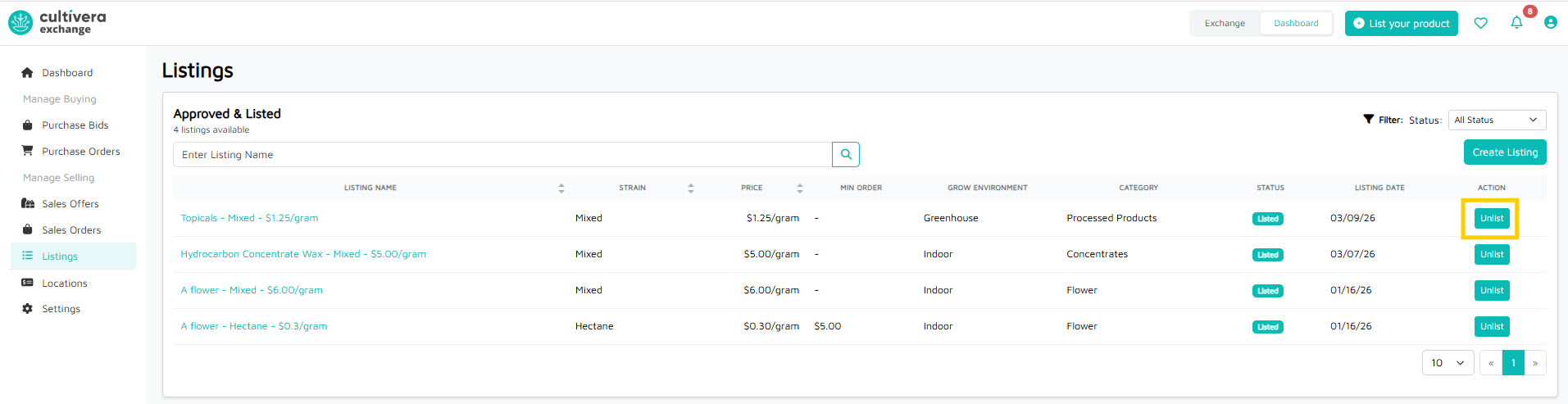
- To Unlist a product from Cultivera Exchange, navigate to Listings > Approved & Listed and select the teal "Unlist" button.
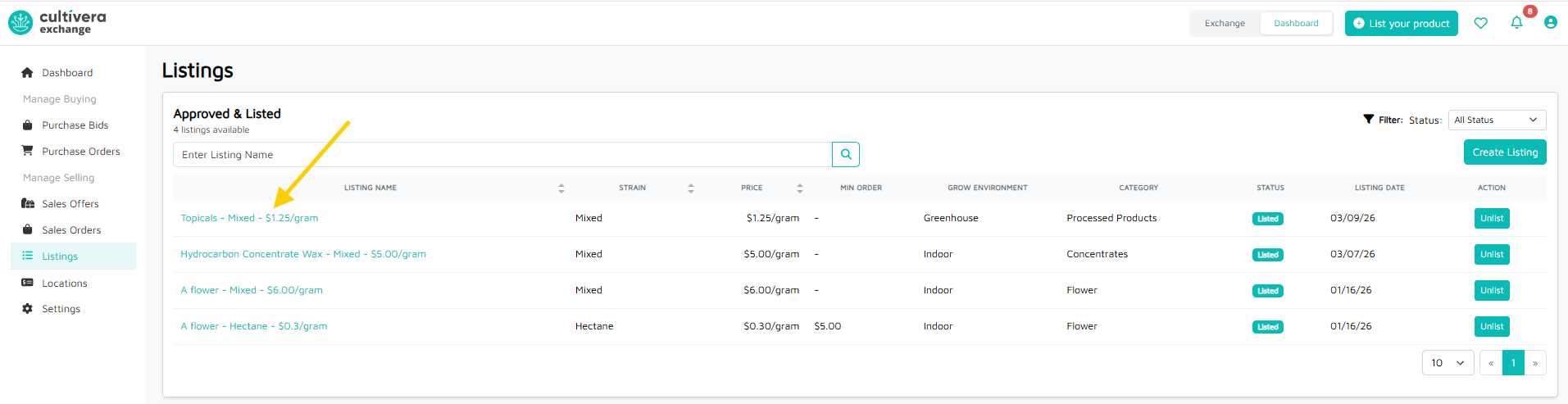
- To modify, clone, or delete a live listing, select the teal listing name link.
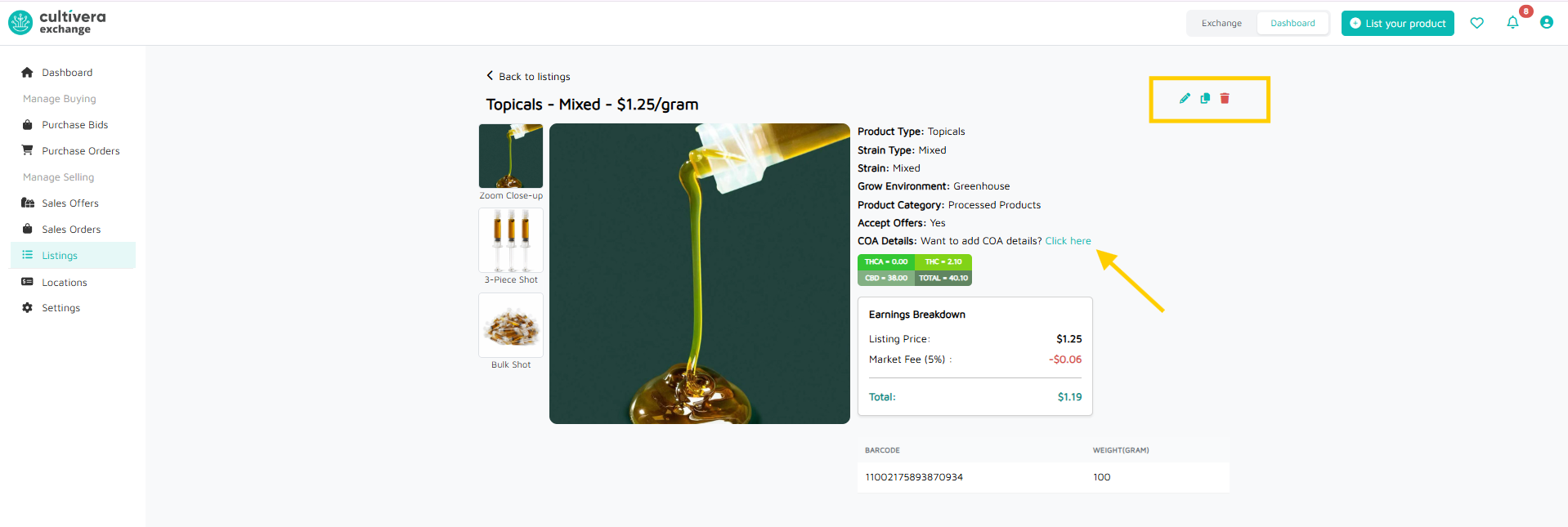
- Select the 'pencil' icon to modify the listing.
- Select the 'page' icon to clone the listing.
- Select the 'trashcan' icon to delete the listing.
- Select "Click here" to add COA details.