PRO (WA): Expiration Dates in Batches
 Updated
Expiration Dates in Batches
You will now see an 'Expiration Date:' above the QA Result details on the Inventory Management > Batches page.
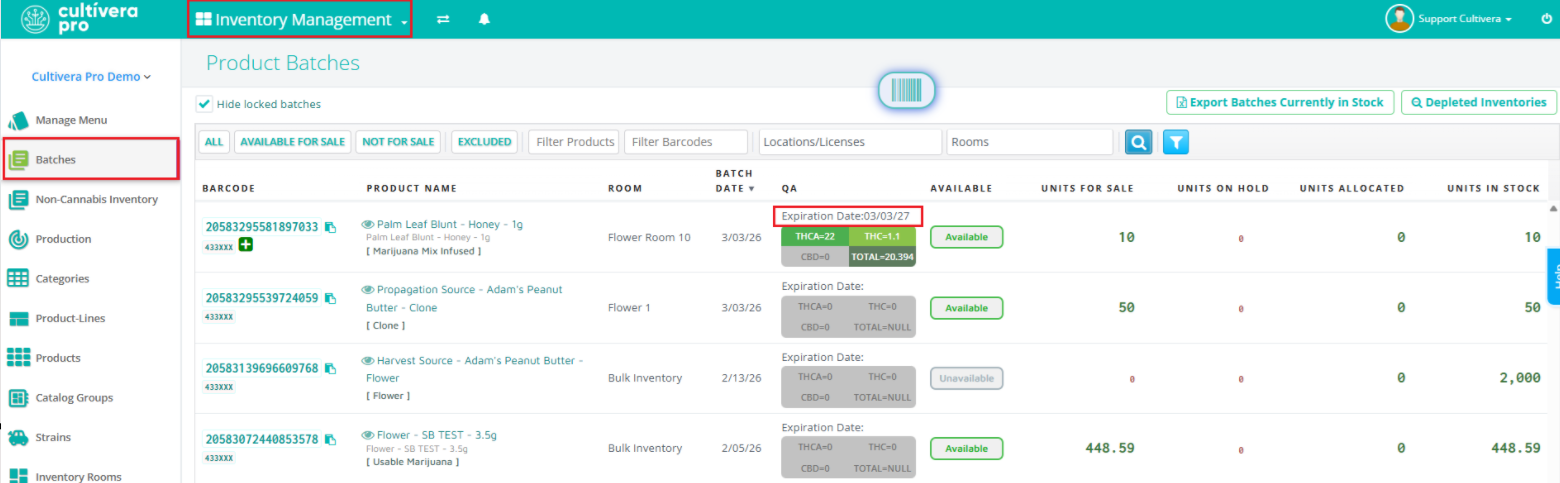
The 'Expiration Date' seen on the Batches page comes directly from the 'Date of Expiration' that is set for the QA Results in your system.
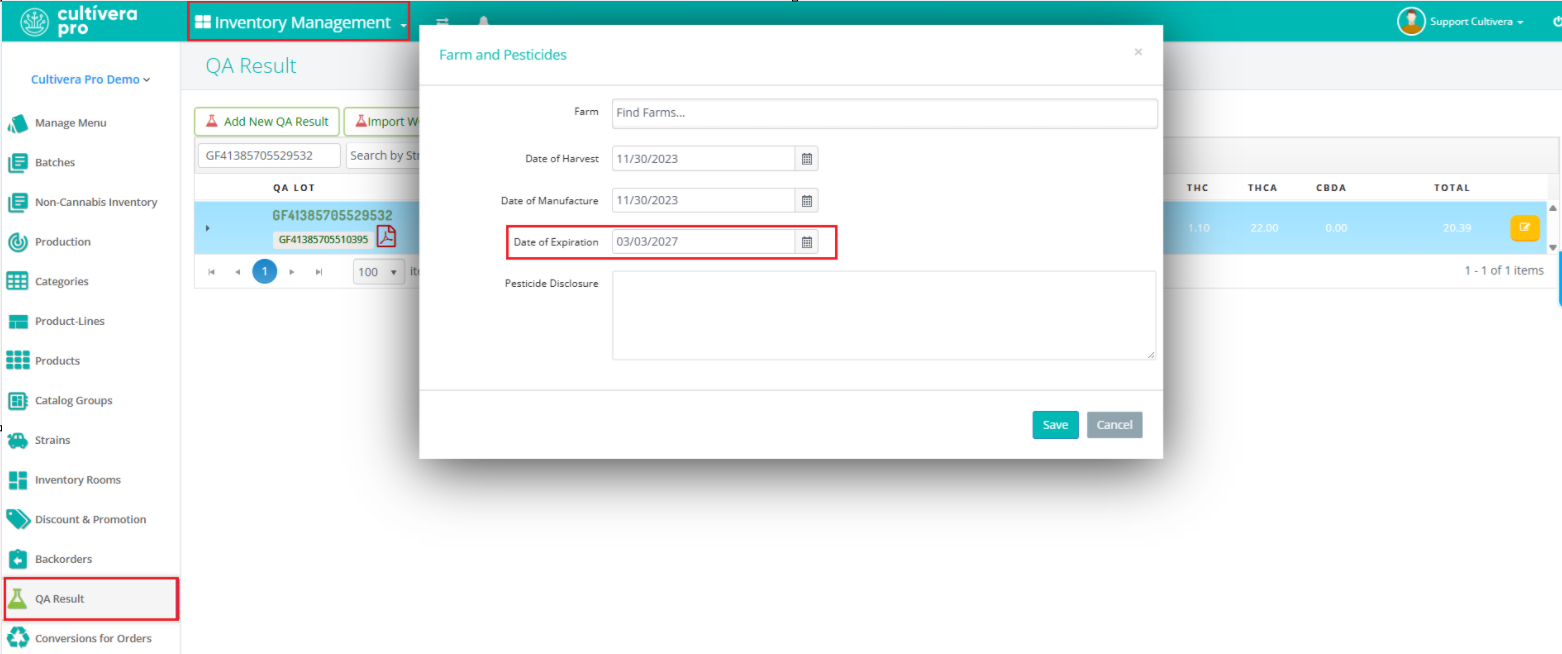
Updating "Expiration Date" for QA Results
To update the 'Expiration Date' for a QA Result, follow these steps:
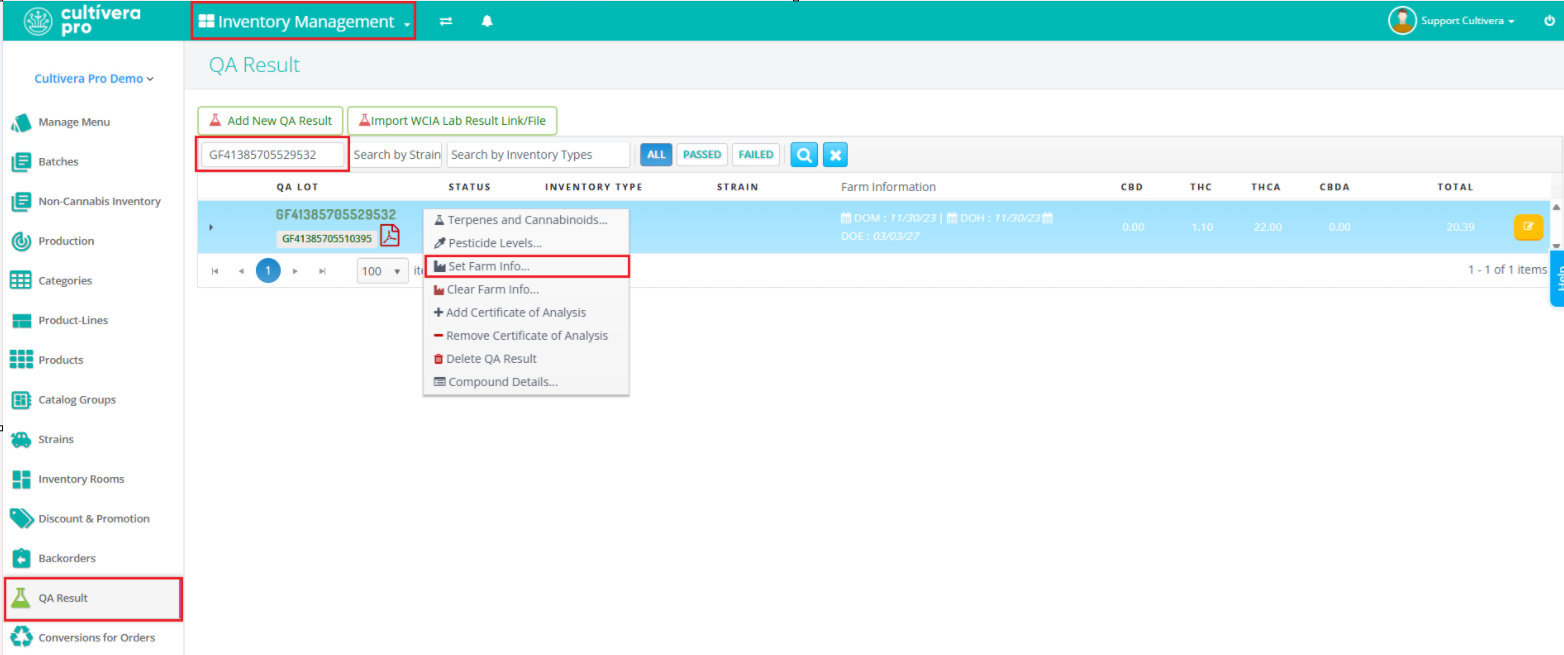
- Navigate to Inventory Management > QA Results.
- Filter by the intended QA Result ID.
- Right-click on the result and select "Set Farm Info".
- Enter/update the intended "Date of Expiration".
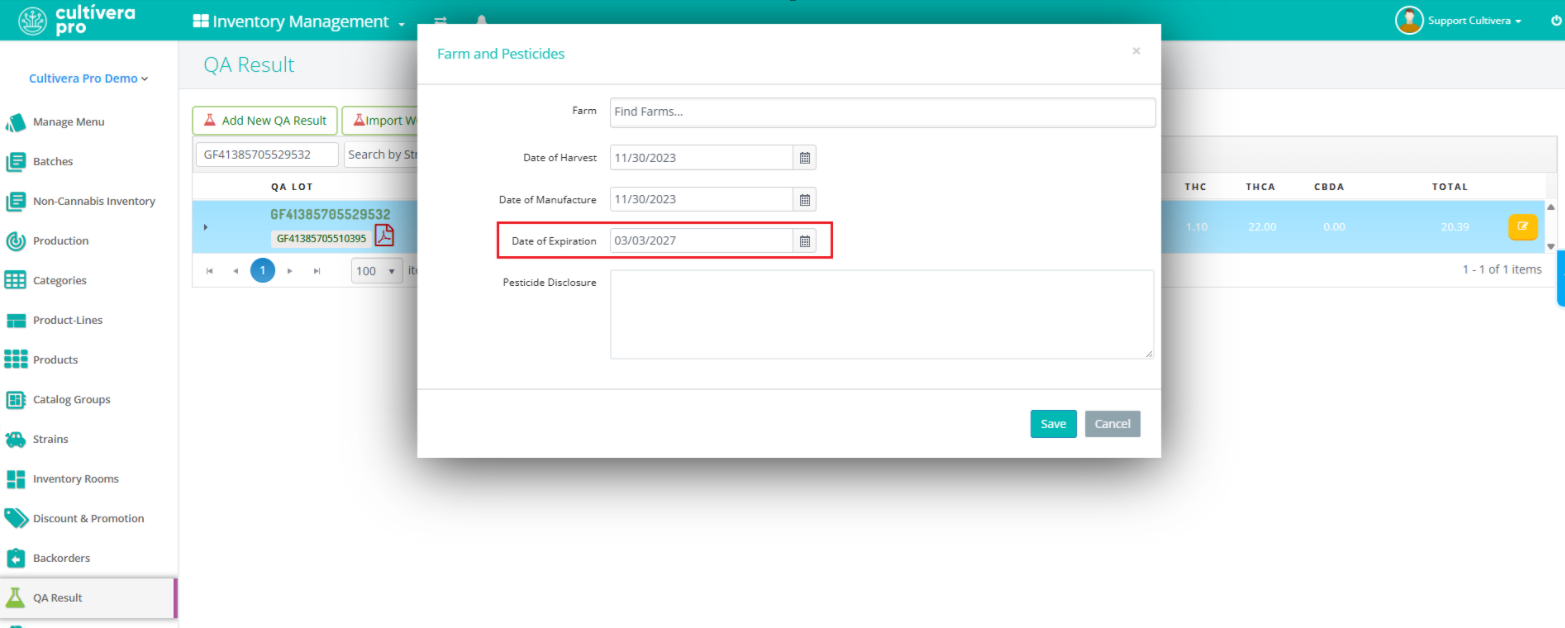
- Select "Save".
Once the result has been updated, you should see the intended 'Expiration Date' for any batches associated with the QA Result.
Please email support@cultivera.com if you have any questions about this or any other workflow. Thanks!
