Cultivera Exchange (Seller): Listing Products via Cultivera PRO "List on Cultivera Exchange"
 Updated
How to List Products on Cultivera Exchange (from PRO)
This guide outlines the process for listing your inventory from Cultivera PRO onto the Cultivera Exchange.
Verify Inventory Availability in PRO
Before listing, ensure both the Product and the specific Batch are set to "Available" within your PRO system.
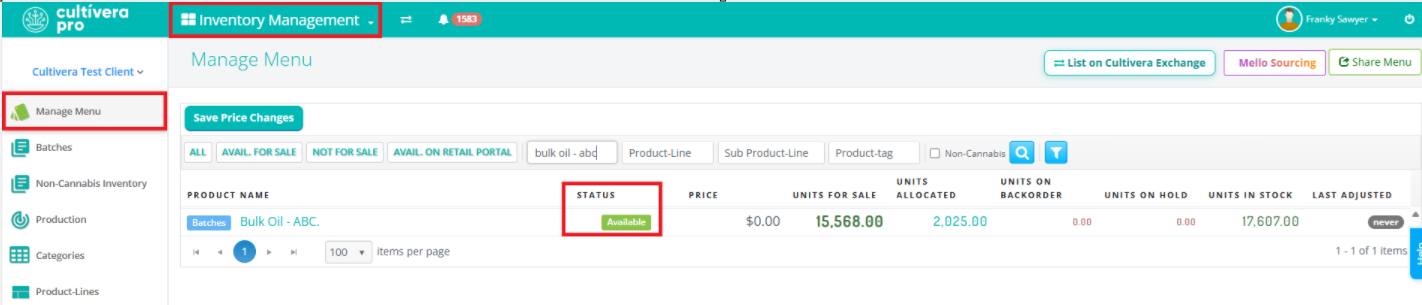
- Navigate to Inventory Management > Manage Menu.
- Locate the product and confirm its "Status" is green and marked as "Available".
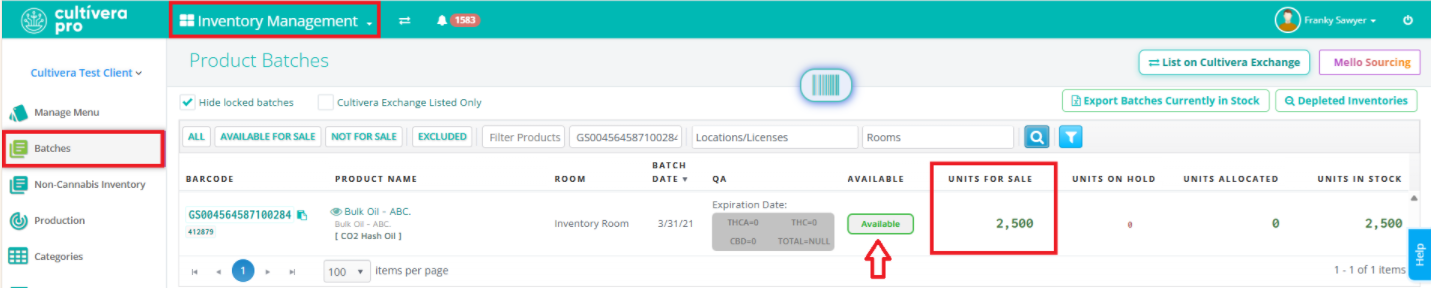
- Navigate to Inventory Management > Batches, and then locate and confirm that the specific Batch is "Available" and has units available for sale.
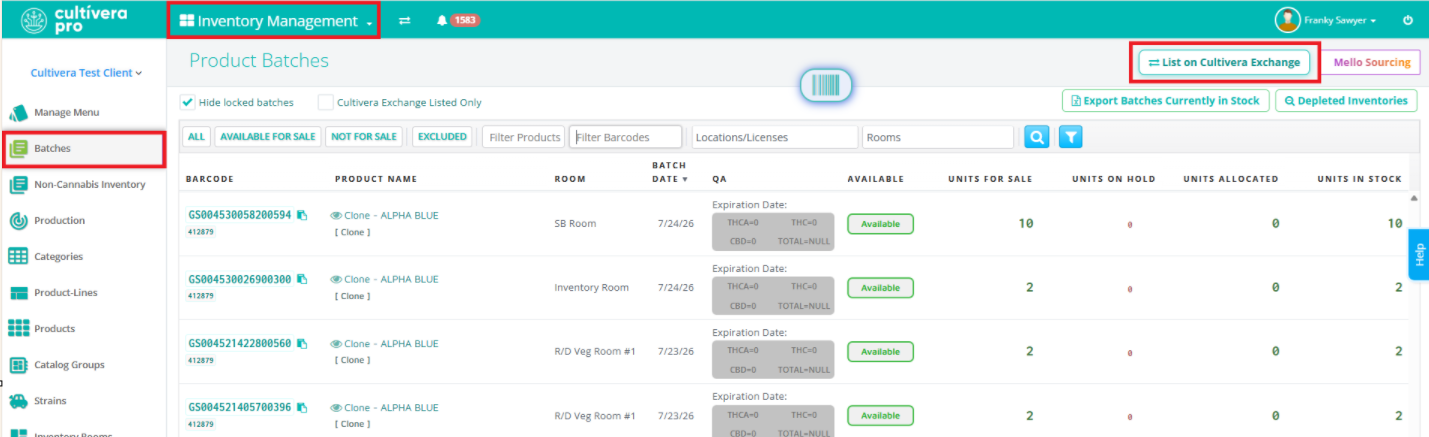
Create New Listing via Inventory Management > Batches / Manage Menu > "List on Cultivera Exchange":
- Within the "Batches" (or "Manage Menu") page, select the 'List on Cultivera Exchange' action button (upper right corner).
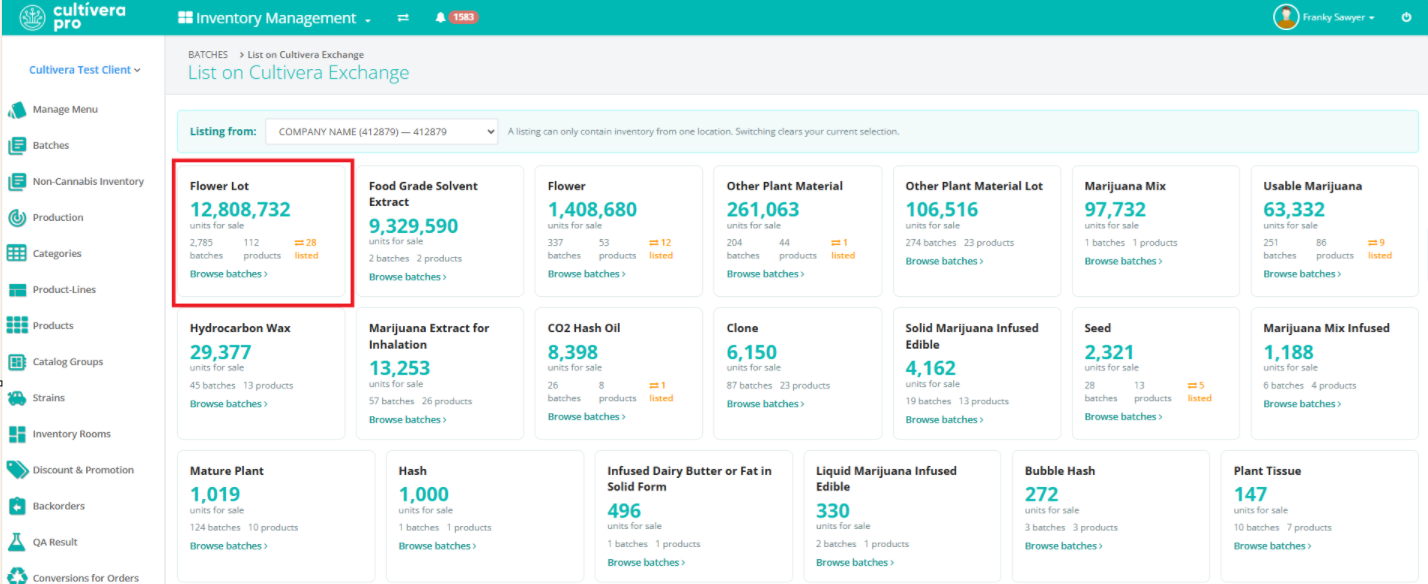
- Select the seller location from the dropdown menu.

- Select the specific inventory type card you wish to list from.
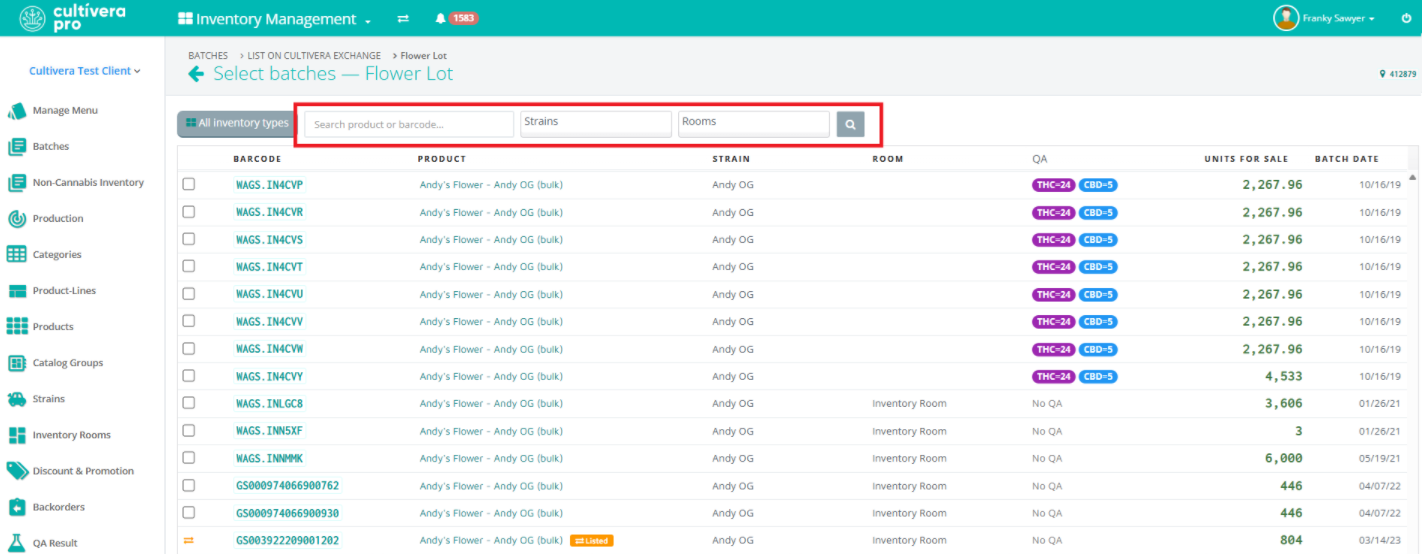
- On the Select Batches page, you can apply filters to view certain products, barcodes, strains, or inventory rooms. From here, select the batches you wish to list on Cultivera Exchange.
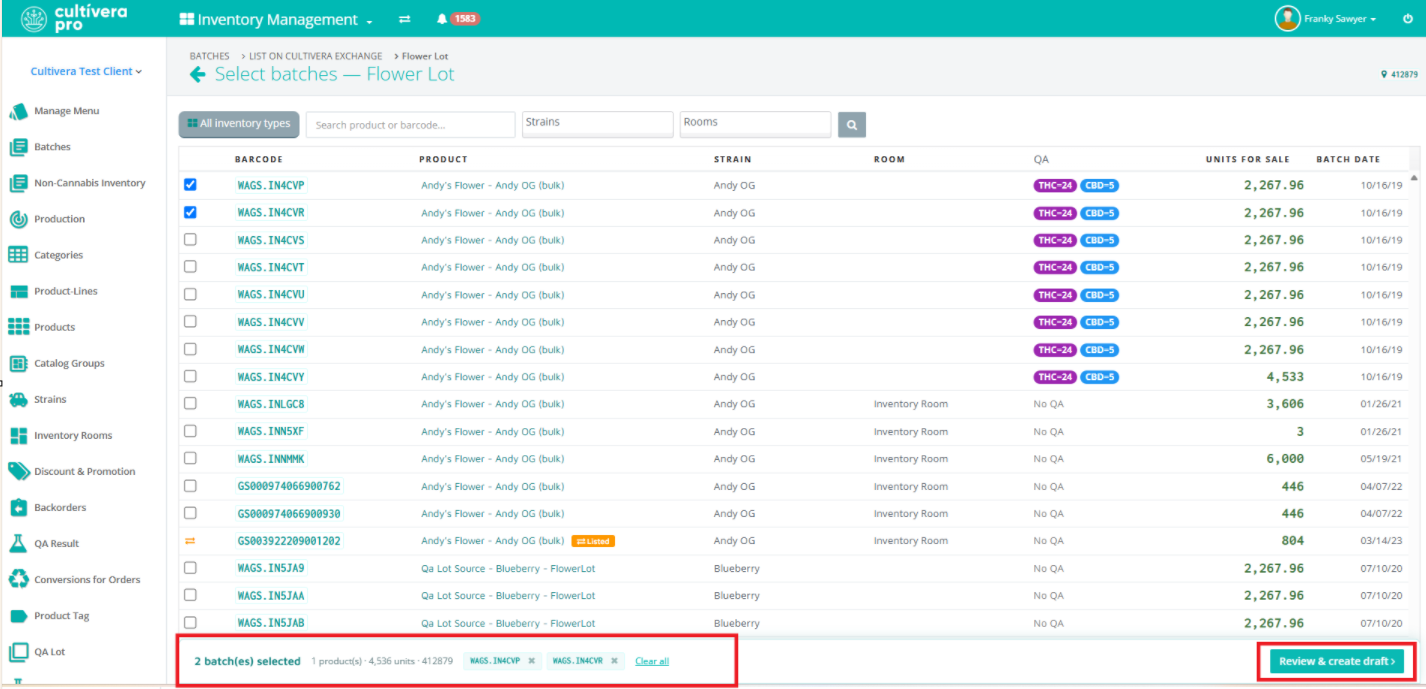
- Once the intended batches are selected, you can see the breakdown at the bottom of the page. This is also where you can Review & Create Draft.
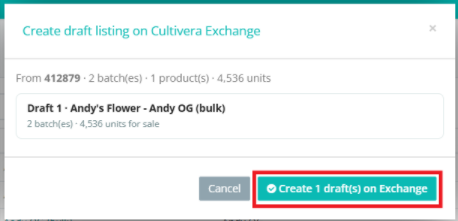
- Confirm the listing details look accurate, then select Create 1 Draft(s) on Exchange.
Configure Details for Listings Created via Batches > "List on Cultivera Exchange":
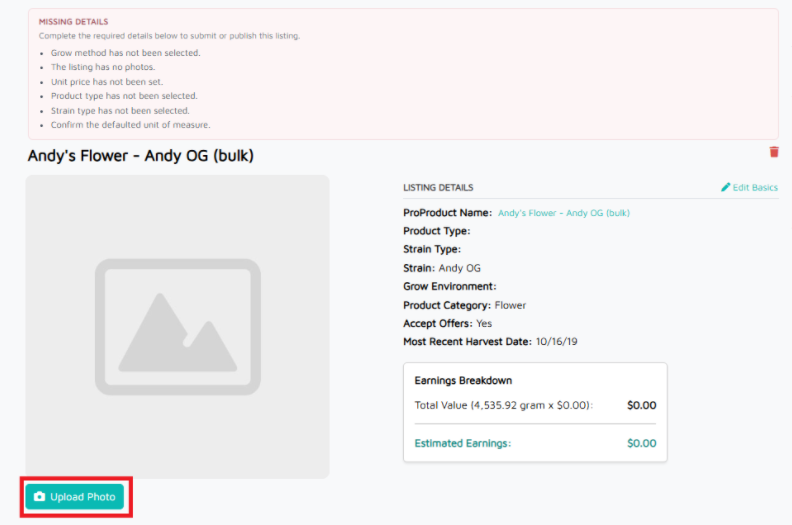
Once the Listing draft is created, select 'Create draft(s) on Exchange'. This will redirect you to the Cultivera Exchange Listing, where you can then configure any remaining details as desired.
- Select Edit Basics to update any missing details (such as grow method, unit price, product type, etc.)
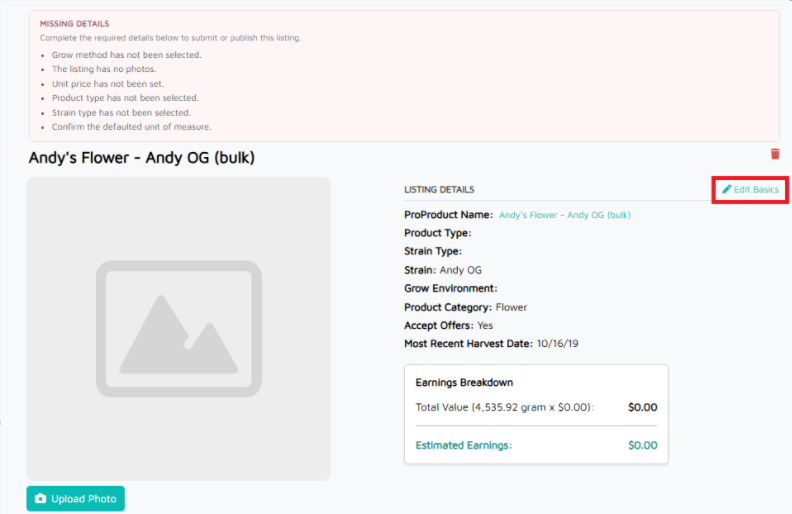
- Select Upload Photo to add the intended product images for the Listing.
Lab Results/QA
Submitting Draft for Approval by Mello
Once the Listing draft is updated for any missing details or photos, the draft can be located within Listings > Draft. Select 'Submit' to submit the draft for approval by the Mello Admin team.

Final Approval by Mello
- Once the listing has been Approved by Mello Admin, the listing will be live and can be located within Listings > Approved & Listed.

- Select the teal listing name link to view your newly approved Cultivera Exchange listing.


