PRO (WA): Configuration - AI Assistants: Company Settings, Permissions and Connections
 Updated
AI Assistants: Company Settings, Permissions and Connections
This article is for Administrators. It covers how Vera and outside AI assistants (such as Claude, ChatGPT, and Grok) are turned on for your company, who can use them, and how to see and disconnect the assistants connected to your company's Cultivera PRO account.
For the steps to connect an assistant, see PRO (WA): Configuration - AI Assistants: Connecting Vera to Claude, ChatGPT or Grok.
Turning Vera and AI Assistants On or Off
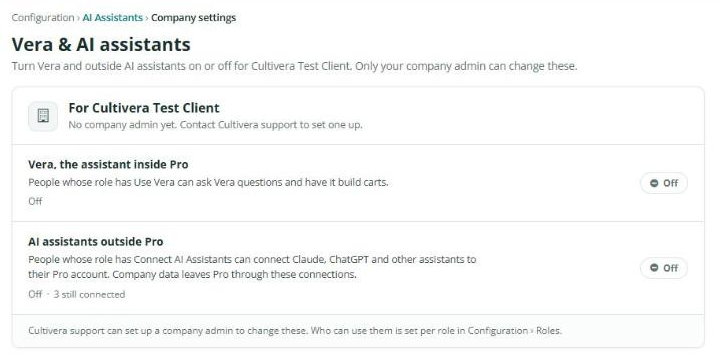
Each company has a company admin: one person who can turn Vera and outside AI assistants on or off for the whole company. Cultivera support sets up the company admin. If your company does not have one yet, the settings page shows "No company admin yet". Please reach out to support@cultivera.com to set one up.
- Navigate to Configuration > AI Assistants and select 'Company settings'.
- The Vera & AI assistants page shows two switches:
- Vera, the assistant inside Pro: people whose role has Use Vera can ask Vera questions and have it build carts in Cultivera PRO.
- AI assistants outside Pro: people whose role has Connect AI Assistants can connect Claude, ChatGPT, and other assistants to their Cultivera PRO account. Company data leaves Cultivera PRO through these connections.
- If you are the company admin, turn each switch on or off. Everyone else can see the settings but cannot change them.
Who Can Use Vera and Connect Assistants
Who can use these features is set per role in Configuration > Roles, under Vera & AI assistants:
Permission | What it allows |
Use Vera | Use Vera inside Cultivera PRO. |
Connect AI Assistants | Connect an outside assistant, and see or disconnect your own connections. |
Manage AI Connections | See and disconnect every connection in the company. |
Admin roles have all three by default. Add them to other roles as needed. Changes take effect within about a minute; people don't need to sign out.
What People See When Something Is Off
People can still see the Vera button and the AI Assistants page, and are told how to get access:
- Switched off for the company: they are asked to contact the company admin to turn it on.
- No company admin yet: they are asked to contact Cultivera support.
- Their role doesn't have the permission: they are asked to contact someone who manages roles at your company.
Managing Connected Assistants
- Navigate to Configuration > AI Assistants and scroll to Connected assistants.
- The list shows each assistant connected in your company: the App, who it is Connected by, its Capabilities (Read clients, Read catalog, Read insights, Manage carts), when it was Connected on, and when it was Last used.
- The counter at the top right shows how many of your company's 10 connections are in use.
- To remove a connection, select 'Disconnect' on its row and confirm. The assistant loses access right away and asks its user to connect again.

People with Connect AI Assistants only see and disconnect their own connections. People with Manage AI Connections see everyone's connections and can disconnect any of them.
