PRO (WA): Sales - Vera: Preparing Carts, Samples, Contacts and Notes
 Updated
Vera: Preparing Carts, Samples, Contacts, and Notes
Vera can prepare work for you: draft carts, changes to a cart, samples, client contacts, and client notes. Vera only prepares these. Every change appears on a card, and nothing is saved until you select 'Confirm' or 'Save'.
If you are new to Vera, start with PRO (WA): Sales - Vera: Getting Started with Your Sales Assistant.
How to Prepare a Draft Cart
- Ask Vera to start a cart, for example: "Prep a draft cart for Green Leaf" or "Make a cart from their last order".
- You can also select 'Prep draft cart' on an account card in the "Who is overdue?" answer.
- Vera adds the products to the client's cart and shows the items, quantities, and total on a DRAFT ORDER # card with a Draft — not submitted tag.
- If the client already has an open cart, Vera uses that cart instead of starting a second one.
- A cart started from the last order uses the same products and quantities as that order.
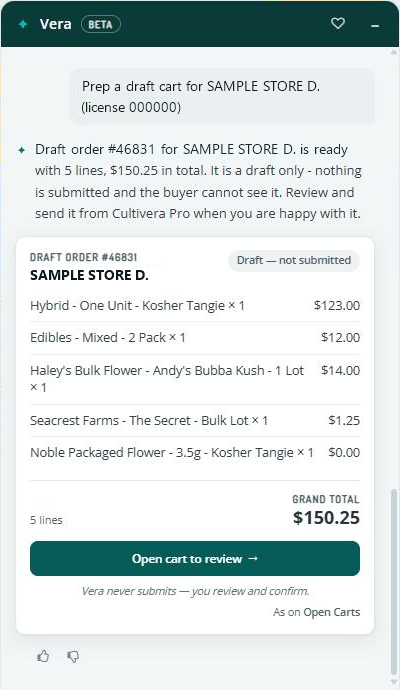
- Select 'Open cart to review' to open the cart in Cultivera PRO.
- Review the cart and submit it as you normally would.
How to Change a Cart
Vera can add products to a cart, change a line's quantity, or take lines off. It works on the cart you have open or the client's open cart.
- Ask for the change, for example:
- "Add 2 Blue Dream 3.5g and 3 Gelato pre-rolls."
- "Make the Blue Dream 5."
- "Remove the zero-priced items."
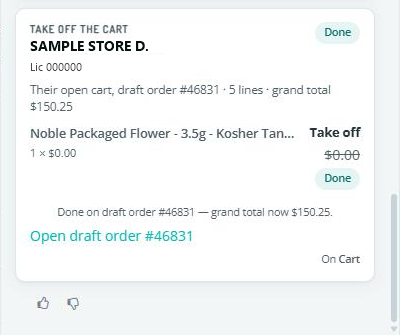
- Vera shows a card listing each change. Before taking lines off, Vera points out which $0 lines are samples and which have no price.
- Until you confirm, the card shows a Not confirmed tag. Select 'Confirm' to make the change, or 'Discard' to leave the cart as it is. After you confirm, the card marks each change 'Done' or 'Not changed' and links to 'Open draft order #'. If only some changes went through, the card says 'Partly done'.
- If you add a product that is already in the cart, Vera increases that line instead of adding a second line.
- To take a line off, ask Vera to remove it. Vera will not set a line's quantity to zero.
- Vera cannot change a cart while it is shared with a buyer through Greenlight. Edit it in Build Cart instead.
- Vera can change a portal order, and warns you first that this changes what the buyer ordered.
How to Add Samples
- Ask Vera to add a product as a sample, for example, "Add two Blue Dream 3.5g as samples", or to mark a line on the cart as a sample, for example, "Make the Gelato pre-roll a sample".
- Vera shows a card with the change. Select 'Confirm'.
- The line is marked as a Trade Sample, and its price is set to $0, the same as using 'Mark Trade Samples' on the cart.
How to Add or Update a Client Contact
- On the client's page, ask Vera to add or update a contact, for example:
- "Add Jane Doe, buyer, jane@example.com."
- "Update Jane's phone to (206) 555-0123."
- Vera shows a card filled in with the details. For an update, the card shows the current and the new values. You can edit the card before saving.
- Select 'Save'. The contact is saved to the client, the same as adding or editing it in the client's Contacts section.
Vera cannot remove a contact. To remove one, use the client's Contacts section.
How to Add a Client Note
- Ask Vera to log a note, for example: "Log that I spoke to Jane about the holiday order."
- Vera shows the note on a card. Select 'Confirm' to save it to the client.
Sending a Quote Through Greenlight
To send a quote to a buyer, ask Vera to draft the order, then share the cart with the buyer through Greenlight yourself. Vera does not share carts. For instructions, see PRO (WA): Sales - Greenlight: Sharing a Cart with a Buyer.
