Cultivera Pro (WA) - Release Notes (10/22/2026)
 Updated
Updates To Cultivera Pro - 10/22/26
Please see below for a summary of the updates made in Cultivera Pro (WA) in our most recent release on October 22, 2026:
Formatting Updates:
The new left-hand menu with each module is now grouped into sections (Overview, Customers, Selling, Catalog, Reports in Sales), with the active page highlighted.
Sales Updates:
- Build and Full View for Carts:
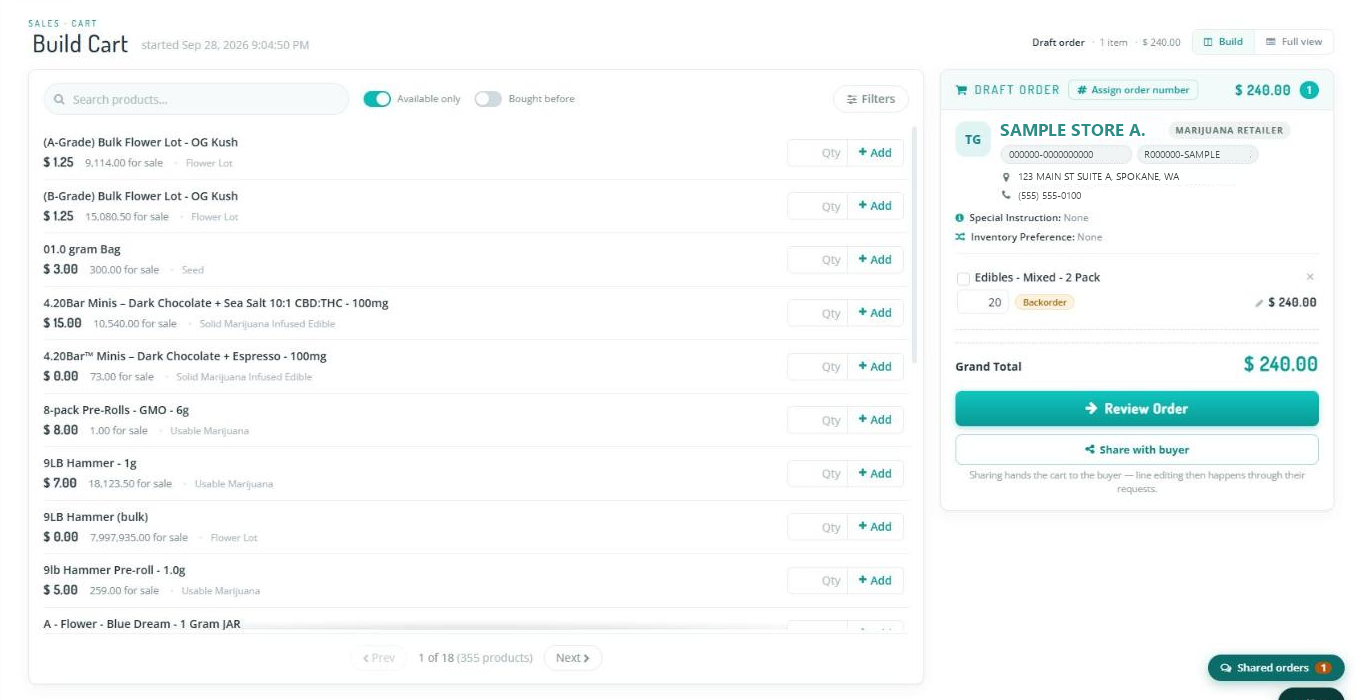
- Every cart now has two views. Switch between them at any time with the Build | Full View switch at the top of the cart.
- Build is a split screen for putting an order together: find products on the left and watch the cart fill up on the right. Turn on Bought before to see only the products this client has bought, with when they last bought each one.
- Full view shows the whole cart on one screen. Add Products From Inventory on the full cart page also opens the Build view.
- In Build, give a line a discount with the pencil on that line: an amount, a price per unit, or a quick percentage. Each line also shows whether it can be filled, for example, Backorder or Needs conversion allocation.
- Review Order Updates:
- Review Order now matches the new cart look, with larger prices, units, and totals.
- The page shows one main button for the state of the cart: Submit Order, Submit With Corrections when a line needs a decision, or Submit as Backorder when nothing on the cart can ship. Lines that need a decision are highlighted.
- A convertible product that is fully allocated no longer forces the order to become a backorder.
- Order Numbers on Carts:
- A cart now gets the order number it will keep once it is submitted, so the cart, Greenlight, and the final order all show the same number. Carts show ORDER# 1234 with a Draft label.
- A cart gets its number when it is shared with a buyer through Greenlight, when Vera creates it, when it is submitted, or when you select Assign order number (for example, to quote the number to a buyer). Until then, it shows Draft order. Marketplace and portal orders get their number as soon as they arrive.
- If submitting splits a cart into an order and a backorder, the order keeps the cart's number, and the backorder takes the next one. The two are linked, with a note on each.
- Carts that are already open are not renumbered. They get a number the next time one of the steps above happens.
- New Header on Carts and Orders:
- The Cart, Sales Order, and Fulfillment Order pages share a new header card showing the client and their license numbers, the buyer contact or the person who submitted the order, and the order number with its status.
- Buttons are grouped by color: teal for the next step, white for documents, and red for actions that remove or cancel something. No buttons were moved, renamed or removed.
- New "Greenlight" Feature (Share a Cart with Your Buyer):
- Select Share with buyer on a cart to send it to one or more of the client's contacts by email, text, or both, with an optional personal note. The buyer opens a private link on their phone or computer. No Cultivera account is needed.
- The buyer can review every line and the totals, request a quantity change, ask to remove a line, comment on it, request a sample, ask for a product that isn't on the order, suggest a delivery date, and add receiving instructions. To approve, they type their name and select Greenlight.
- Follow along on the Shared Order page in Cultivera Pro. It shows the buyer's requests, your conversation, and whether each link was delivered and opened. Accept or decline each request, then select Submit order once the buyer approves.
- Receiving instructions you accept are added to the order as an order note, and the delivery date the buyer agreed to is kept when the order is submitted.
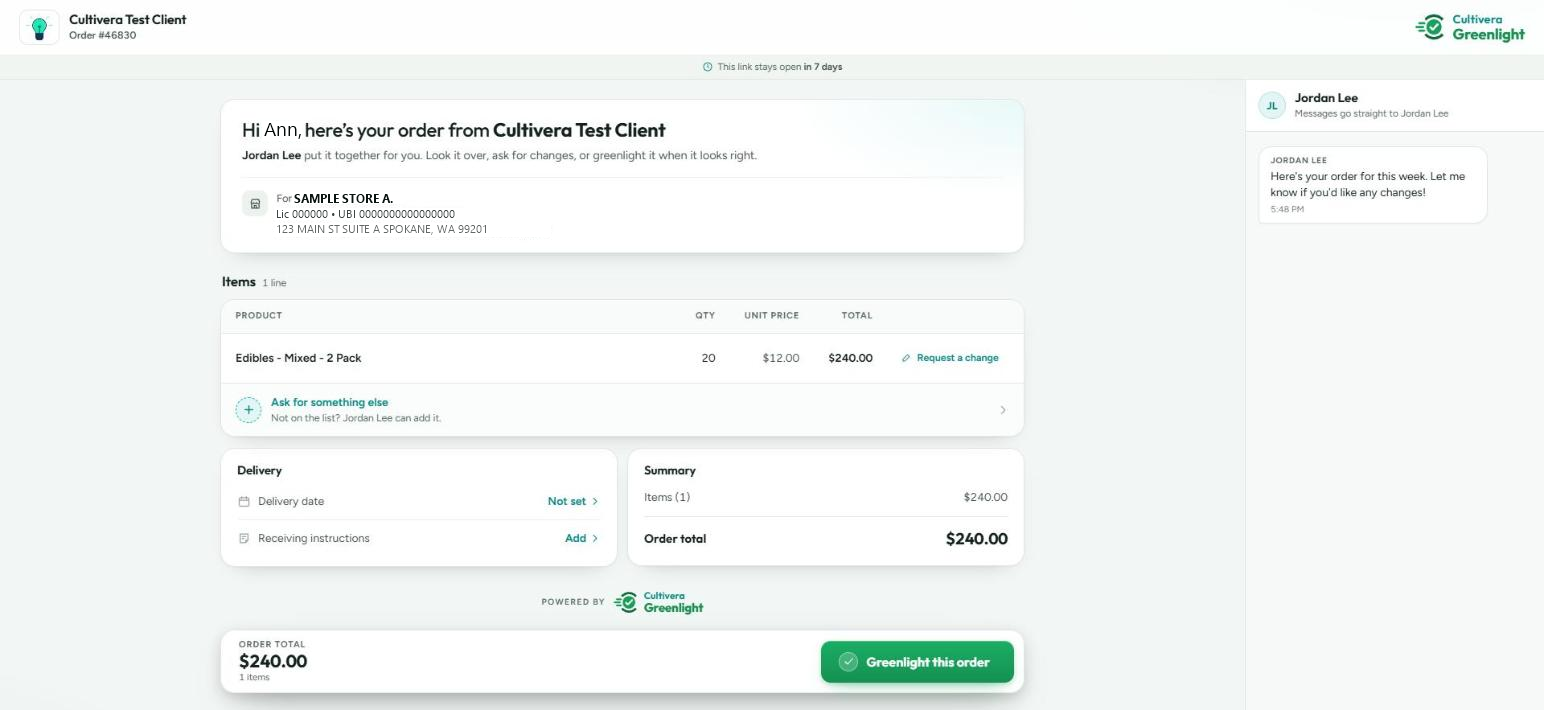
- See PRO (WA): Sales - Greenlight: Sharing a Cart with a Buyer and PRO (WA): Sales - Greenlight: Managing a Shared Order.
- Greenlit Orders on the Orders List:
- Orders a buyer approved through Greenlight show a Greenlit by label with the buyer's name. If the order was changed after the buyer approved it, the label says Changed after approval.
- The Sales > Orders list has a new Greenlit column and a Greenlit only filter.
Vera Updates:
Vera and AI assistants start turned off for every company. Your company admin turns them on in Configuration > AI Assistants > Company settings.
- New "Vera" Sales Assistant:
- Vera is a new assistant in the Sales area. Select the Vera button at the bottom right of any Sales page and ask questions in plain words, such as "Who is due to reorder?" or "How is my month going?". Vera answers from your company's own data, with cards that link to the Cultivera Pro screens the figures come from.
- Vera can answer questions about clients (profile, performance, purchase history and what they have never bought), products (client pricing and availability, including lots), orders (status, backorders, open carts and portal orders) and your monthly sales performance.
- Reorder Radar cards show clients who are due or overdue to reorder and the estimated monthly revenue at risk, with buttons to open their purchase history or prepare a cart.
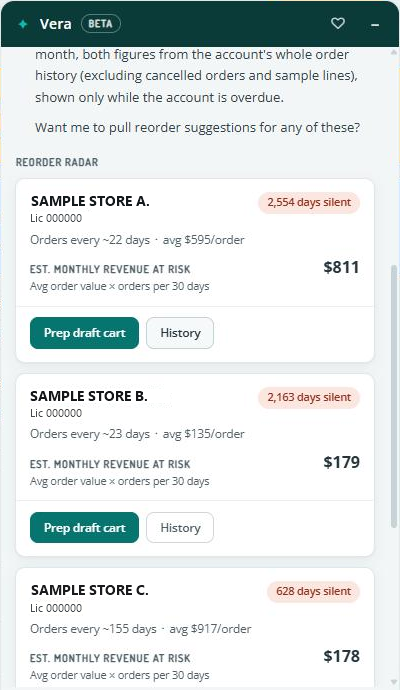
- Vera knows which client, cart, or order you have open, so you can say "this client" or "this cart". You can also dictate your question with the microphone in browsers that support it.
- Vera requires the new Use Vera permission (roles named Admin have it by default), and your company admin must turn Vera on.
- Carts, Notes, and Contacts Prepared by Vera:
- Vera can start a cart from a client's last order or a Reorder Radar card, add or remove products, change quantities, add samples, draft client notes, and draft new or updated contacts.
- Each suggestion arrives as a card, and nothing is saved until you select Confirm or Save. Vera never submits orders, removes contacts, or shares a cart, and it will not change a cart a buyer is reviewing in Greenlight.
- Rate Vera's Answers:
- Every answer has a thumbs up and a thumbs down. With a thumbs down, you can add a short note about what was wrong.
- Vera asks once whether Cultivera may use your questions and its answers to improve Vera (Help make Vera better). It is your own choice, and you can change it at any time with the heart at the top of the Vera panel or on Configuration > AI Assistants. Email addresses, phone numbers, and card and account numbers are hidden, and shared text is deleted after 90 days.
- Team Vera Allowance:
- Each company has a Vera allowance shared by the whole team. As your team gets close to it, the Vera panel shows how much is left. If it is used up, Vera says when questions free up again. Most teams will never reach it; if yours needs more room, please reach out to support@cultivera.com.
- See PRO (WA): Sales - Vera: Getting Started with Your Sales Assistant.
AI Assistants Updates:
- Connect Claude, ChatGPT or Grok to Cultivera Pro:
- You can now bring Vera into the AI assistant you already use (Claude, ChatGPT, Grok, Grok Bot, or Claude Code) and work with Cultivera Pro from there, including from the assistant's phone app.
- Navigate to Configuration > Integrations > AI Assistants, select Copy URL, choose your assistant, and follow the steps shown. You then sign in to Cultivera Pro and approve the connection.
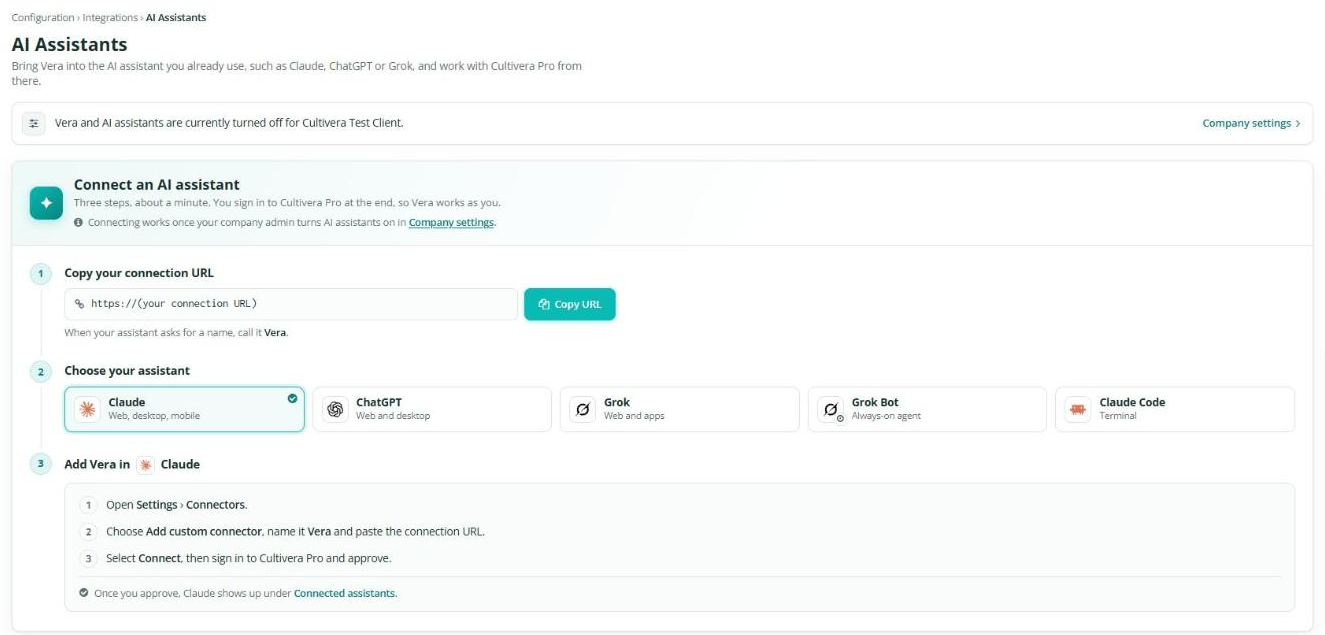
- Vera works as you, with the same permissions as the person who connected it. It can read clients, the catalog, sales insights, and work with carts. Orders are always submitted in Cultivera Pro.
- Connected assistants are listed under Connected assistants, where you can Disconnect one at any time. A company can have up to 10 assistants connected at a time.
- Connecting requires the new Connect AI Assistants permission, and your company admin must turn on AI assistants outside Pro.
- See PRO (WA): Configuration - AI Assistants: Connecting Vera to Claude, ChatGPT or Grok.
Configuration Updates:
- Company Admin and Vera & AI Assistants Settings:
- Each company now has one company admin, who turns Vera and outside AI assistants on or off for the whole company in Configuration > AI Assistants > Company settings. Both start turned off.
- The two switches, Vera, the assistant inside Pro, and AI assistants outside Pro, work independently. Turning off AI assistants outside Pro disconnects every connected assistant, and the screen shows how many are connected first.
- Everyone can see whether the switches are on or off. The company admin is shown on the Company Profile page, and every change is recorded in the audit log.
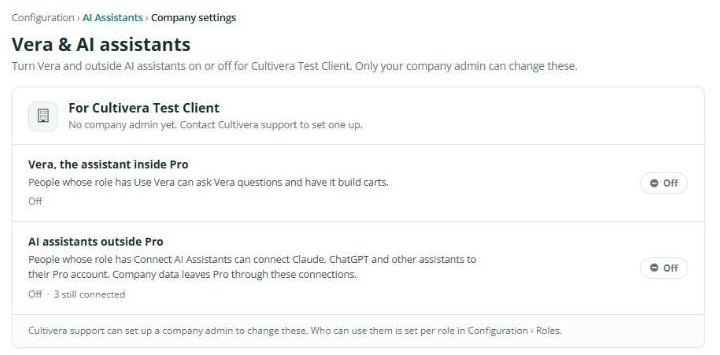
- See PRO (WA): Configuration - AI Assistants: Company Settings, Permissions and Connections.
- New Permissions:
- Four new permissions are available under Configuration > Roles. The first three are in a new Vera & AI assistants group:
- Use Vera: ask Vera questions and have it prepare carts. On by default for the Admin role.
- Connect AI Assistants: connect an outside AI assistant, and see or disconnect your own connections. On by default for roles that can manage users.
- Manage AI Connections: see and disconnect every assistant connected in the company. On by default for roles that can manage users.
- Manage Company Profile: edit the Company Profile and upload the company logo. On by default for roles that can manage users.
- Four new permissions are available under Configuration > Roles. The first three are in a new Vera & AI assistants group:
- Company Profile:
- The Company Profile page now opens in view-only. People with the Manage Company Profile permission see an Edit button.
- The primary contact must be an active user of the company, and changes to the profile and logo are recorded in the audit log.
- Signing Out and Password Changes:
- Signing out now ends your session right away.
- Changing your password signs you out of your other sessions. You stay signed in where you made the change.
- When an admin disables, locks, or deletes a user, that user is signed out everywhere.
Fulfillment Updates:
- DOH Label on Fulfillment Lines:
- On a fulfillment order, a line allocated to a DOH-compliant batch now shows a yellow DOH label, so medically compliant product is easy to spot while picking and packing.
Grow Updates:
- Harvest Type (Standard or Manicure):
- The harvest page now shows the harvest type in its own card, and you can switch the type until the harvest is finished.
- Standard harvests the entire plant, ending its growing cycle. Manicure harvests only part of the plant, leaving it to keep growing for future harvests.
- Once the harvest is finished, the type can no longer be changed, so please check it before finishing.
- Curing from the Grow Board:
- The Cure window on the Grow Board now asks for the product, room, and subroom for each output: dry flower, other plant material, and waste. Weights are entered in grams.
Inventory Management Updates:
- Catalog Groups:
- The Inventory Management > Catalog Groups page has a new look. Adding or editing a Catalog Group now opens in a pop-up window over the list, and product names stay on one line so the list is easier to scan.
General Updates:
- New "Feedback" Button:
- A Feedback button at the top of every page (and Send feedback in the profile menu) lets you tell the Cultivera product team what works and what doesn't, in your own words.
- Add up to three screenshots, highlight what you mean, and hide anything private before sending. You get a reference number for your note.
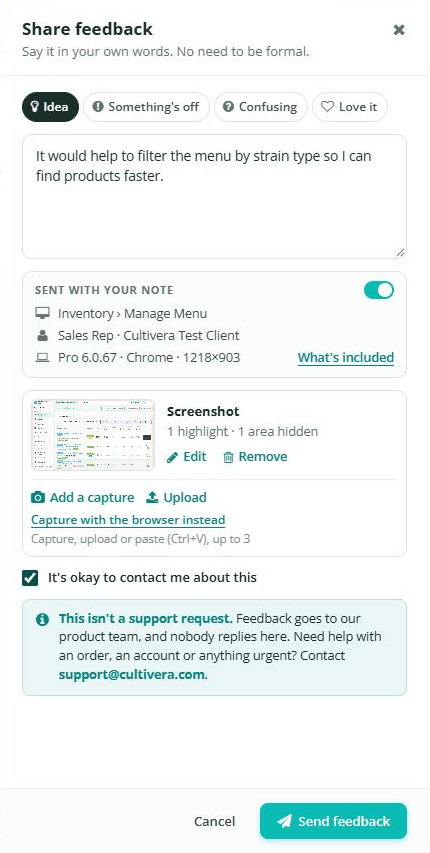
Feedback is not a support request, and nobody replies to it. For help with an order, an account, or anything urgent, please reach out to support@cultivera.com. - New Sign-In Page, Header and Menu:
- The sign-in and forgot-password pages have a cleaner, centered layout with labeled fields.
- The header is now white, with the Cultivera Pro logo and your profile. The side menu is grouped under section labels, and when the menu is collapsed, hovering over an icon shows its name.
Fixes:
- Rejecting a Marketplace order now cancels its cart in Cultivera Pro. The cart is removed from Sales > Carts and the dashboard, and can no longer be submitted.
- Error messages no longer show technical details.
