PRO (WA): Sales - Greenlight: Managing a Shared Order
 Updated
Greenlight: Managing a Shared Order
After you share a cart with a buyer through Greenlight, the Shared Order page is your workspace for that order. From here you can see whether the buyer has opened the order, answer their requests and messages, manage their links, and submit the order once the buyer approves it.
For instructions on sharing a cart, see PRO (WA): Sales - Greenlight: Sharing a Cart with a Buyer.
Opening the Shared Order Page
You can open the Shared Order page from any of these places:
- Sales > Carts: a shared cart shows a 'Shared' tag. Click through and select 'View shared order'.
- The cart's detail page: select 'View shared order'.
- Build Cart: select 'View shared order'.
Reading the Shared Order Page
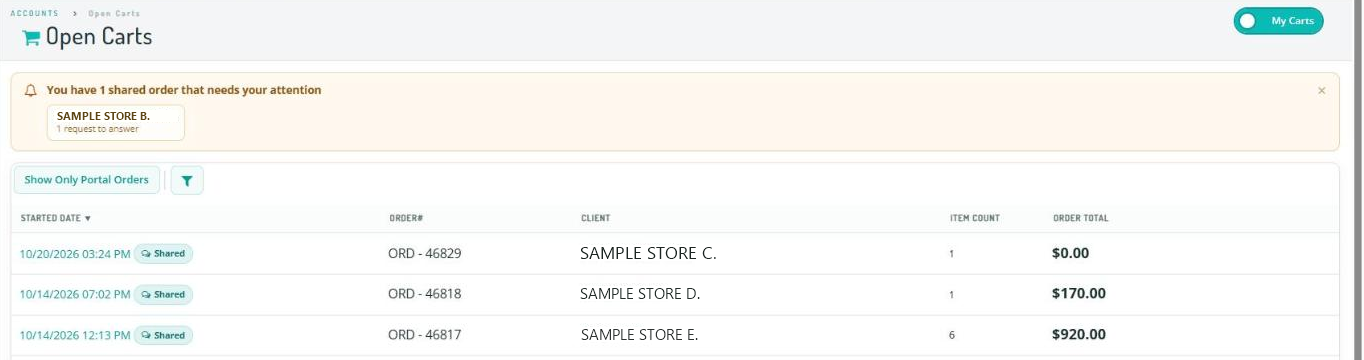
- Progress steps across the top show where the order is: Shared, Buyer, Reviewing, Changes requested, Approved, and Submitted. The current step is highlighted and moves along as the buyer acts.
- Contact chips show each contact the order was sent to, how it was sent (email and/or text), and when they last viewed it.
- Cart lines show the order, with a badge on any line that has a pending request and the buyer's comments on that line.
- The conversation panel shows your messages with the buyer, their comments and the history of every send, request and decision, with times. It matches what the buyer sees.
Responding to Buyer Requests
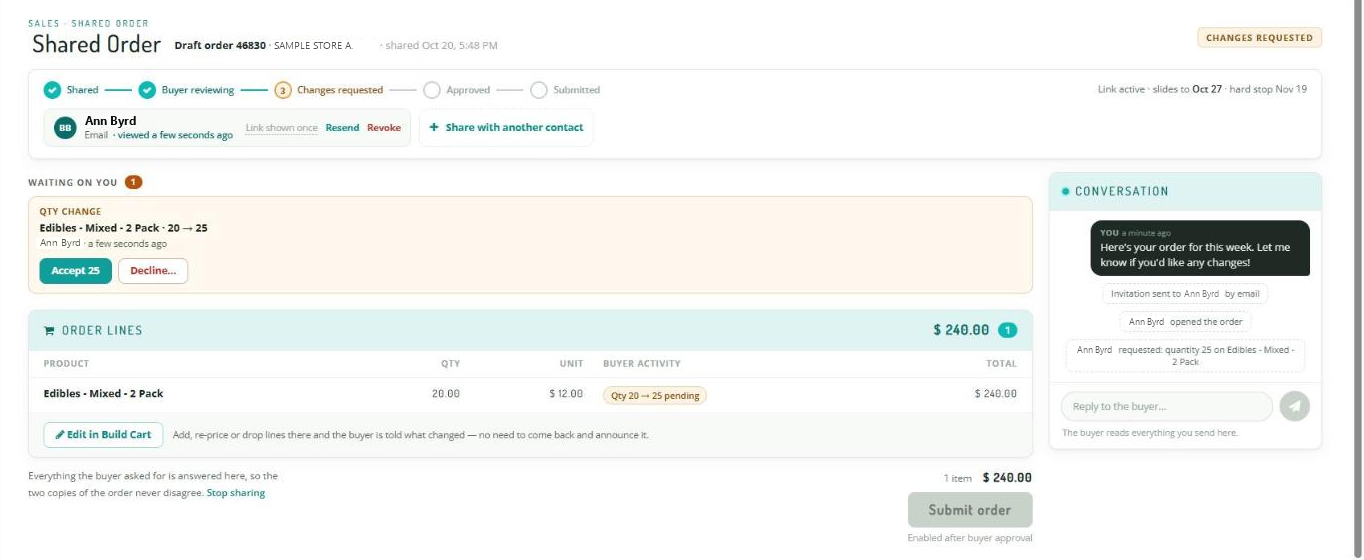
The buyer cannot change the cart directly. Each change they ask for appears on the Shared Order page as a 'Waiting on you' card. A buyer can ask to change a quantity, remove a line, add a product as a sample, or suggest a delivery date and receiving instructions. They can also ask for something else in a written note.
- Review the 'Waiting on you' card.
- Select 'Accept' to make the change. The button names the change, for example 'Accept 25' for a quantity change or 'Accept — I'll add it' for a written request. The cart is updated exactly as if you had made the change yourself in Build Cart.
- Accepting a delivery date sets the cart's Est. Delivery Date. Receiving instructions are saved with the order so they carry through to fulfillment.
- Any stock or availability warnings are shown to you only. The buyer never sees inventory counts.
- Or select 'Decline…' and type a reason. The cart is not changed, and the buyer sees that the request was declined, with your reason. For a written request, you can also select 'Reply in thread' to answer in the conversation.

The buyer's page updates within a few seconds. To answer a buyer's message, type your reply in the conversation panel.
Editing a Shared Cart
You can still edit a shared cart yourself. On the Shared Order page, select 'Edit in Build Cart'. The same cart opens in Build Cart with the same client and lines. Select 'View shared order' to go back.
When you add or remove a line or change a quantity, the buyer's page shows that you updated the order and what changed, usually within about 15 seconds. Changes you make after the buyer approves the order are not shown to the buyer; their approved receipt stays as it was.
Managing Buyer Links
Each contact chip has these options:
- 'Link shown once': a contact's link is only shown when you share the order. To give a contact a new link, use 'Resend'.
- 'Resend': sends the contact a new link. Their previous link stops working.
- 'Revoke': turns off that contact's link. Other contacts' links keep working.
To send the order to another contact on the client's account, select 'Share with another contact', choose how to send it, and select 'Done' on the links pane. The new contact appears in the contact chips. To stop sharing the order with everyone, select 'Stop sharing' below the order lines.
Knowing When a Buyer Needs You
When a buyer sends a message, makes a request, or approves one of your shared orders:
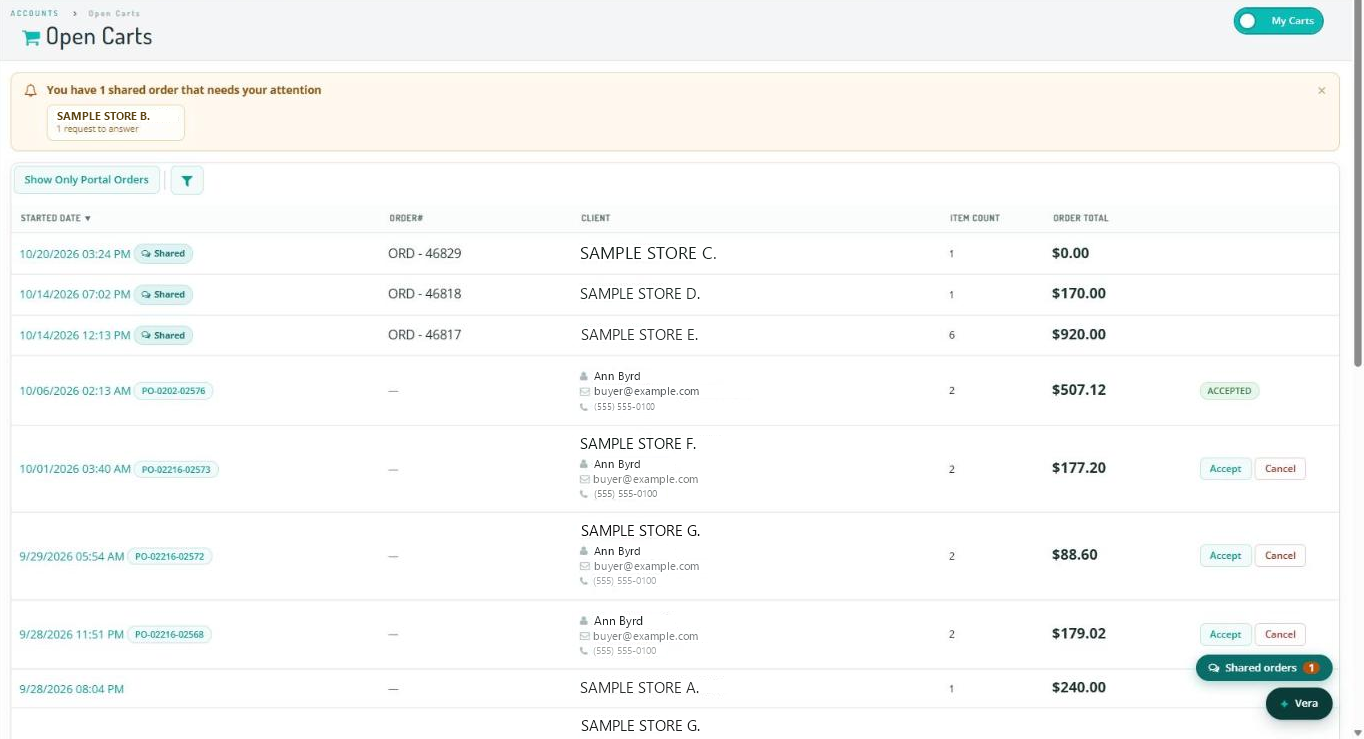
- An amber banner on Sales > Carts shows how many shared carts need your attention.
- A floating 'Shared orders' button appears on the pages of the Sales module and links to those orders.
Both clear once you open the Shared Order page. You are only alerted about carts that you shared yourself.
Submitting an Approved Order
- When the buyer approves the order, a green banner on the Shared Order page shows that the buyer greenlit the order. Until then, 'Submit order' is disabled and reads Enabled after buyer approval.
- Select 'Submit order'. If a line still needs allocation, a Cart requires action message appears. Resolve it in Build Cart as you normally would, then submit again. The buyer does not see these messages.
- The order is created with the same order number the buyer saw. The Shared Order page becomes a read-only record, and its conversation history stays available.
Finding Greenlit Orders
- On Sales > Orders, use the 'Greenlit' filter and column to find orders that a buyer approved through Greenlight.
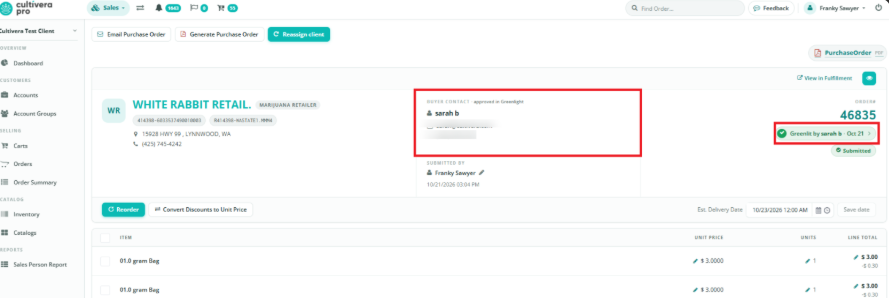
- On the order detail page, a green 'Greenlit by' tag shows the contact who approved it and the date. Hover over the tag to see the name the buyer typed when they approved. The approving contact is shown as the order's Buyer contact.
- An order that was shared but submitted without the buyer's approval does not show the tag.