PRO (WA): Configuration - AI Assistants: Connecting Vera to Claude, ChatGPT or Grok
 Updated
AI Assistants: Connecting Vera to Claude, ChatGPT or Grok
You can bring Vera, the Cultivera PRO sales assistant, into the AI assistant you already use, such as Claude, ChatGPT, or Grok. Once Vera is connected, you can ask about your clients, products, orders, and start carts, right from that assistant, including from its phone app between store visits.
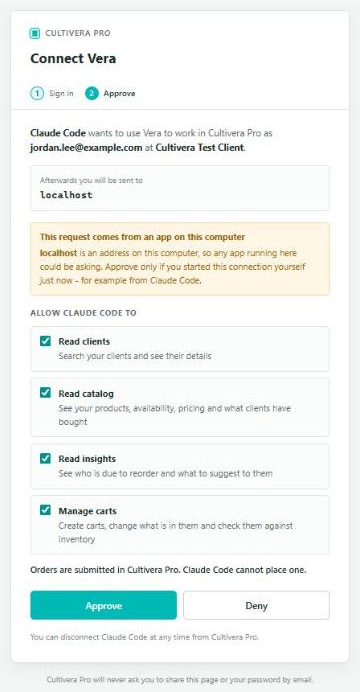
Vera works as you: it has the same permissions as the person who connected it. It can read clients, the catalog and sales insights, and it can work with carts. It cannot submit orders.
Before You Start
- For how your company admin turns on AI assistants outside Pro, see PRO (WA): Configuration - AI Assistants: Company Settings, Permissions and Connections.
- Your role must have the Connect AI Assistants permission.
- Your company can have up to 10 connected assistants at a time.
- You need an account with the assistant you want to use, with access to add a custom connector (or, in ChatGPT, developer mode).
How to Connect Vera to Your Assistant
- Navigate to Configuration > AI Assistants (under Integrations in the left menu).
- Under Connect an AI assistant, select 'Copy URL' to copy your connection URL. When your assistant asks for a name, call it Vera.
- Under Choose your assistant, select the assistant you use. The steps for that assistant appear below.
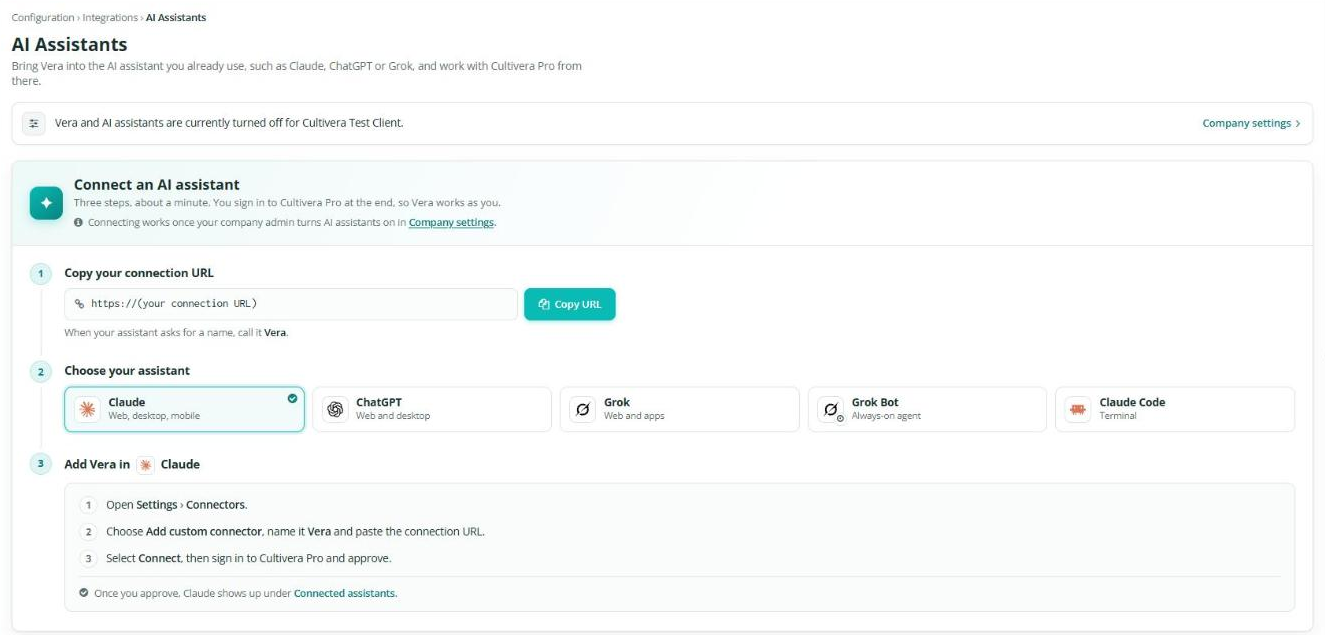
- Follow the steps for your assistant (see below).
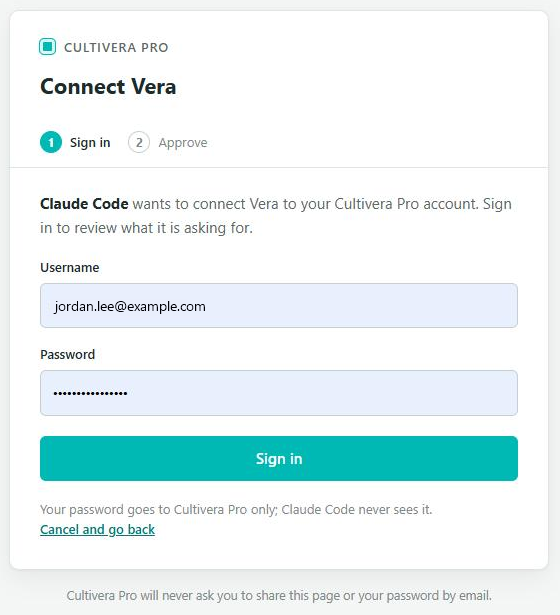
- When the Cultivera PRO sign-in page opens, sign in with your Cultivera PRO login.
- Review the approval page. It shows which assistant is asking, the account it will work as, and what it will be able to do. Select 'Approve'.
- You return to your assistant, connected. Back in Cultivera PRO, the assistant now appears under Connected assistants.
Claude (web, desktop and mobile)
- In Claude, open Settings > Connectors.
- Choose 'Add custom connector', name it Vera, and paste the connection URL.
- Select 'Connect', then sign in to Cultivera PRO and approve.
ChatGPT (web and desktop)
- In ChatGPT, open Settings > Apps & Connectors > Advanced and turn on Developer mode.
- Choose 'Create', name it Vera, paste the connection URL, and choose OAuth.
- Sign in to Cultivera PRO and approve.

Grok (web and apps)
- Open Connectors (grok.com/connectors, or the Grok app menu).
- Choose New Connector > Custom, name it Vera, and paste the connection URL.
- Sign in to Cultivera PRO and approve.

Grok Bot (always-on agent)
- Send your bot the message shown on the AI Assistants page. Select 'Copy' to copy it. It reads "Add this MCP server and call it Vera:" followed by your connection URL.
- Confirm, then use the sign-in card to sign in to Cultivera PRO and approve.

Claude Code (terminal)
- Run the command shown on the AI Assistants page. Select 'Copy' to copy it. It starts with
claude mcp add --transport http verafollowed by your connection URL. - In Claude Code, run
/mcpand sign in to Cultivera PRO.

Using Vera in Your Assistant
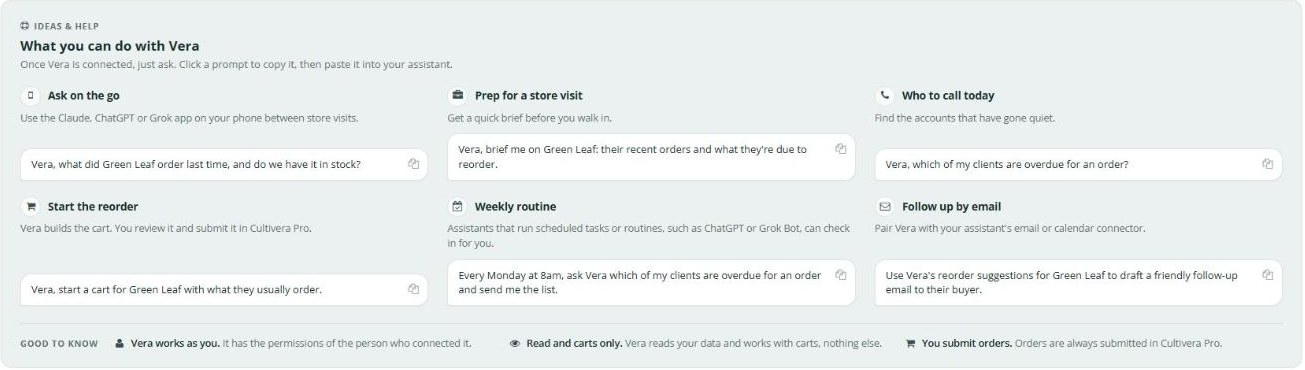
Once Vera is connected, just ask, and start your request with "Vera" so your assistant knows to use it. The What you can do with Vera section of the AI Assistants page has ideas you can copy with one click:
- Ask on the go: "Vera, what did <client> order last time, and do we have it in stock?"
- Prep for a store visit: "Vera, brief me on <client>: their recent orders and what they're due to reorder."
- Who to call today: "Vera, which of my clients are overdue for an order?"
- Start the reorder: "Vera, start a cart for <client> with what they usually order." You review and submit the cart in Cultivera PRO.
- Weekly routine: assistants that run scheduled tasks, such as ChatGPT or Grok Bot, can check in for you, for example, every Monday morning.
- Follow up by email: pair Vera with your assistant's email or calendar connector to draft a follow-up to a buyer.
Disconnecting an Assistant
- Navigate to Configuration > AI Assistants and scroll to Connected assistants.
- Find your assistant in the list and select 'Disconnect', then confirm.
The assistant loses access right away. The next time you ask it something, it asks you to connect again.

Staying Connected
Your assistant stays connected as long as you keep using it. If it is not used for 90 days, or if it is disconnected, it asks you to sign in again. Follow the steps above to reconnect.
Help Make Vera Better
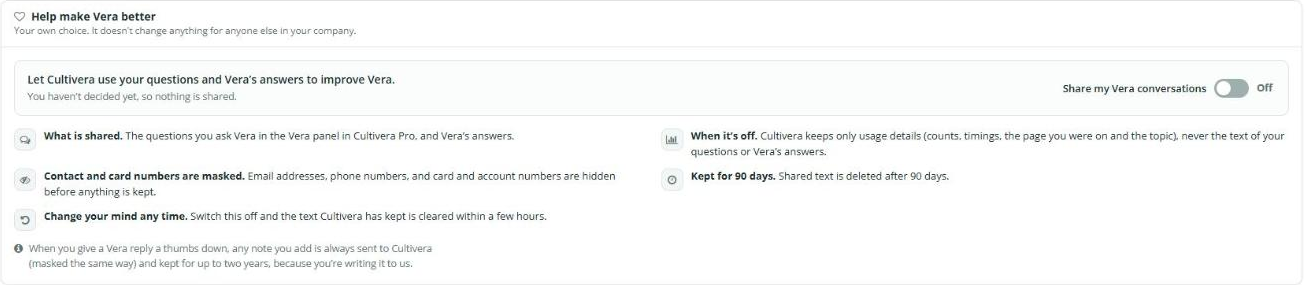
The AI Assistants page also has a Help Make Vera Better section. Turn on 'Share my Vera conversations' to let Cultivera use your questions and Vera's answers to improve Vera. It is your own choice and does not change anything for anyone else in your company. Email addresses, phone numbers, and card and account numbers are masked, and shared text is deleted after 90 days.