PRO (WA): Sales - Vera: Getting Started with Your Sales Assistant
 Updated
Vera: Getting Started with Your Sales Assistant
Vera is the sales assistant built into the Sales area of Cultivera PRO. You ask Vera questions in plain English, and it answers using your accounts, orders, and products in Cultivera. Vera can also prepare work for you, such as a draft cart or a client note, for you to review.
Vera helps with questions like:
- "Who is overdue?" to find accounts that have gone quiet and should be called.
- "What should I pitch this account?" to see products they have bought before that are in stock now.
- "Prep a draft cart for this client" to get an order started.
How to Open Vera
- Navigate to any page in the Sales module.
- Select the 'Vera' button in the bottom-right corner of the page. The Vera window opens. It is labelled BETA and suggests questions such as "Who is due to reorder?" and "How is my month going?". Select a suggestion to ask it, or select 'What else can I ask?' for more ideas.
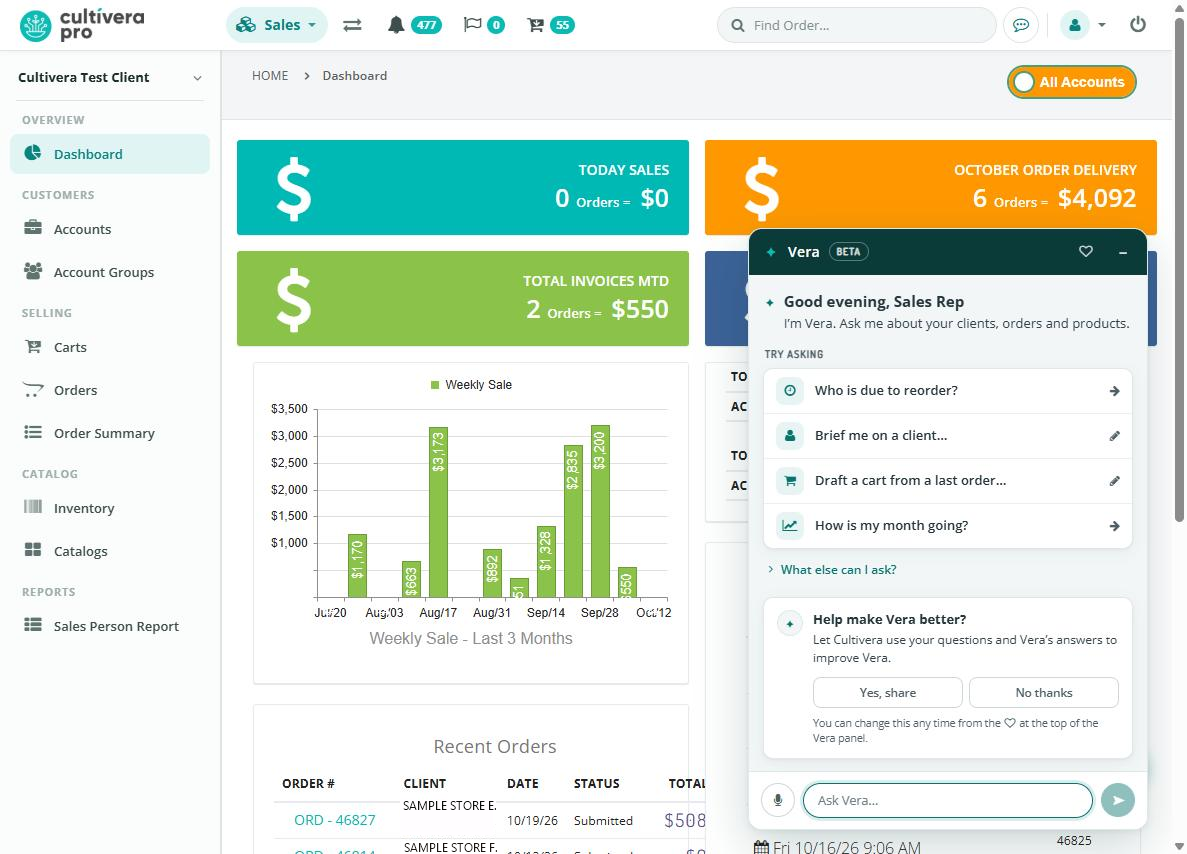
- Type your question in the 'Ask Vera' box at the bottom of the window and press Enter. You can also select the microphone button to speak your question. It is typed into the box so you can check it before you send it.
- To close the window, select the minimize button in the Vera header.
The Vera window stays open as you move between Sales pages, and your conversation is kept. Answers can take up to about 10 seconds. While Vera is working, you see typing dots in the window.
Asking About What Is on Your Screen
Vera knows which client, cart, or order you have open. When you are on a client's page or a cart, you can ask about "this client" or "this cart" without typing the name. You can also name an account, or look it up by its license number or UBI. If more than one account matches a name, Vera asks which one you mean.
Reading Vera's Answers
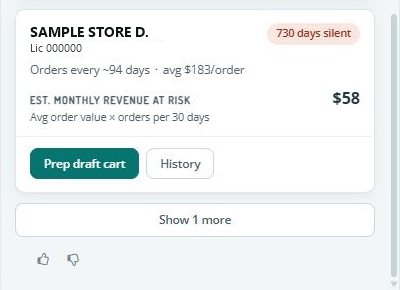
- Most answers include a card with the details, such as accounts, products, orders, or contacts. Each card names the Cultivera PRO screen its numbers come from, so you can check them there.
- Web addresses in Vera's replies are shown as plain text and are not clickable.
- If you ask about something outside of what Vera can do, it tells you what it can help with instead of guessing.
For the full list of questions Vera can answer, see PRO (WA): Sales - Vera: Asking About Clients, Orders and Products. For the work Vera can prepare for you, see PRO (WA): Sales - Vera: Preparing Carts, Samples, Contacts and Notes.
Rating an Answer
Under each of Vera's answers, select the thumbs up or thumbs down icon to tell us whether it helped. After a thumbs down, you can type a short note about what went wrong, then select 'Send' or 'Skip'.
Help Make Vera Better
The first time you use Vera, a card asks, 'Help make Vera better?'. If you select 'Yes, share', Cultivera can use your questions and Vera's answers to improve Vera. They are kept for 90 days, with email addresses and phone numbers masked. If you select 'No thanks', the text of your conversations is not kept.
You can change your answer at any time by selecting the heart icon at the top of the Vera window.
Usage Allowance
Each company has a Vera usage allowance that is shared by all of its users. The allowance is measured over any 5 hours and over any 7 days.
- When your company has used 80% of either allowance, a usage meter appears under the Vera header.
- When the allowance is used up, Vera shows a card that tells you when it will be available again, in your local time.
