PRO (WA): Fulfillment - Merging Orders
 Updated
Fulfillment - Merging Orders
When an order is submitted in Cultivera PRO, additional line items can no longer be added. However, you can utilize the 'Merge Order' feature to combine a new order with the existing one. Follow the steps below to accomplish this workflow.
- Create a new Sales > Cart to add the additional line items.
- You can follow this guide for step-by-step instructions on creating a new Sales > Cart: PRO (WA): Processing an Order in Cultivera
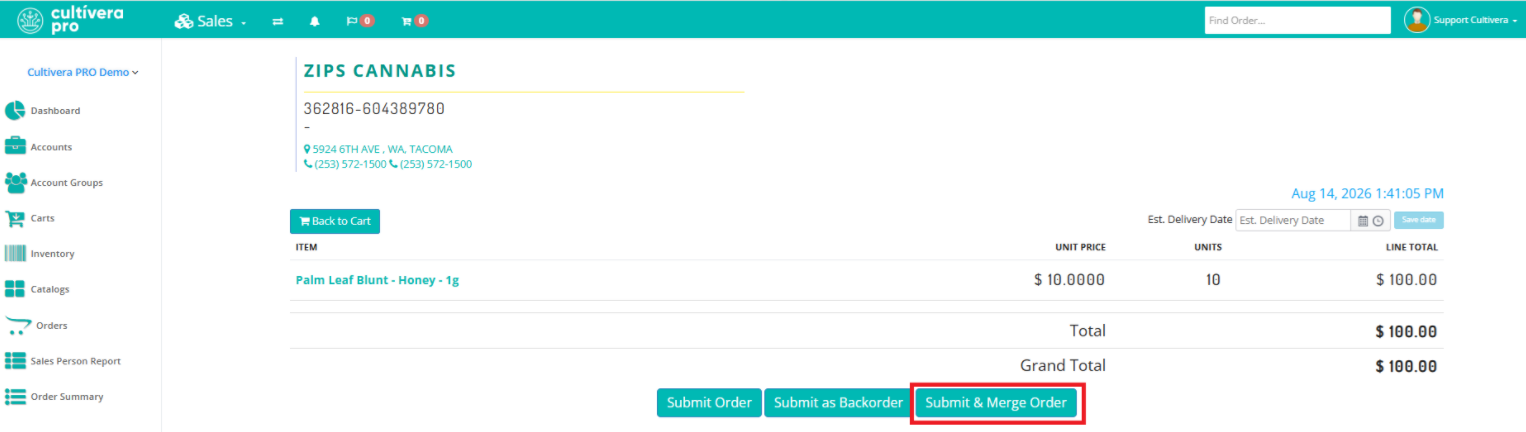
- From the Sales > Cart 'Submit Order' page, you can select 'Submit and Merge' to merge the Cart with the existing order.
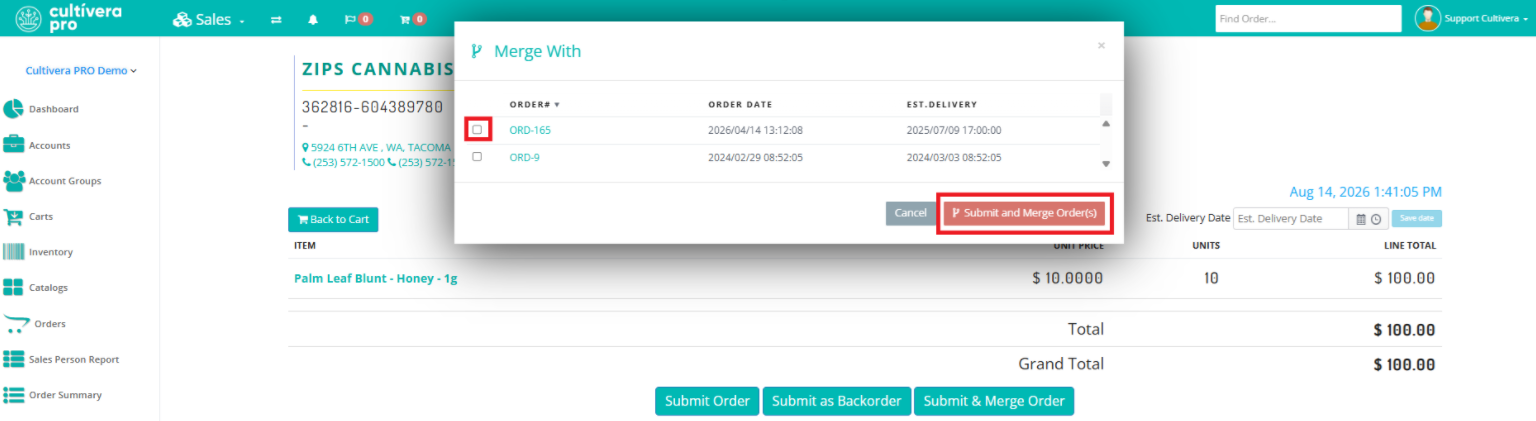
- In the pop-up window, select the order you wish to merge the cart with, then select 'Submit and Merge Order(s)'.
- Alternatively, you can submit the new order, navigate to the Fulfillment > Order Details page, and select 'Merge Order'.
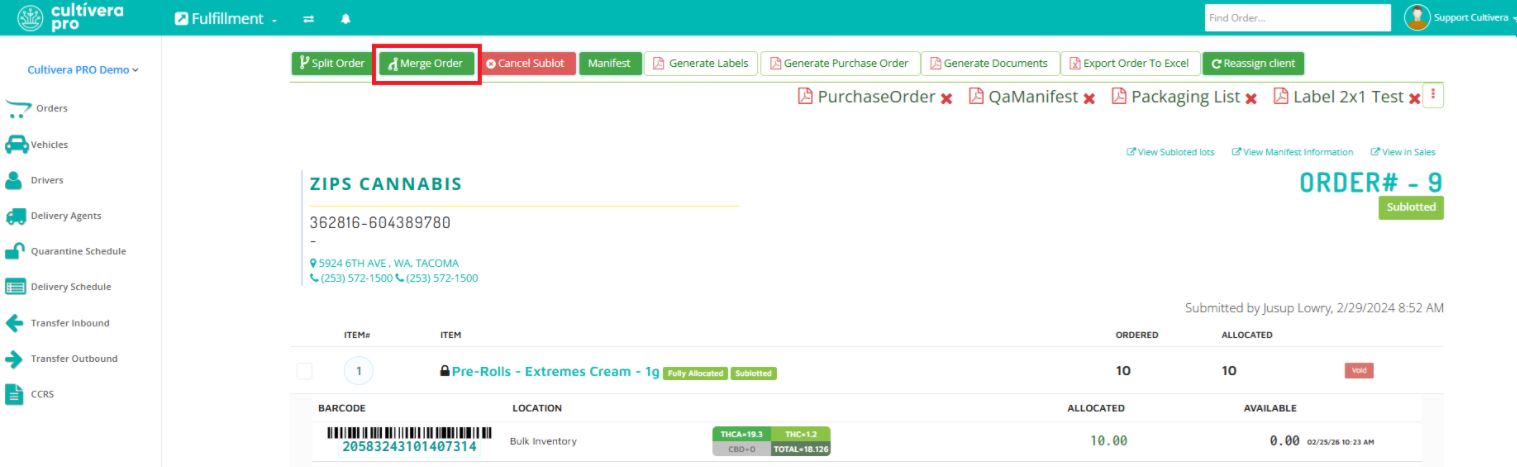
- From the 'Merge Order' pop-up window, select the order(s) you want to merge, then select "Merge Order(s)".
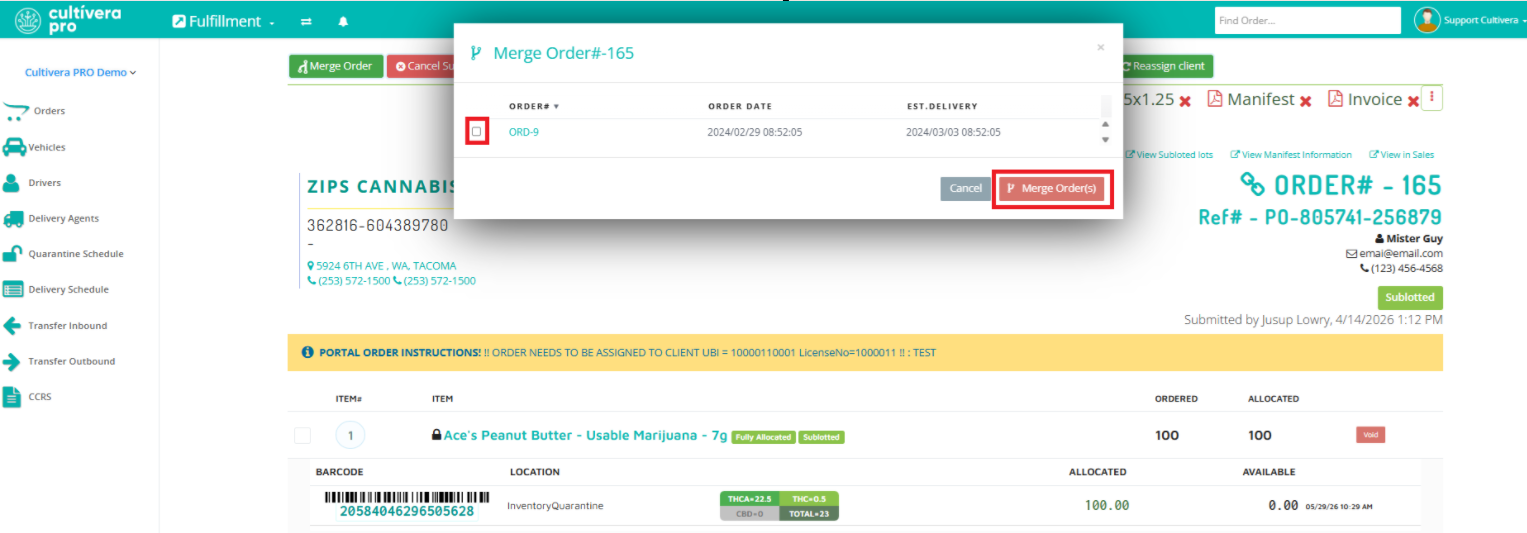
- Alternatively, you can submit the new order, navigate to the Fulfillment > Order Details page, and select 'Merge Order'.
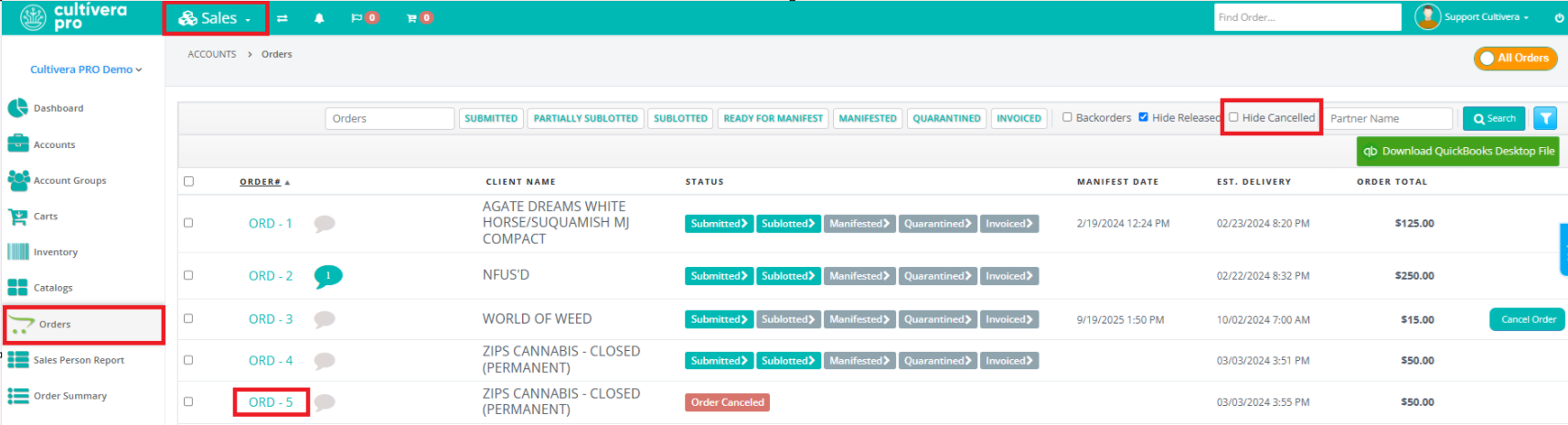
If you need to reference the original purchase order or use the "Reorder' button feature from the original order, you can view the cancelled order details via Sales > Orders by unchecking the "Hide Cancelled" checkbox and clicking into the Order Details page.