PRO: QuickBooks Online Manual Product Mapping
 Updated
PRO: QuickBooks Online Manual Product Mapping
This new feature (released 8/25/2026) allows users to manually assign QBO products to a Cultivera product (if the QBO and Cultivera PRO product names do not match).
Previously, the integration required that the Product Name must match between QBO and Cultivera PRO; if the product names did not match, the integration would automatically create a new QBO Product at the time an invoice containing that product was exported to QBO. This is still the "default" for QBO product integration, but it can now be controlled manually if the product names don't match exactly between the two systems.
Linking Existing QBO Products via Product Details:
- Navigate to the Product Details page and click on the "Quickbooks Setting" tab:
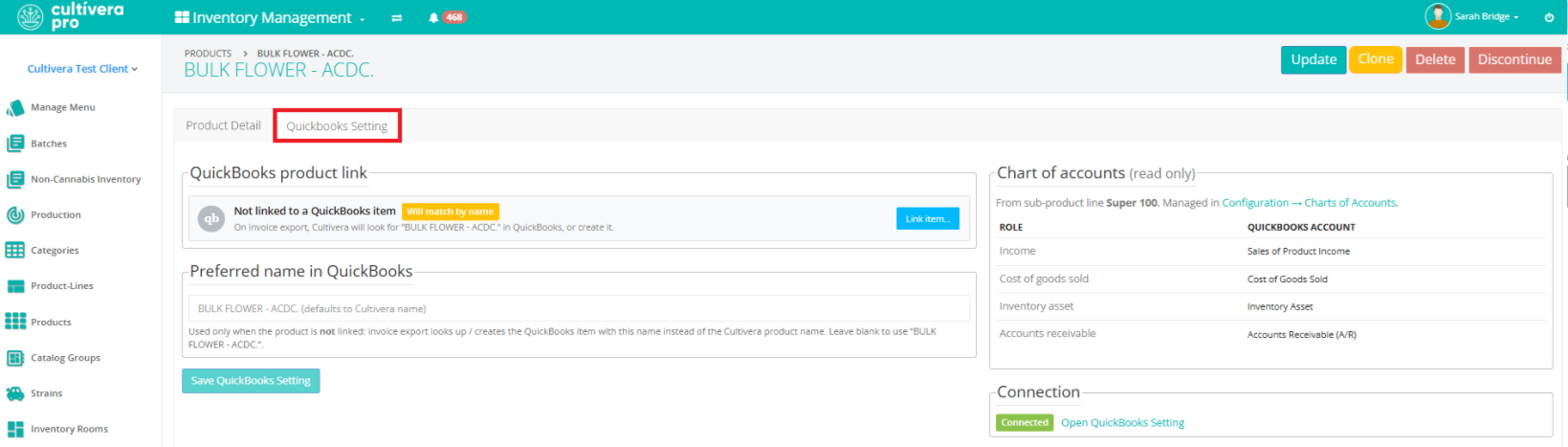 If the product is already linked to an existing QBO Product, that will show accordingly under the 'QuickBooks Product Link' section. If the product is not linked to an existing QBO Product, this is where you can manually update the product mapping as desired.
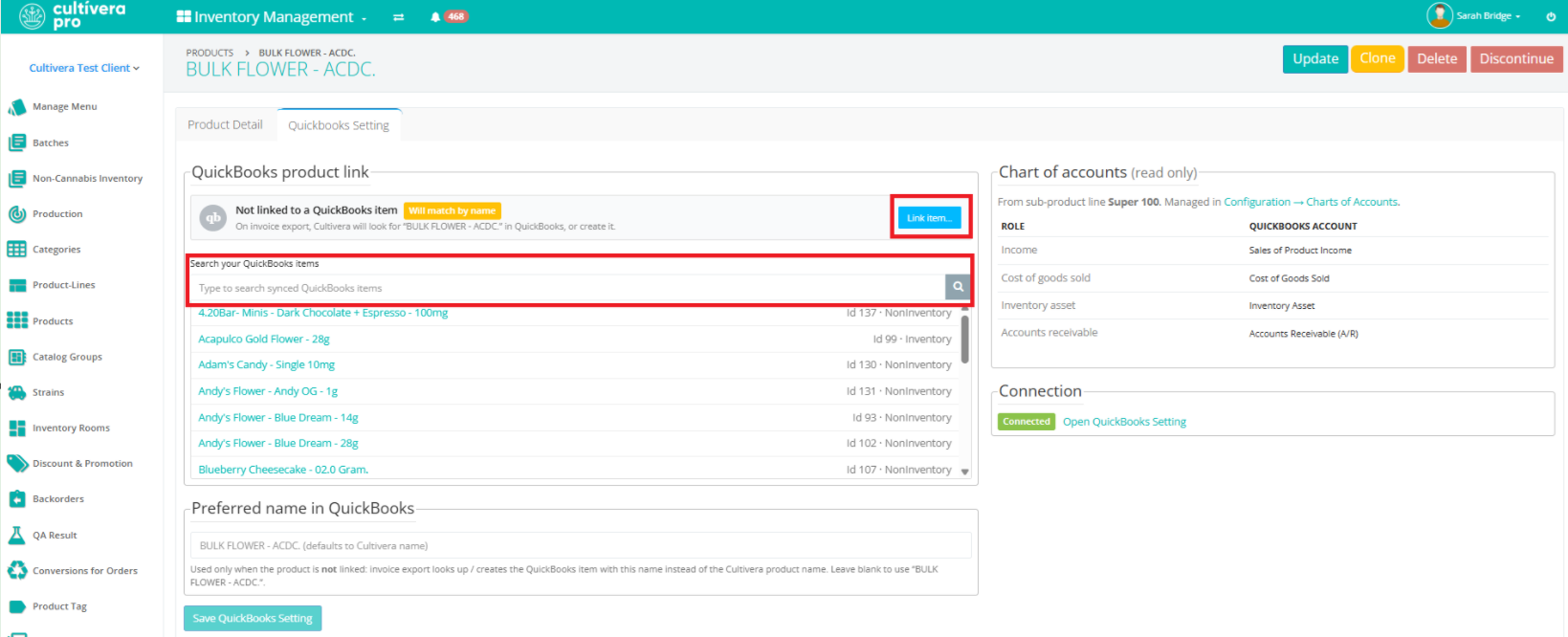
Leaving a Product "unlinked" will create a new QBO Product if the integration does not find a QBO Product with the same product name. - Select the blue "Link item..." action item and search the synced QBO items list for manual mapping purposes:
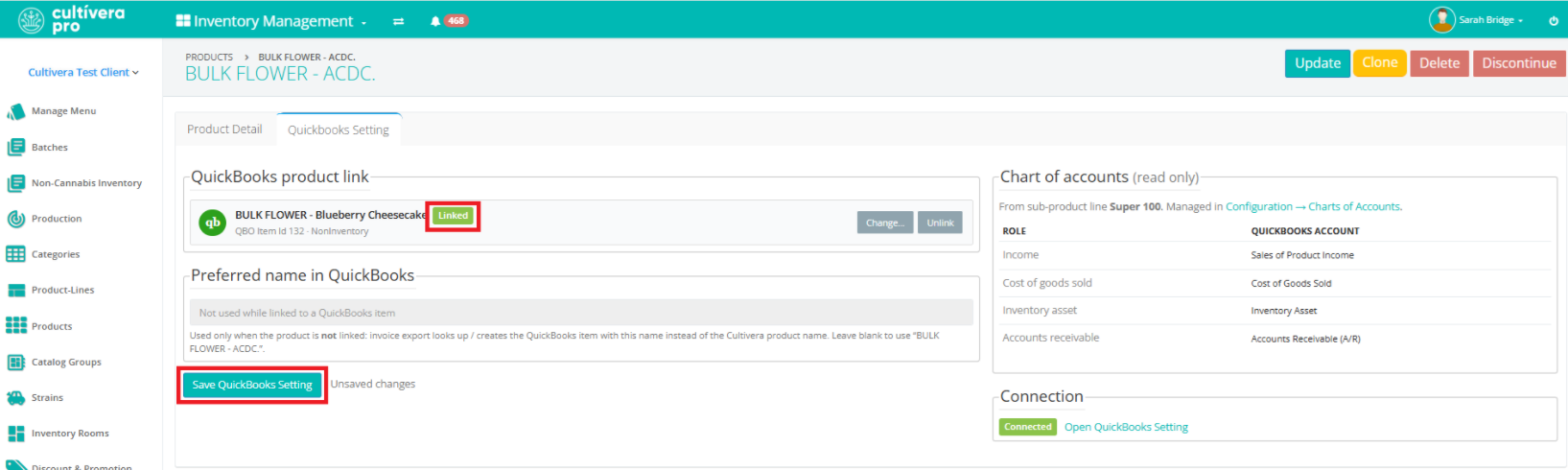
- Click on the intended QBO Product from the QBO Product List (this will link the product and show a green "Linked" confirmation tag). Select 'Save QuickBooks Setting'.
Updating the "Preferred Name in QBO" via Product Details:
This should be used only when the product is not linked to a QBO product. The invoice export looks up / creates the QuickBooks item with this name instead of the Cultivera product name. Leave blank to use the Cultivera PRO Product Name.
- Navigate to the Product Details page and click on the "Quickbooks Setting" tab:
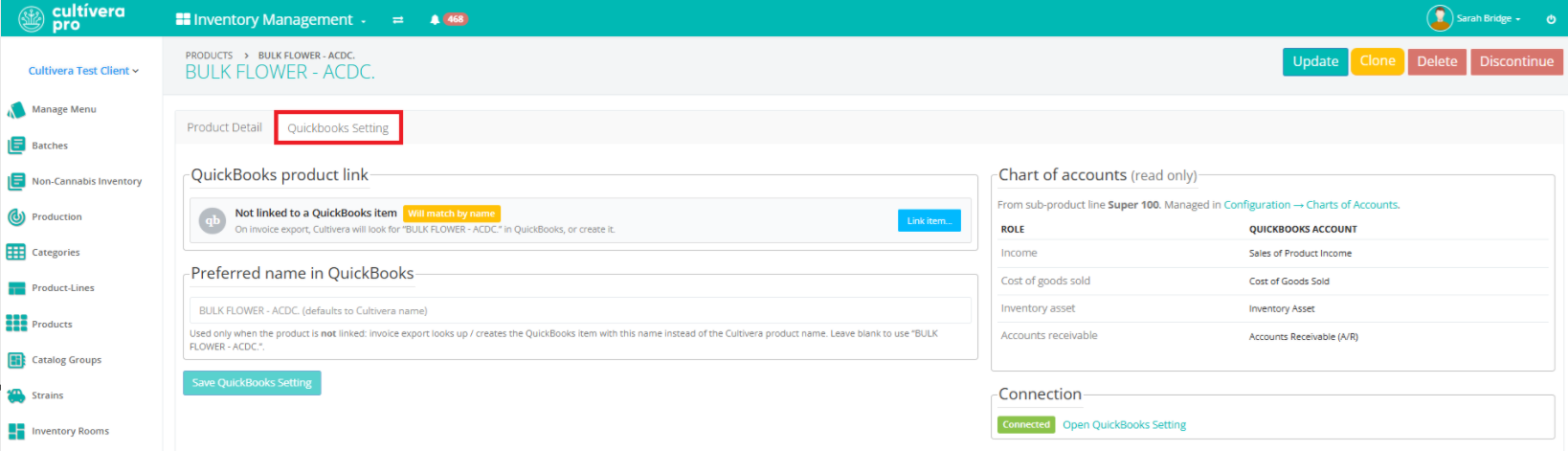
- Manually enter the "Preferred Name in QuickBooks":
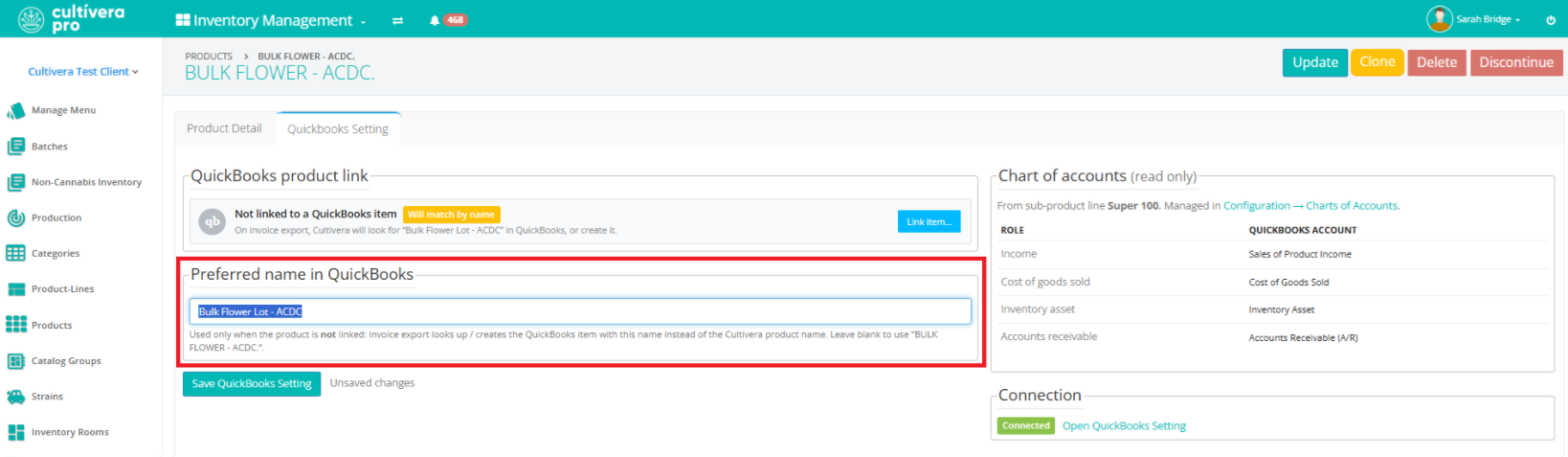
- Select "Save QuickBooks Setting" before navigating away from the page.
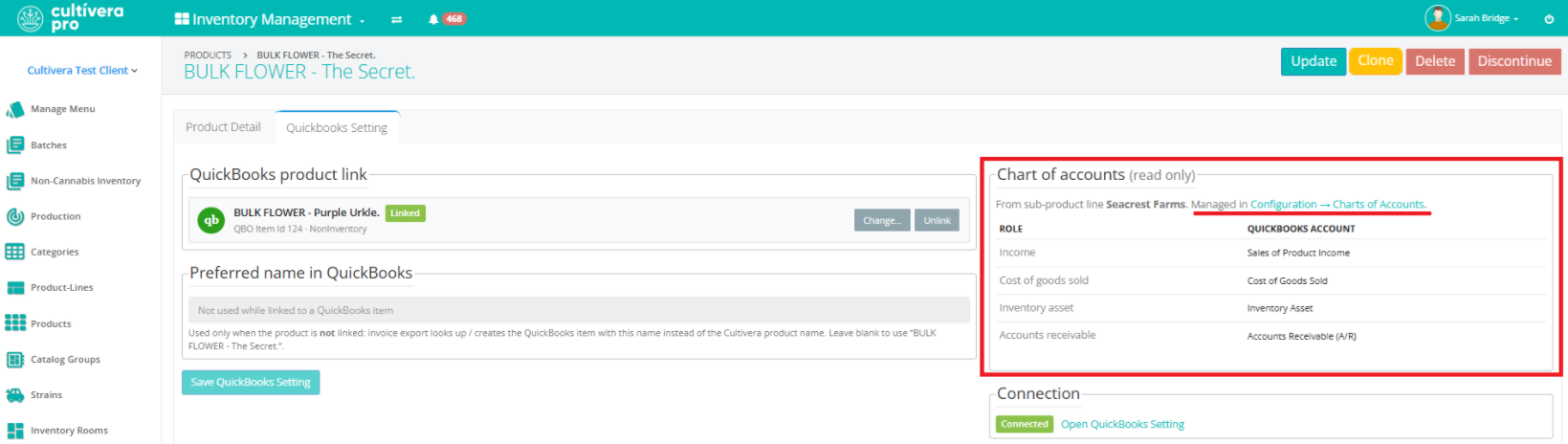
Updated "Charts of Accounts" View on Product Details:
The Charts of Accounts assigned to the Sub-Product Line associated with the Product can be easily confirmed on the new QuickBooks Setting tab.
This is a "read-only" view, but you can select the "Configuration > Charts of Accounts" link from this page to be redirected to the Charts of Accounts setup page.