PRO: Fulfillment - Missing COAs on Order Invoice Emails
 Updated
How to Resolve Issues When COAs are missing from Order Invoice Emails and Ensure You Are Updating the Correct QA Lot in QA Results
This guide will help you identify and resolve situations where Certificates of Analysis (COAs) are missing from an order invoice email after sending it to a client.
How COAs Attach to Order Invoice Emails
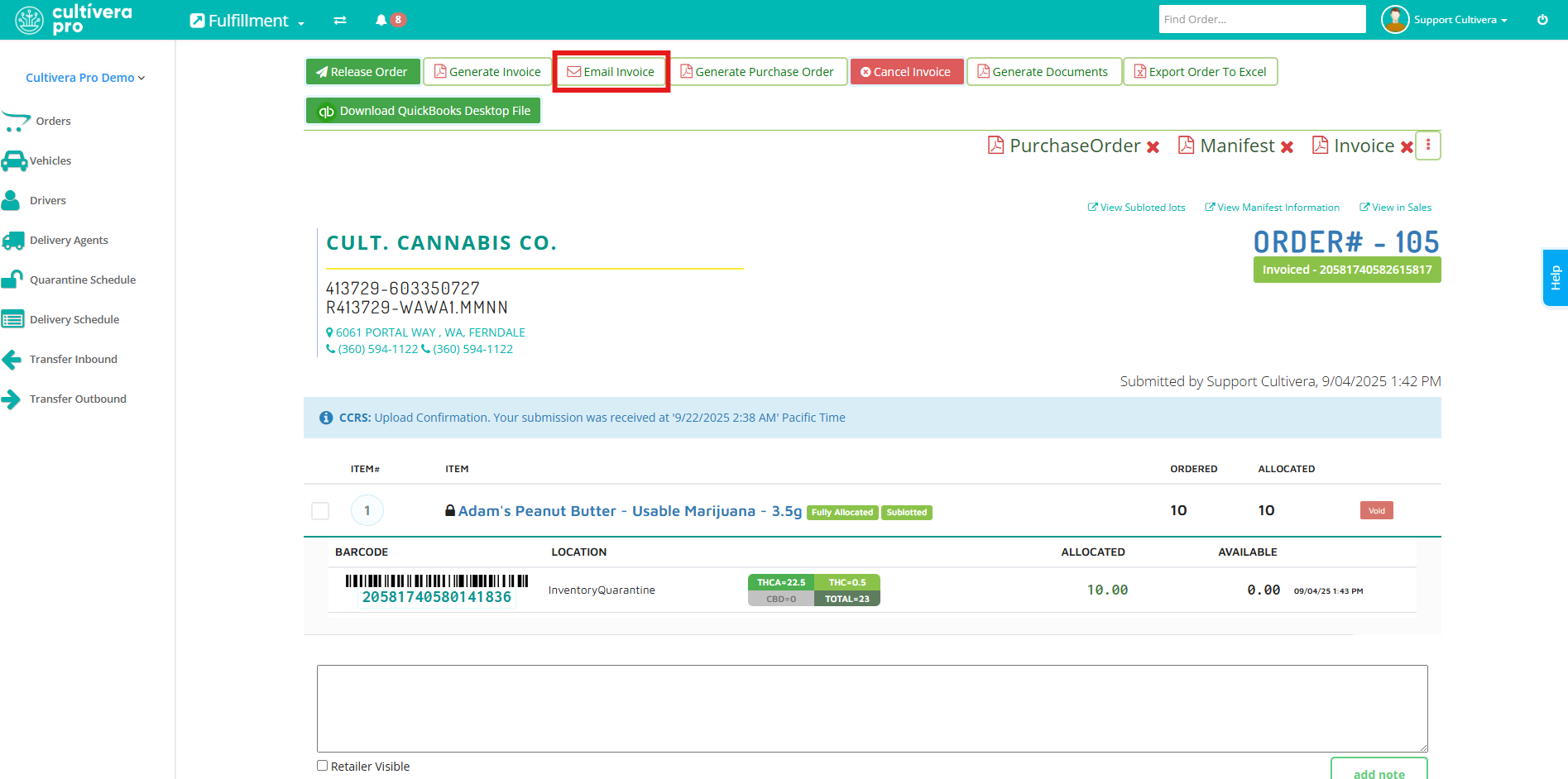
You can use "Email Invoice" once an order has been Invoiced in Fulfillment.
At the time you send the invoice, be sure to select "Include COA" and the system will attach any COAs associated with the order.
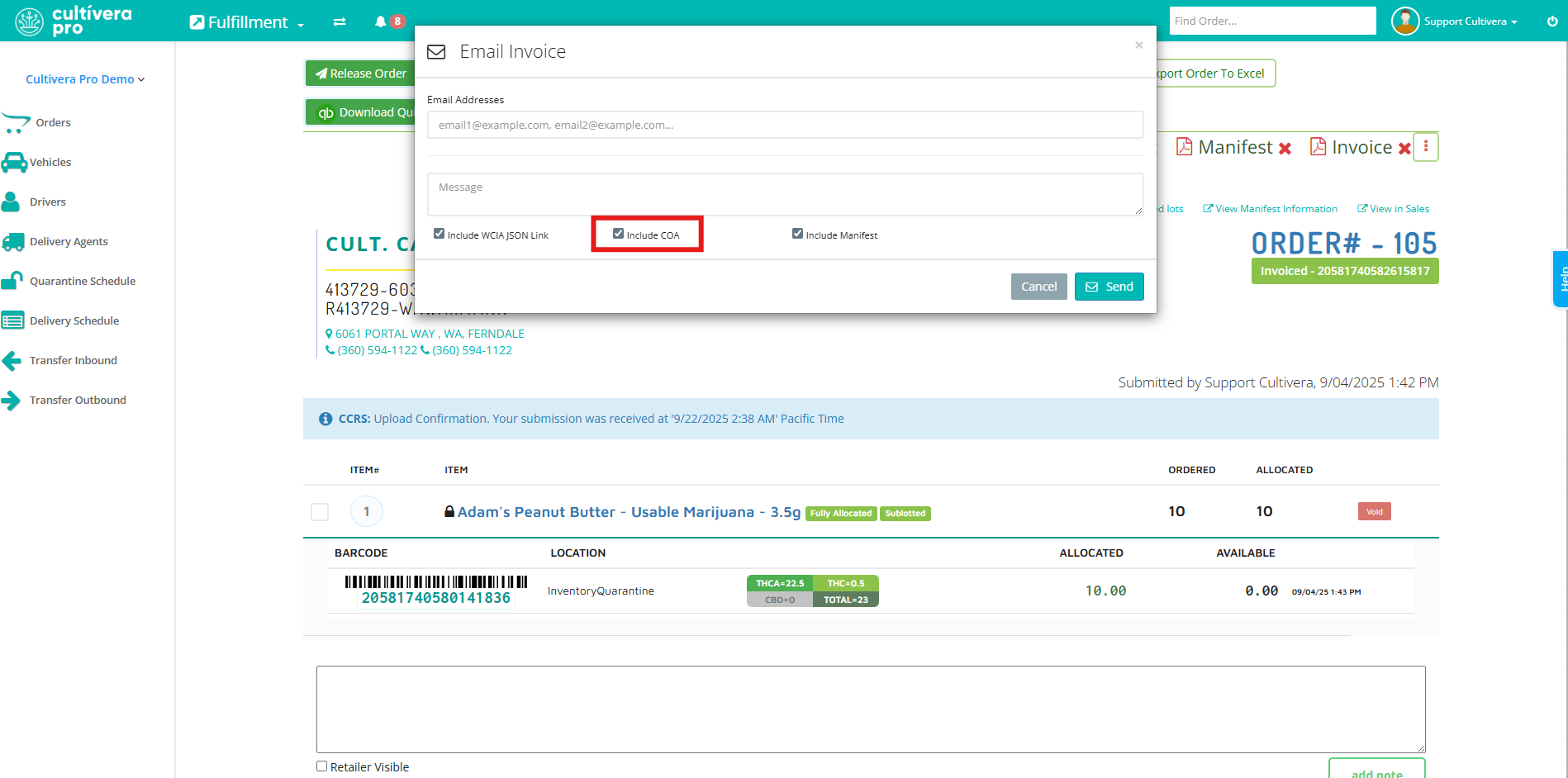
A COA will only attach to the invoice email if it has been successfully uploaded to the assigned QA Result for that material within your Inventory Management module.
Best Practice:
Before sending an invoice to a client, we recommend emailing the invoice to yourself. This is the fastest way to verify that all COA PDFs have been uploaded to the correct QA Parent Lots.
When the COAs are correctly attached, the email will include a four-column table showing:
- Item Name
- Item ID#
- QA Parent Lot ID#
- A PDF attachment of the COA
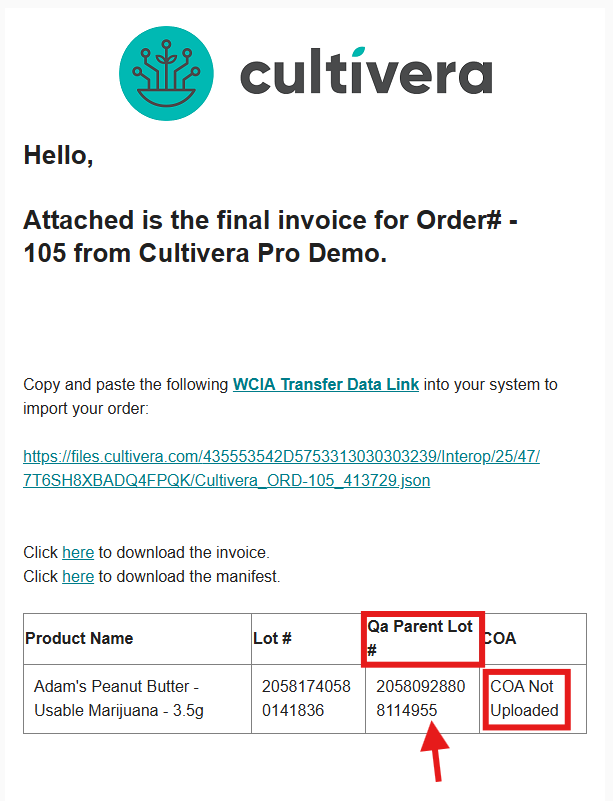
Noting the QA Parent Lot ID allows you to quickly navigate to that QA Lot in Inventory Management > QA Results to confirm or update the associated Certificate of Analysis.
Why a COA Might Be Missing
A COA PDF may be missing from a QA Result for several reasons:
- The testing lab may not have included the COA PDF in the JSON file.
- A user may have created the QA Result manually but did not upload the COA file after creating the QA Lot.
- If the material was transferred to you, the sending facility may have provided QA data but omitted the COA attachment.
- A COA may have been uploaded to a QA Result, but it may not be the COA intended for the batch in question.
How to Resolve Missing COA Attachments
If you discover that a COA is missing or incorrect, you can take one of the following actions:
Option 1 — Reassign the Correct QA Result
Assign the correct QA Result (with the correct COA) directly to the batch.
Option 2 — Upload the COA to the Existing QA Lot
Upload the missing COA PDF to the existing QA Lot, then resend the invoice with the updated attachments.
Verifying Which QA Parent Lot Is Assigned to a Batch
If you are viewing a QA Lot that includes a COA PDF, but it is not attaching to the expected item on the invoice, it means the QA Lot is not actually assigned to that batch.
To confirm which QA Parent Lot is currently assigned:
- Navigate to Inventory Management > Batches.
- Filter to locate the batch(es) in question
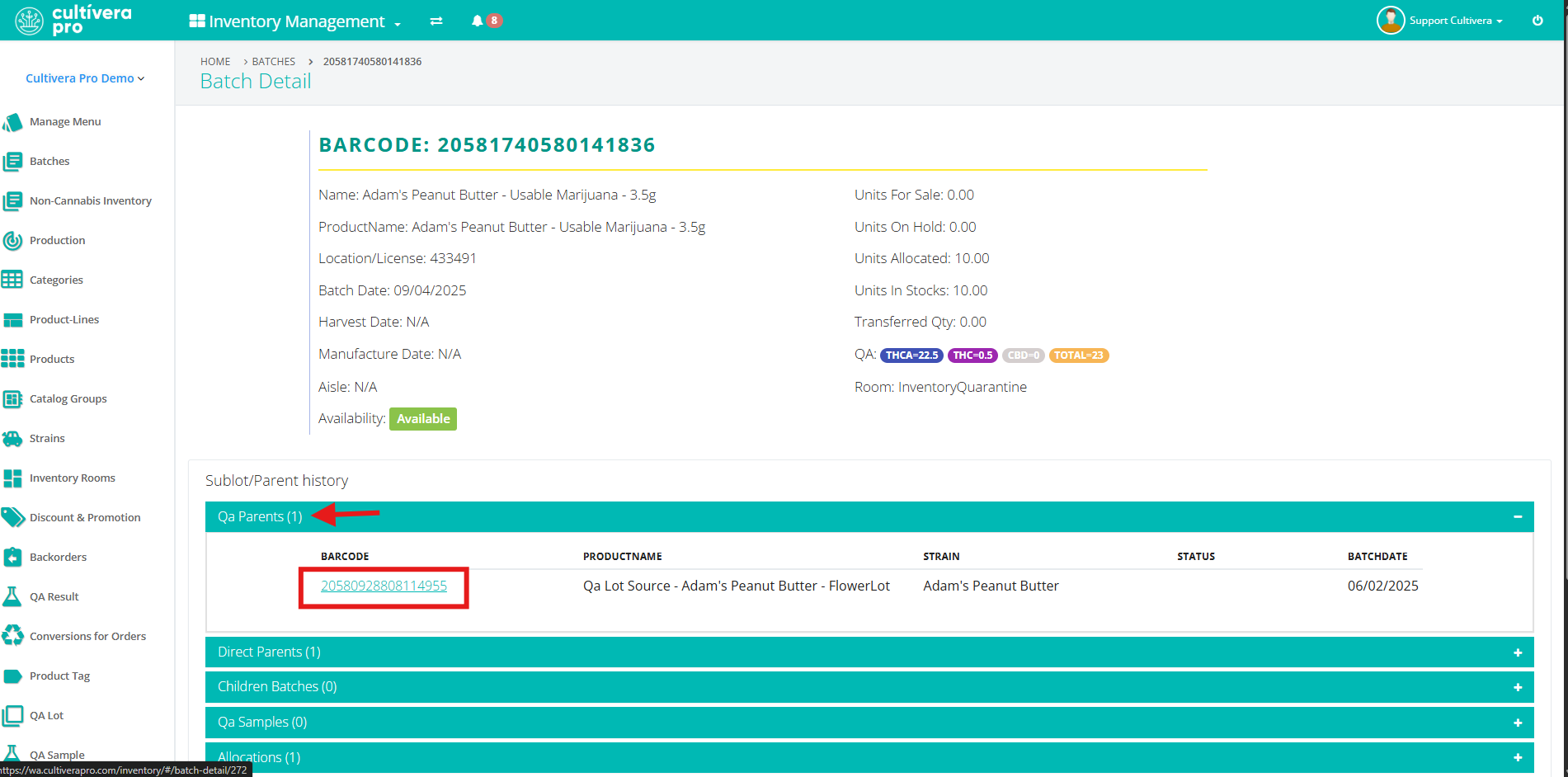
- Click the Barcode ID to open the Batch Details page.
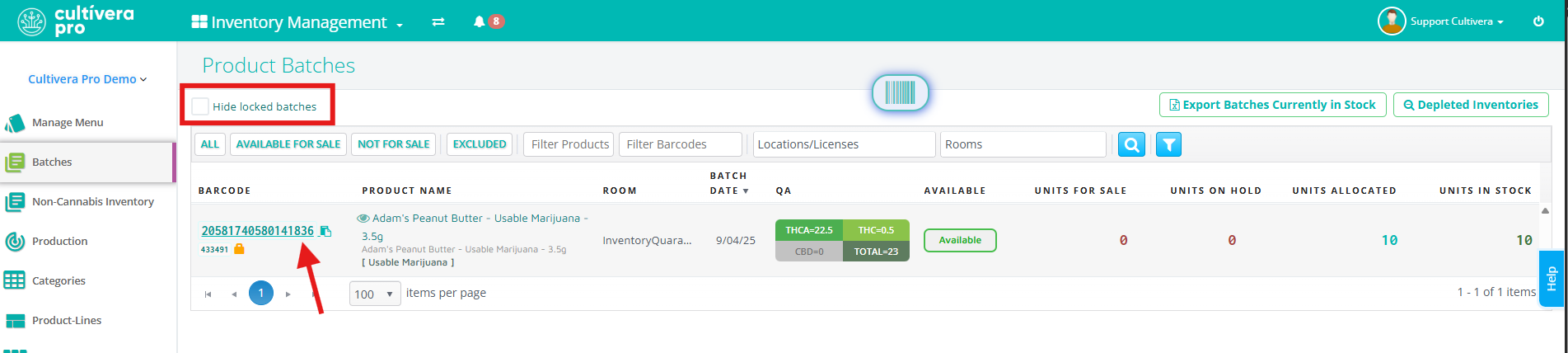
- Expand the QA Parent column to copy the assigned QA Parent Lot ID#.
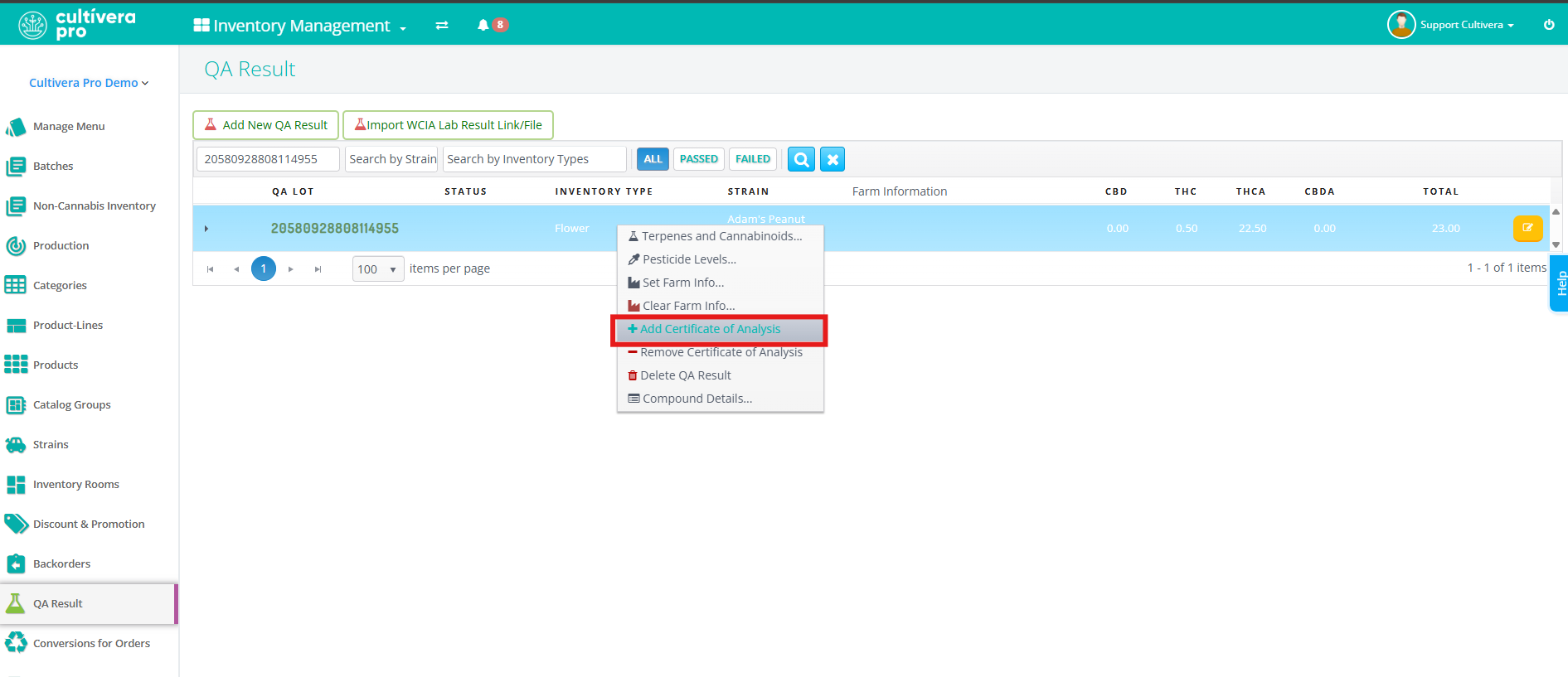
- Navigate to QA Results, and paste the QA Lot ID# into the filter search.
- Once located, you can right-click the QA Lot and select Add Certificate of Analysis to upload the COA if needed.
When a QA Lot Has a COA but Still Does Not Attach to an Invoice
If the QA Lot shows that the COA is uploaded, but the COA does not appear for the item when emailing the invoice, this indicates that the batch or line item is not currently assigned to that QA Lot.
To correct this:
- Navigate to Batches.
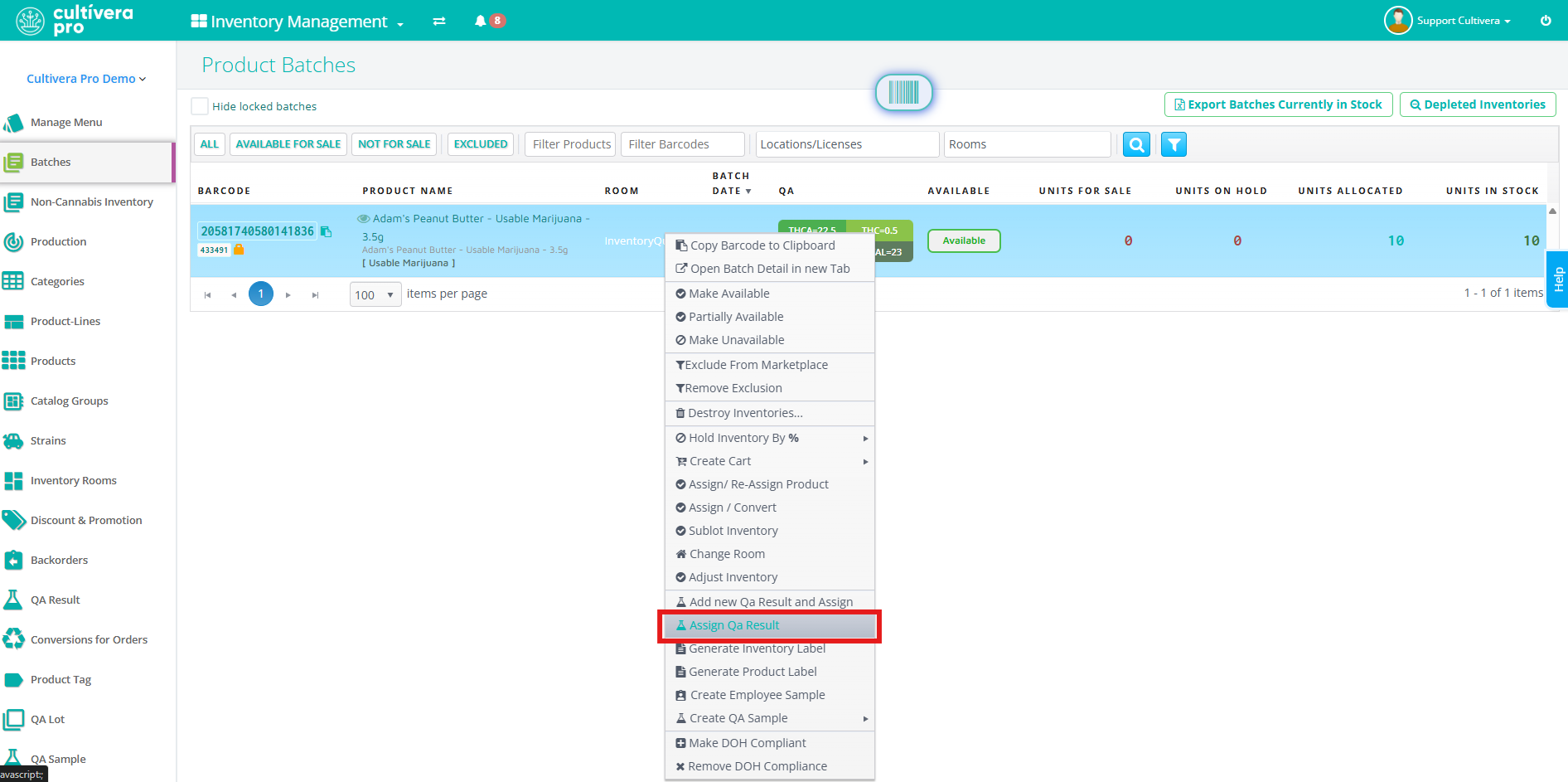
- Right-click the batch in question.
- Select Assign QA Result.
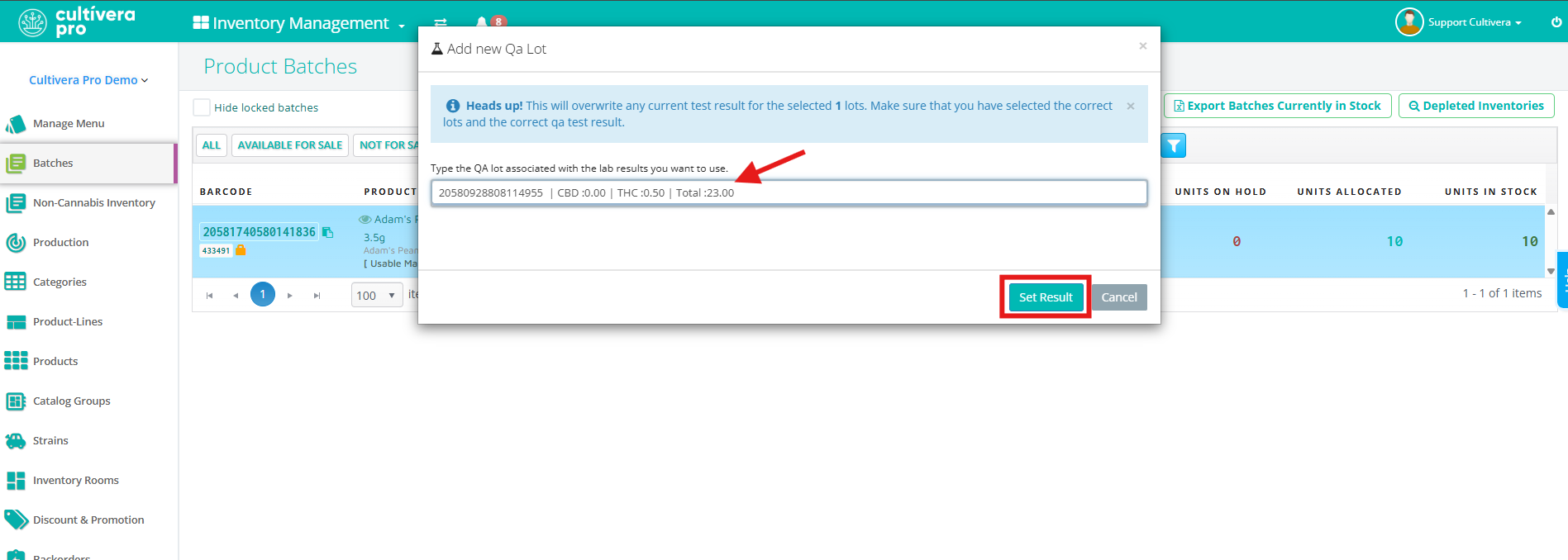
- Enter the correct QA Lot ID#.
- Click Set Result.
If you have any questions on this or any other workflow in Cultivera PRO, please email support@cultivera.com.
Related Articles:
