PRO (WA): How to Cure a Harvest
 Updated
Curing a Harvest in Cultivera (Washington)
Follow the workflow below when you are ready to enter the dry weights for a harvest.
Note that this workflow is for Cultivera PRO users in Washington state.
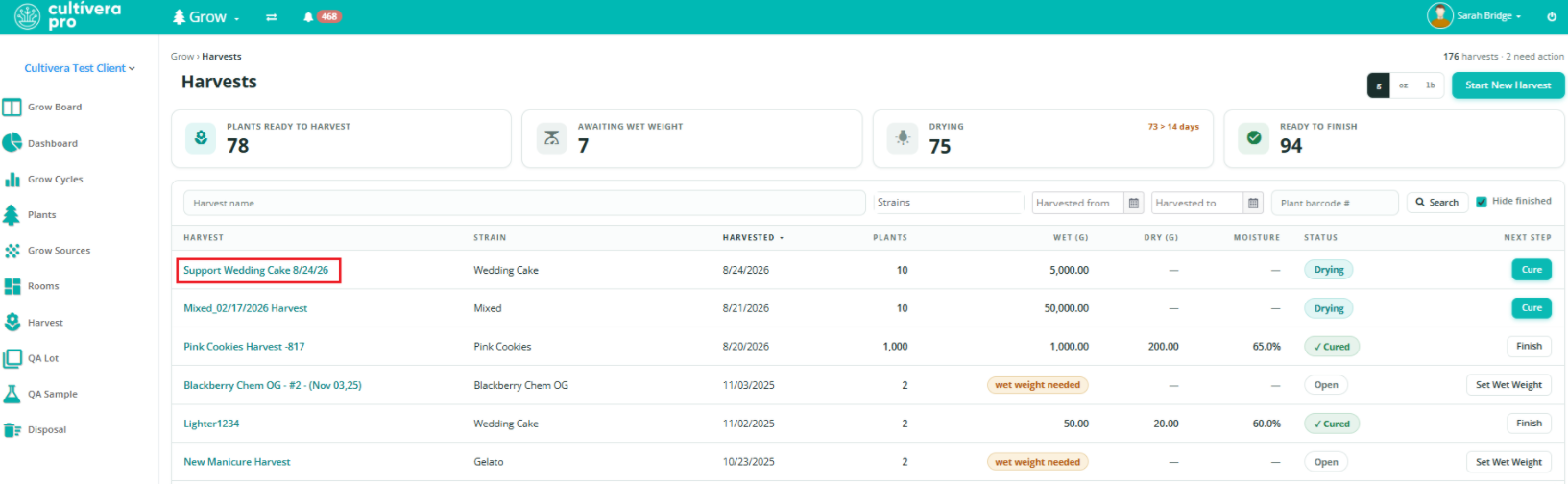
- Navigate to Grow > Harvest. Click on the name of a Harvest to navigate to the Harvest Detail page:
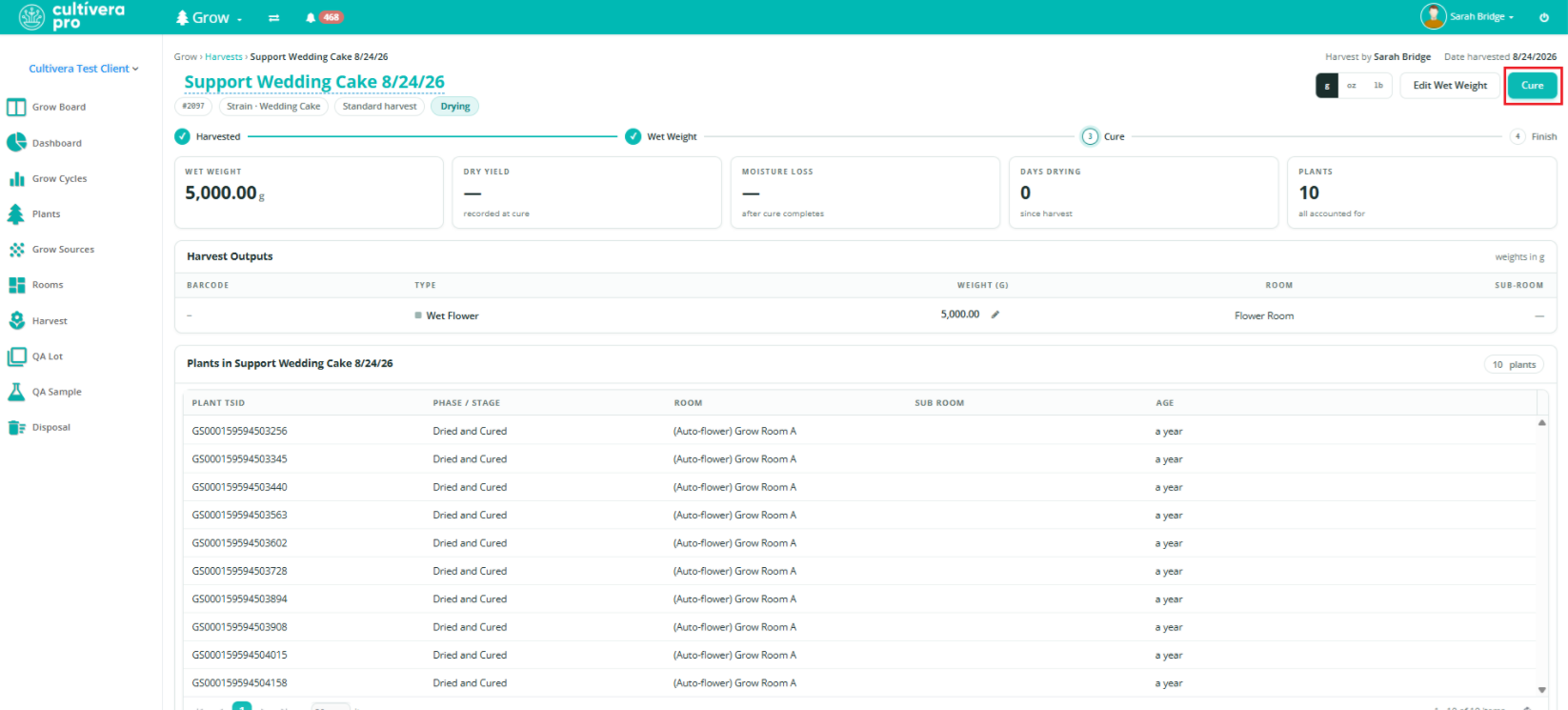
- Select the teal “Cure” button (upper right corner):
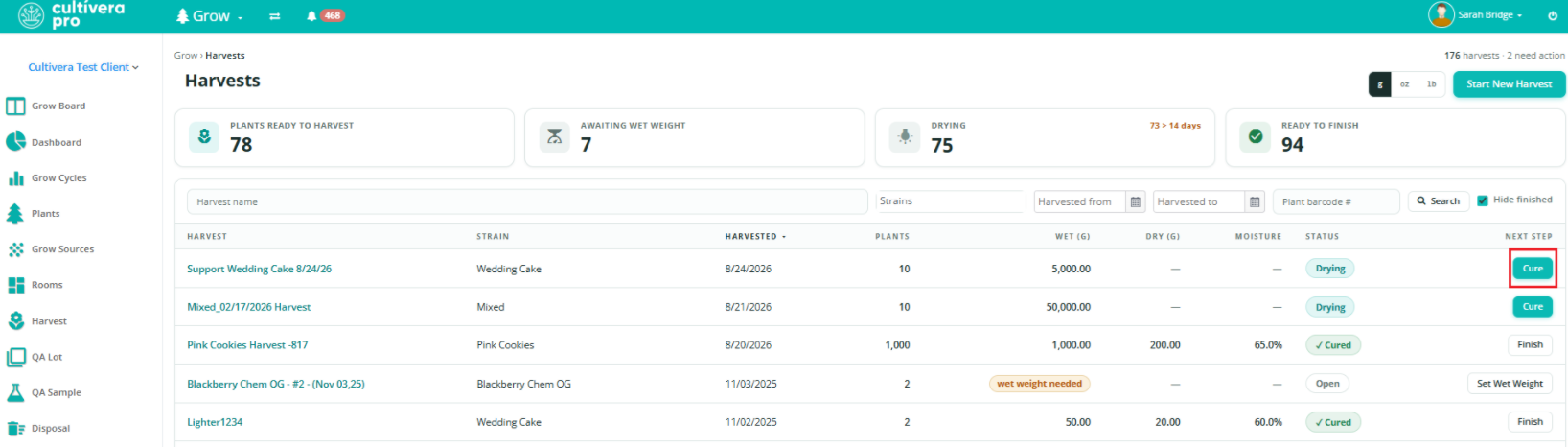
Alternatively, you can click the "Cure" button associated with the Harvest, directly from the Harvest page (under the 'Next Step' column):
- Enter the "Dry Weight" and associated flower Product and Room. If applicable, you can also enter the "Other Material Weight" and “Waste Weight” before selecting “Save”.
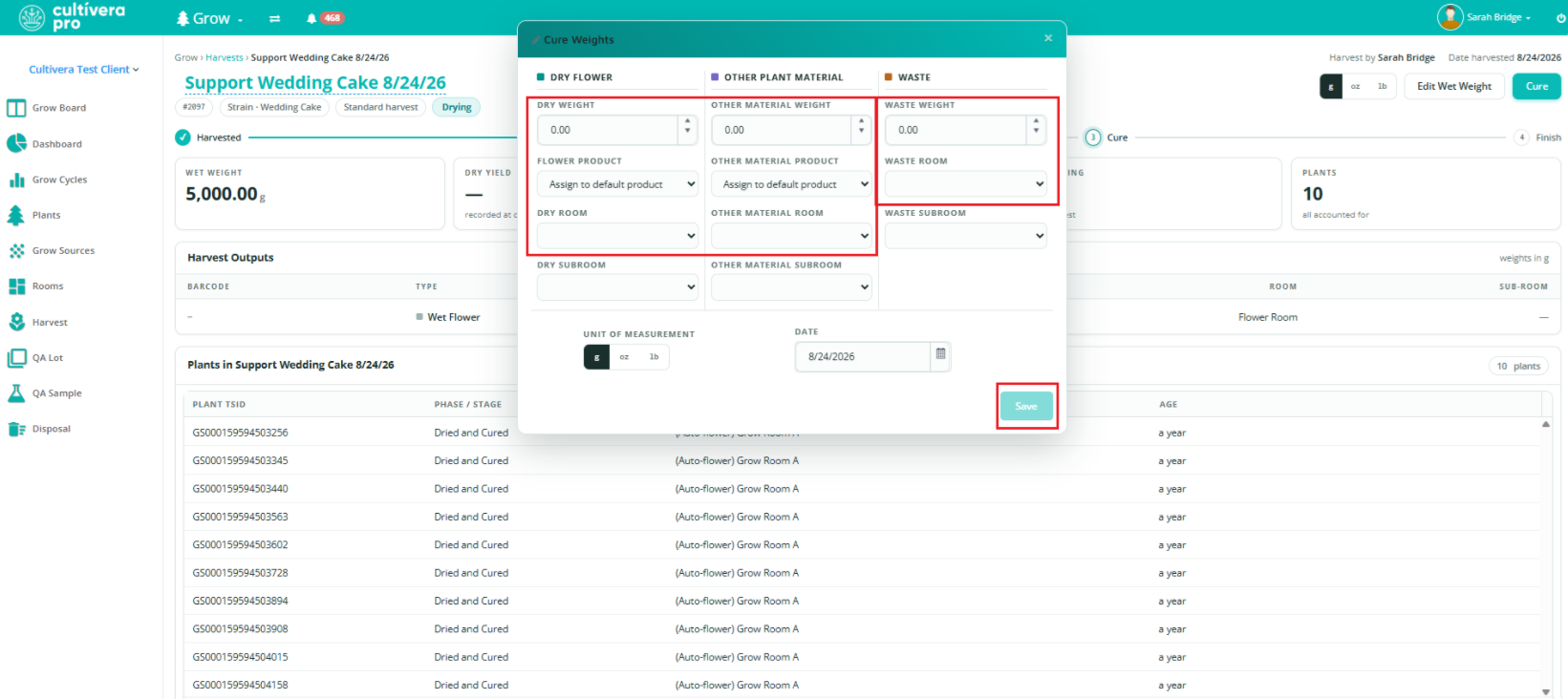 The cure weights cannot be saved until a Product and Room are set for each weight recorded. Waste weights do not require a product selection, but do require a Room to be assigned.
- You will see a success message once the Cure is complete, and the corresponding weights will be recorded. From the Harvest Detail page, you will also see the Barcodes generated for any Weights entered, as well as their corresponding Room:
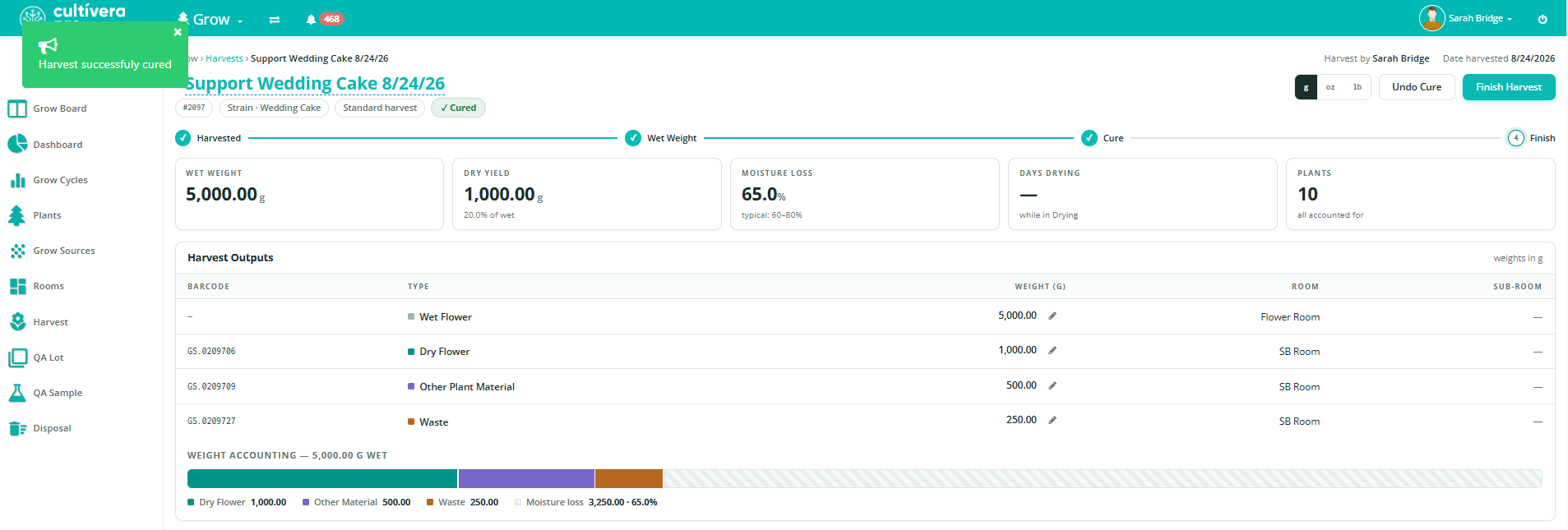
- Once all of the dry weights have been recorded for the harvest, select “Finish Harvest” (upper right corner):
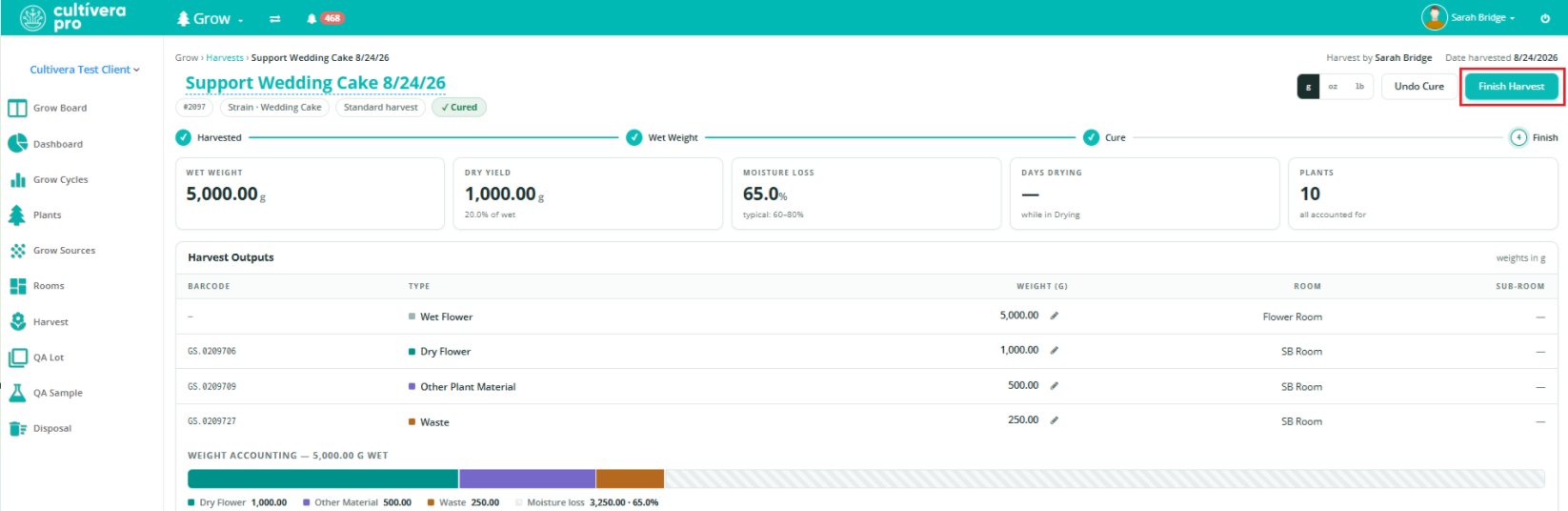
You’ll then see the corresponding dry weight batches from the harvest in Inventory Management > Batches.
