Cultivera Exchange (Seller): Manage Selling - Sales Offers
 Updated
Manage Selling - Sales Offers
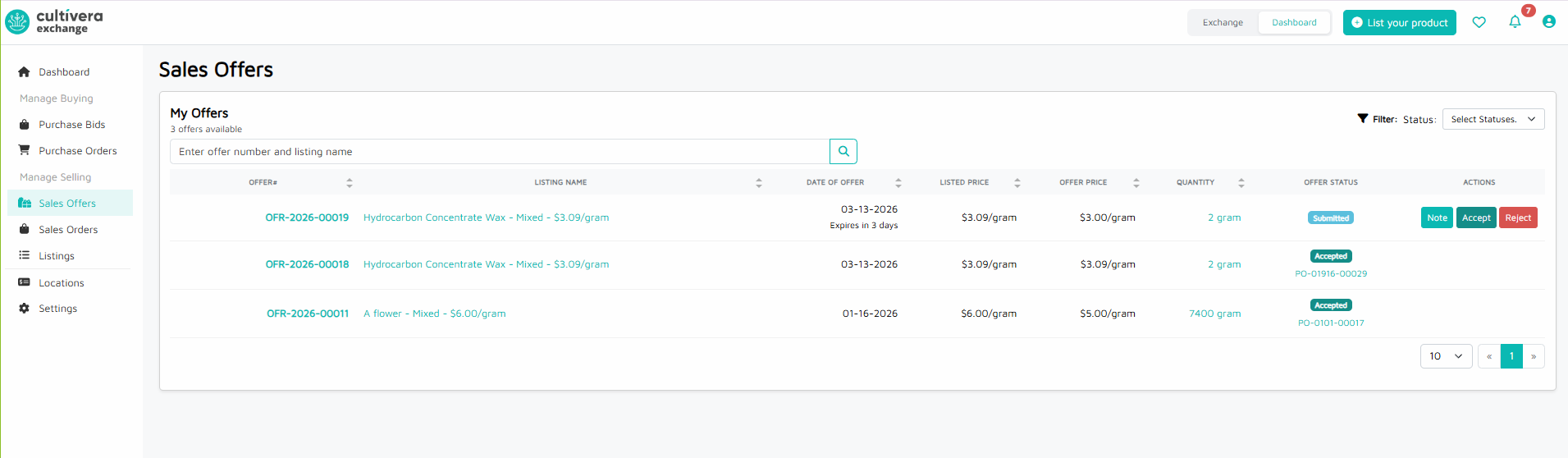
This guide explains the Sales Offers page in Cultivera Exchange. This is the primary negotiation hub for sellers, where you can manage incoming bids from buyers and decide whether to accept or reject their terms.
The Sales Offers page tracks every bid made on your active listings. As a seller, you have full control over which offers to finalize.
Search and Filters
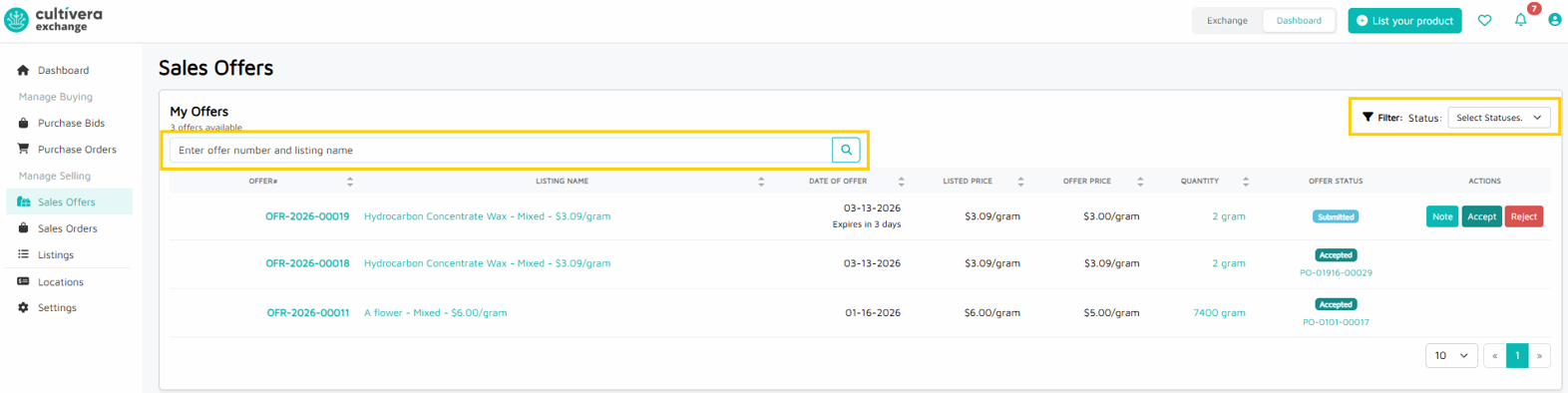
- Search Bar: Quickly find a specific offer by typing the Offer Number or the Listing Name.
- Status Filter: Use the dropdown at the top right to filter your view by statuses like Submitted, Accepted, Rejected, Expired, etc.
Offer Data Table
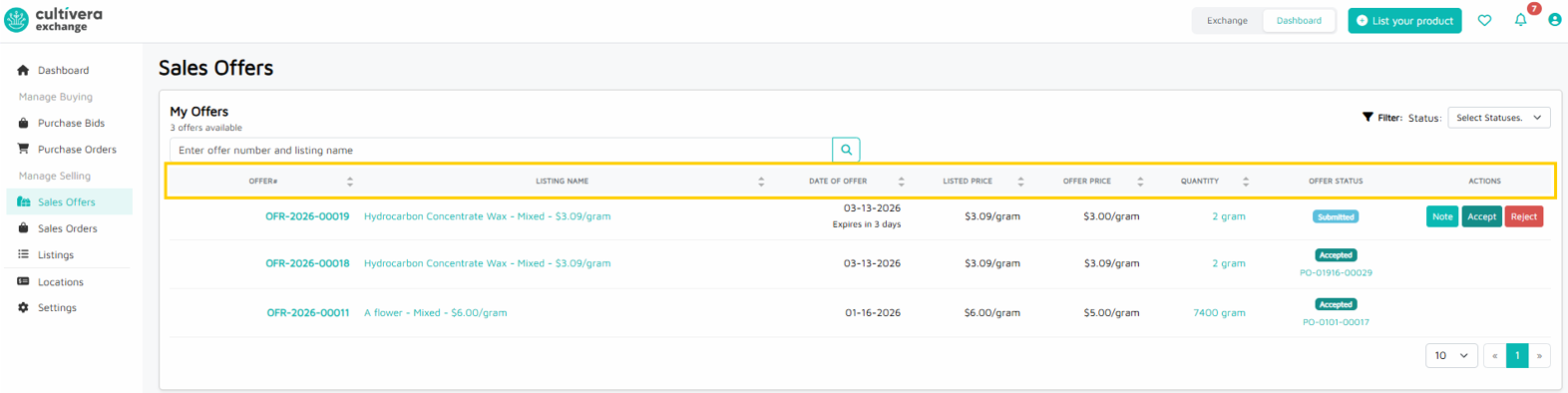
Column | Description |
OFFER# | The unique ID# for the negotiation. Clicking this link shows the Offer Detail. |
LISTING NAME | The name of your product as it appears on Cultivera Exchange. |
DATE OF OFFER | When the buyer submitted the bid. It also shows the expiration countdown (e.g., "Expires in 3 days"). |
LISTED PRICE | Your original asking price per unit. |
OFFER PRICE | The price the buyer is actually proposing to pay. |
QUANTITY | The total amount of product the buyer wants to purchase. Clicking this link shows the Inventory Details. |
OFFER STATUS | The current state of the negotiation. |
ACTIONS | The buttons used to respond to the buyer (see details below). |
Responding to an Offer
When a buyer submits a new bid (Status: Submitted), you have three choices in the Actions column:
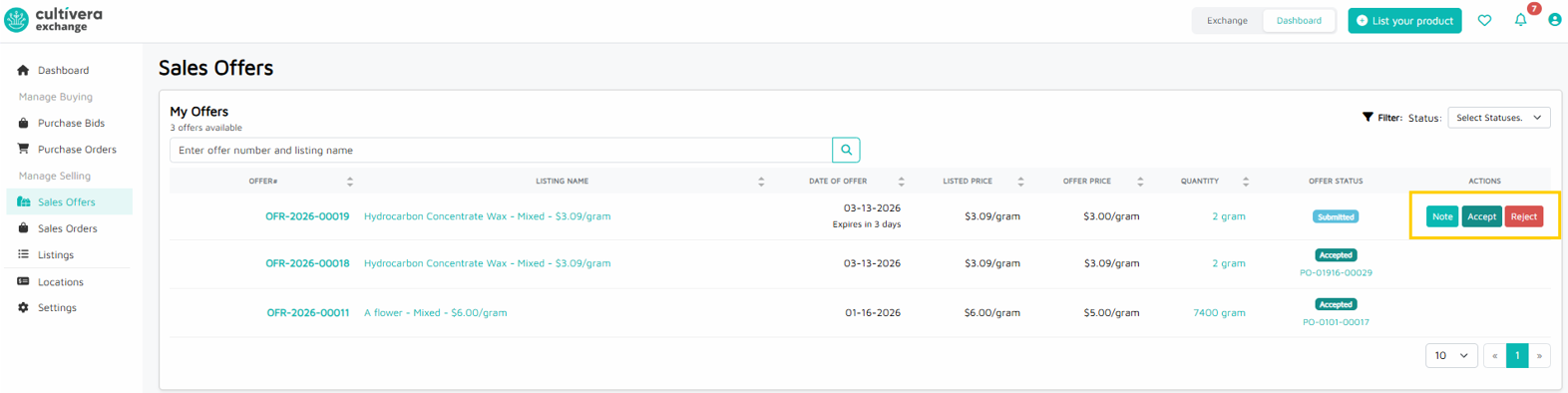
- Accept: You agree to the Offer Price and Quantity. This will automatically generate a Purchase Order (PO), which you can then track on the Sales Orders page.
- Reject: You decline the offer. The buyer will be notified, and the listing remains active for others to bid on.
- Note: Click this to send a message back to the buyer or to view any notes they included with their bid.
