PRO: Configuration - Managing User Accounts
 Updated
Managing User Accounts in PRO
User profiles can be 'Locked' or 'Deleted', or have the 'Role' updated in Cultivera PRO. Follow the instructions below to either 'Lock' / 'Delete' a user, or update a user's Role.
Updating user profiles (such as changing roles, deleting/locking users) can only be done by a user who is assigned to the Admin permission.
Locking A User Account:
Locking users can be done easily from the Configuration > Users page.
- Navigate to Configuration > Users.
- Click on the User Name to be redirected to the User Details page.
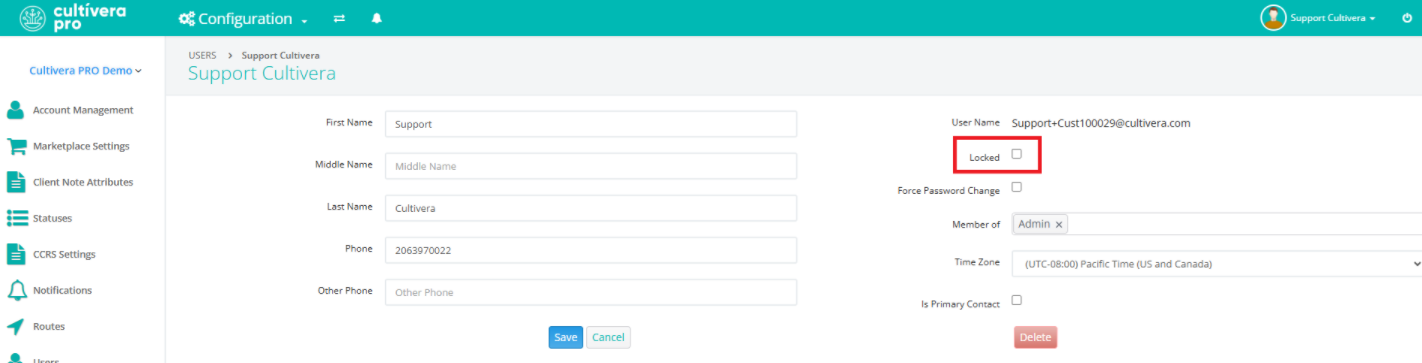
- Select the "Locked" checkbox to lock the user profile.
Deleting A User Account:
Deleting users can also be done from Configuration > Users.
- Navigate to Configuration > Users.
- Click on the User Name to be redirected to the User Details page.
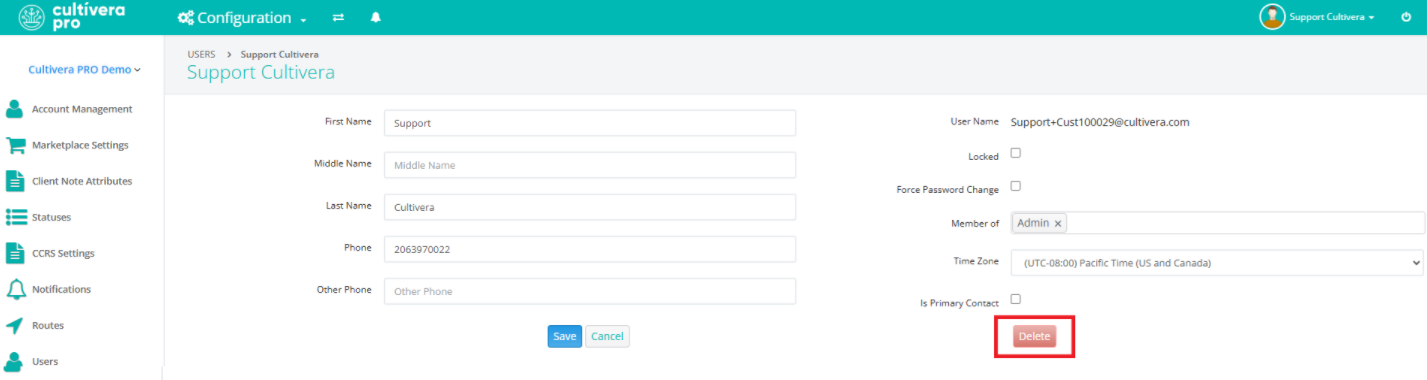
- Select Delete to delete the user profile. This will remove the user from the main Configuration > Users page.
Reinstating A Deleted User Account:
Deleted users can be reinstated from Configuration > Users.
- Navigate to Configuration > Users.
- Select 'Add New User'.
- Enter the user details and the email address associated with the deleted user account.
- Select Create.
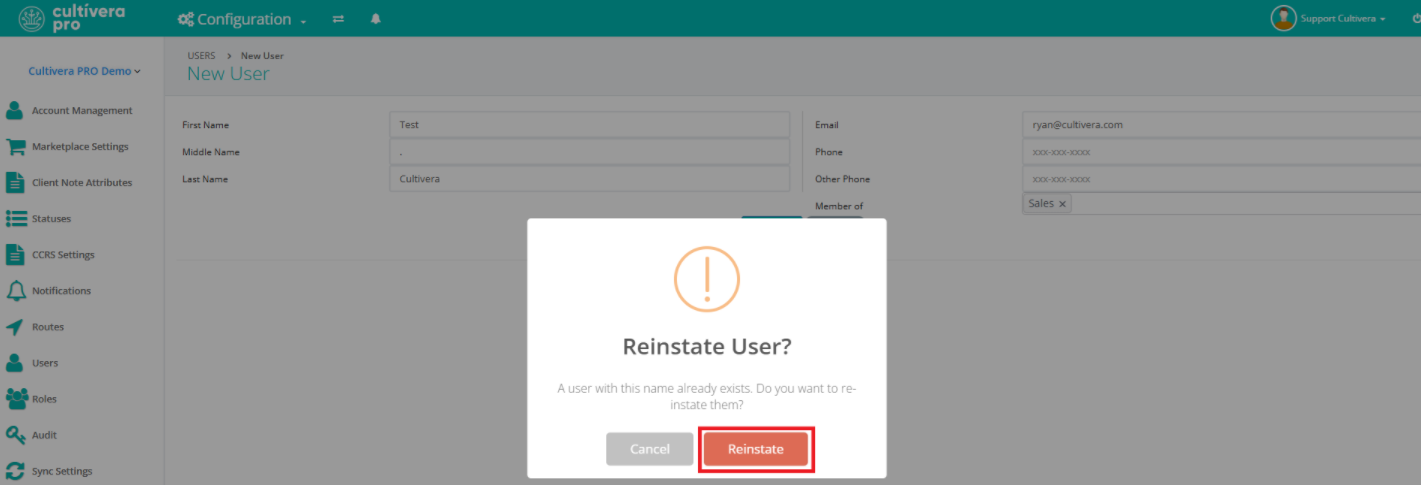
- Select Reinstate to restore the user profile. This will add the user back to the main Configuration > Users page.
Updating User Roles:
User Roles can easily be managed from Configuration > Users.
- Navigate to Configuration > Users.
- Click on the User Name to be redirected to the User Profile Details page.
- Click on the dropdown menu in the 'Member of...' section.
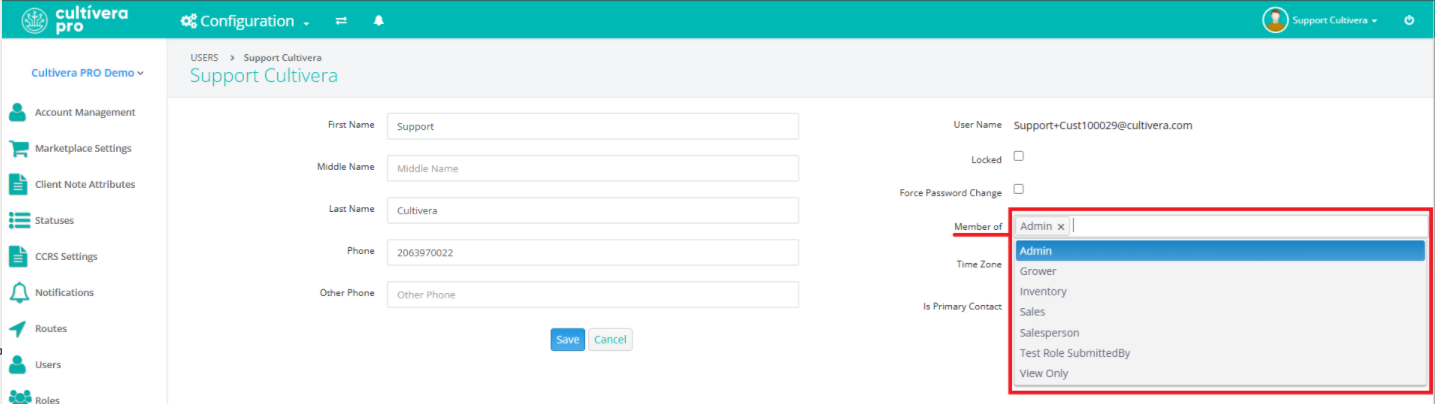
- Assign the intended User Role. Select 'Save'.The user in question will need to log out of Cultivera PRO and log back in to see updated permissions for their user account.
