Star Micronics MCPrint3 (LAN/Ethernet) Windows Setup Guide (Cultivera POS Web)
 Updated
Star Micronics MCPrint3 (LAN/Ethernet) Windows Setup Guide (Cultivera POS Web)
This guide walks through installing and configuring a Star Micronics MCPrint3 receipt printer on a Windows PC or laptop for use with Cultivera POS Web over a LAN/Ethernet connection.
Before beginning, confirm:
- Printer is powered on
- Ethernet cable is connected from printer > router/network
- Windows PC is on the same network
- You have admin access to install drivers on PC/Laptop
Install Star Windows Driver
Follow the official Star Micronics installation process:
Download & Install Star Windows Driver
Next Steps:
- Download the Star Windows Software (Full or EXE)
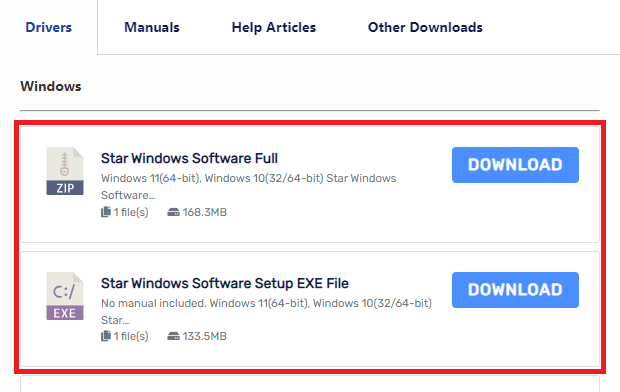
- Extract the file (if ZIP)
- Open the Setup application
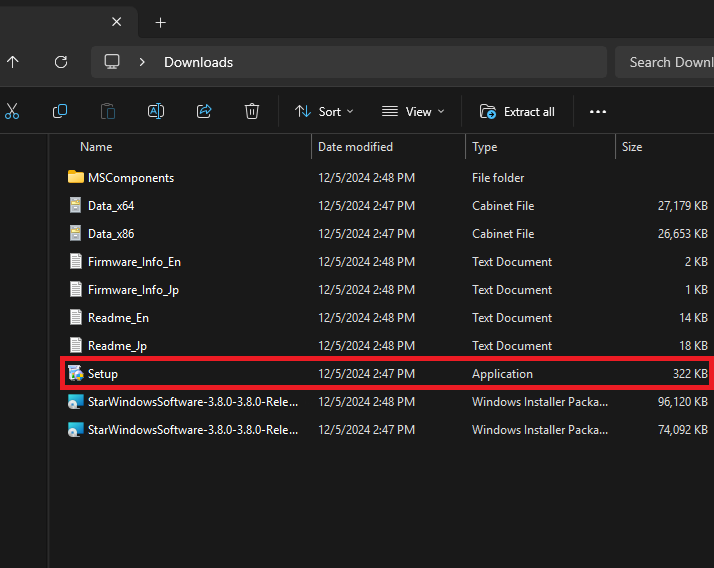
- Click through:
- Accept agreement
- Select Typical install
- Click Install > Finish
This installs the required driver and printer utility.
Add the Printer via Network (LAN)
Print Network Configuration (Get IP Address)
- Power off printer
- Hold Feed button while powering on
- Print the self-test receipt
- Locate the IP Address under network settings
Add Printer in Windows
- Open Star Printer Utility
- Select your printer model (MCPrint3)
- Choose:
- Interface: Ethernet
- Click Search Network
- If found > select printer
- If NOT found > manually enter the IP address
- Name the printer and confirm
- Create the printer queue when prompted
- Install the driver when prompted
- Print a Test Receipt
Windows now recognizes the printer as a network device.
Verify Printer in Windows
- Go to:
- Control Panel → Devices and Printers
- Confirm printer appears
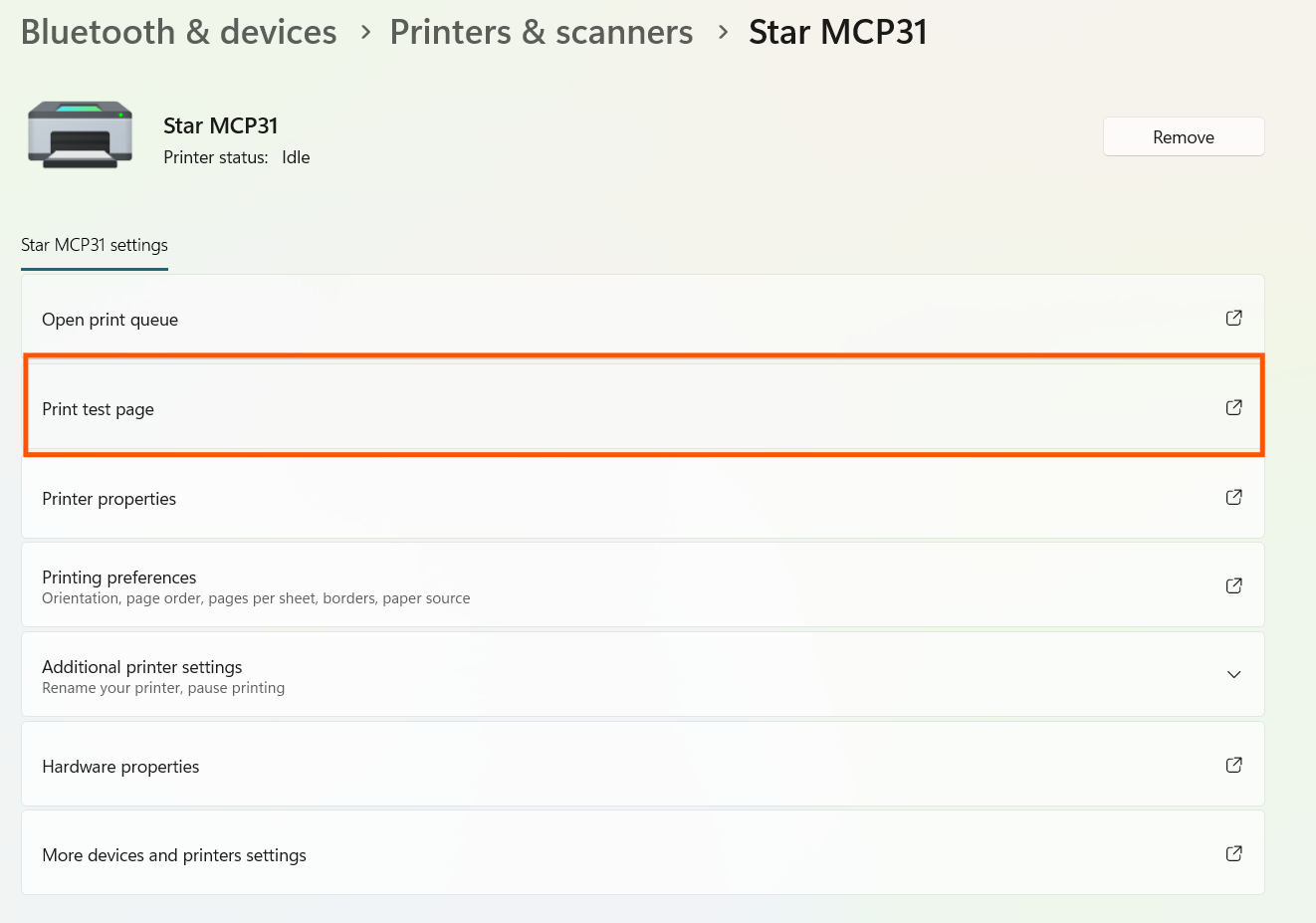
- Right-click > Printer Properties
- Print a Test Page
Use Printer in POS Web
- Open your POS Web module in the Back Office
- Initiate a print action (receipt, or Shift X/Z Report)
- In the Print Preview screen:
- Select your printer from the Destination dropdown
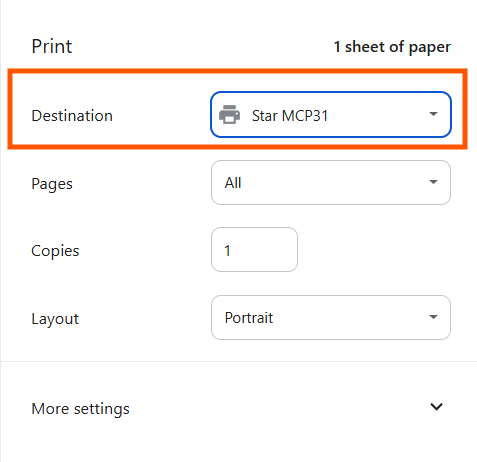
- Click See more from the destination drop-down menu and select it from the full device list
- Select your printer from the Destination dropdown
Adjust Print Settings (Printer Feeding Excess Paper)
In the Print Preview window:
- Open More settings
- Uncheck Headers and footers
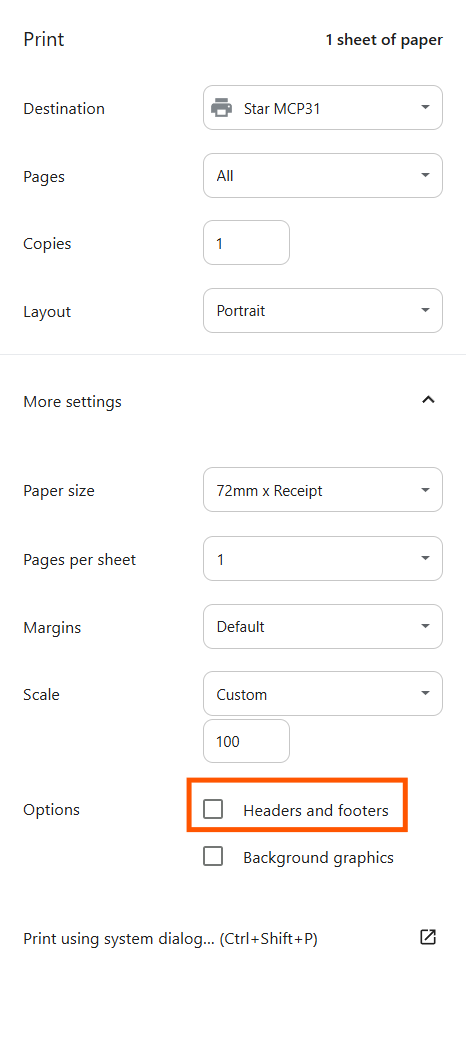
This prevents any extra paper usage on receipts.
If you encounter any issues or if the printer still doesn't work as expected, it's advisable to contact Star Micronics customer support (https://starmicronics.com/star-micronics-technical-support/) or refer to the official documentation (https://starmicronics.com/support/products/mc-print3-support-page/) for troubleshooting guidance. They can provide specific assistance based on your printer's model and any unique issues you may be experiencing.
