Cultivera Pro (WA) 6.0.93 Release Notes (11/20/2026)
 Updated
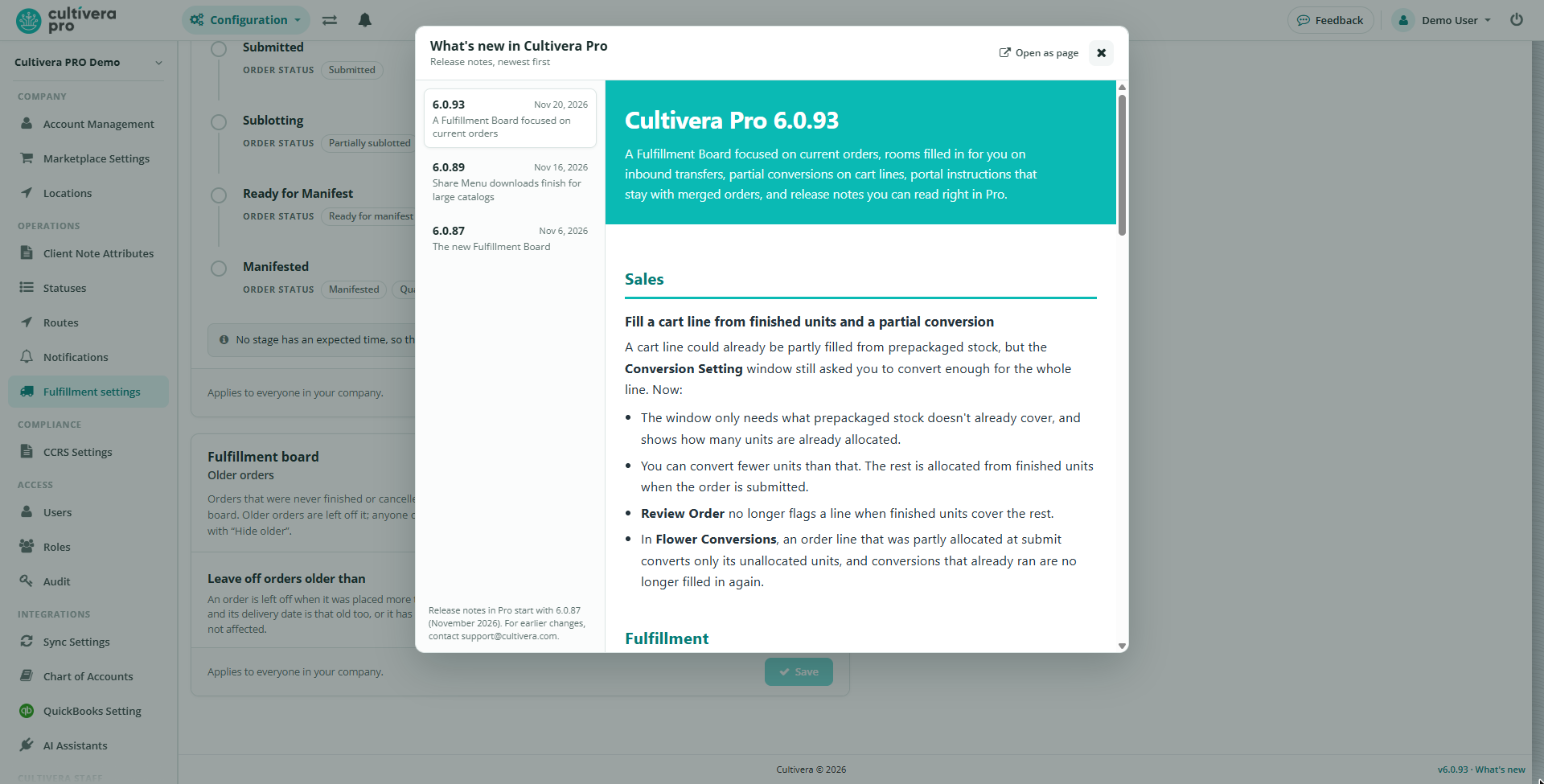
A Fulfillment Board focused on current orders, rooms filled in for you on inbound transfers, partial conversions on cart lines, portal instructions that stay with merged orders, and release notes you can read right in Pro. Thanks to everyone who reported these and tested on beta.
Sales
Fill a cart line from finished units and a partial conversion
A cart line could already be partly filled from prepackaged stock, but the Conversion Setting window still asked you to convert enough for the whole line. Now:
- The window only needs what prepackaged stock doesn't already cover, and shows how many units are already allocated.
- You can convert fewer units than that. The rest is allocated from finished units when the order is submitted.
- Review Order no longer flags a line when finished units cover the rest.
- In Flower Conversions, an order line that was partly allocated at submit converts only its unallocated units, and conversions that already ran are no longer filled in again.
Fulfillment
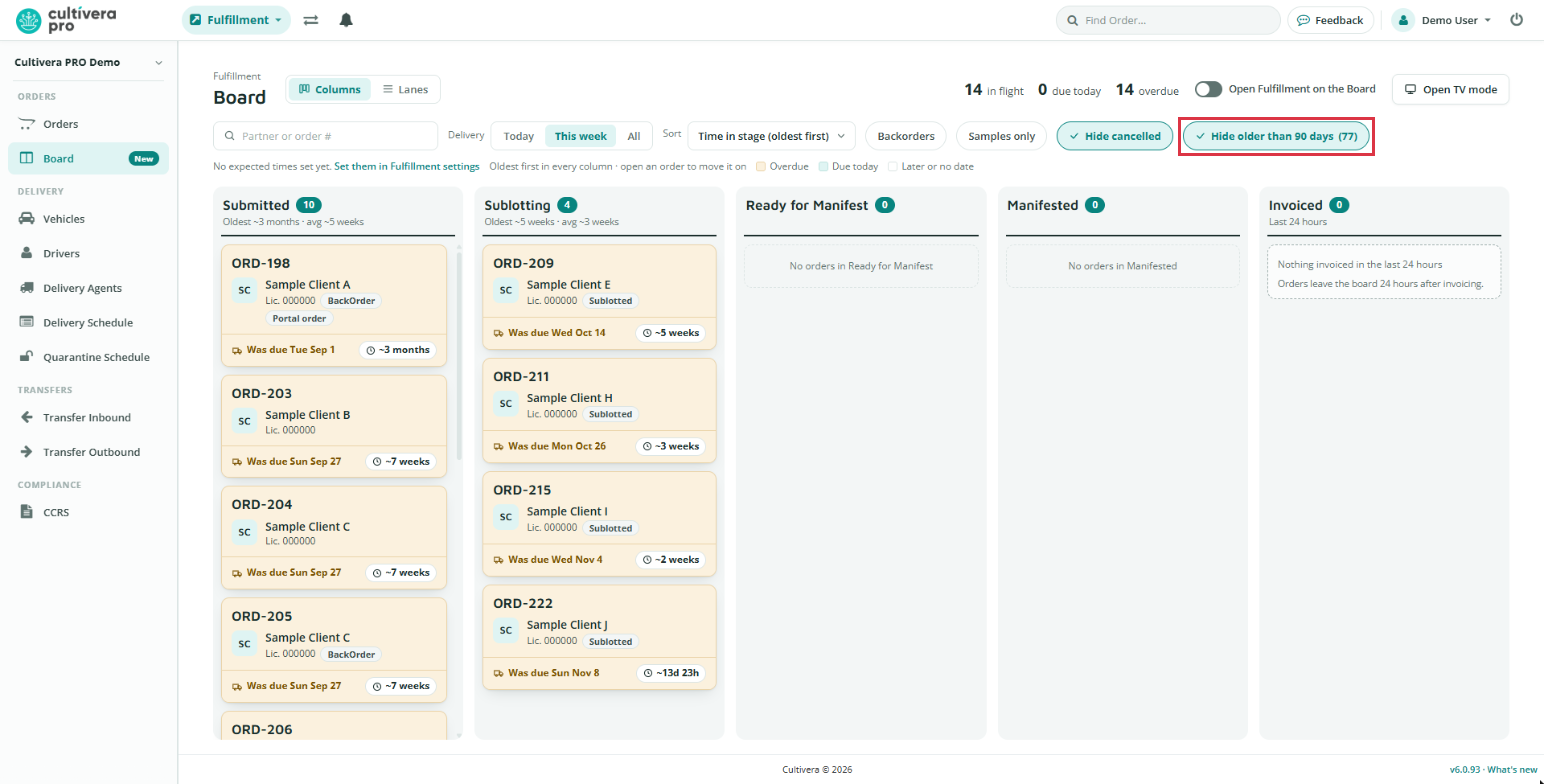
The Fulfillment Board stays focused on current orders
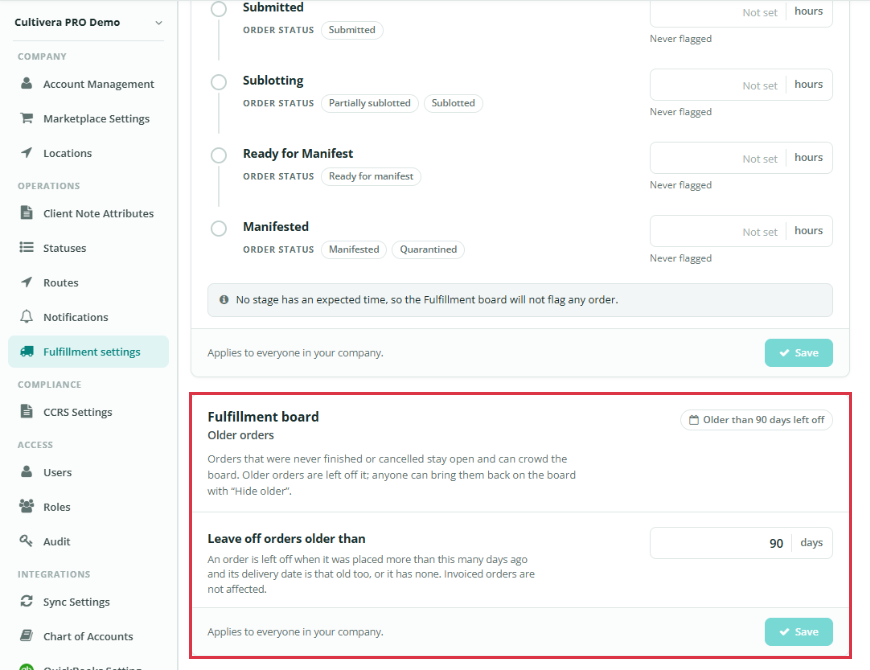
Orders that were never finished or canceled could stay open for years and sit at the top of every Board column. The Board now leaves off an open order when it was placed more than 90 days ago and its delivery date is that old too, or it has no delivery date.
- An older order with a recent or upcoming delivery date stays on the Board.
- Invoiced orders are not affected.
- Orders left off the Board are also left out of its stage counts and the TV view.
- When orders are left off, a Hide older than 90 days button shows how many. Turn it off to bring them back on the Board.
- To change the limit, go to Configuration › Fulfillment settings and find Older orders under Fulfillment board. Enter 1 to 3,650 days, or leave the field blank to show every open order.
Inbound transfers fill in the room
Transfer Inbound Detail already filled in the product from earlier transfers. It now also fills in the room: a line with a product but no room gets the room you chose the last time you received that product at the same location.
- Filled-in rooms are marked Auto-matched, and the banner at the top counts them along with filled-in products.
- Review the marked rooms and change any that are wrong before accepting. Setting a room clears the mark.
- Only rooms that a person chose are reused, and deleted rooms and plant rooms are skipped.
Find Order shows the correct delivery date
The Est. Delivery date in the Find Order dropdown could show the day before for deliveries set early in the day. It now matches the date on the order.
Orders
Portal order instructions stay with merged orders
Merging orders could lose the instructions a buyer entered on their portal order. Those instructions now carry over, including when you use Submit & merge from a cart.
- Merging into a portal order: the order keeps its own instructions and adds each different instruction from the merged orders. When there is more than one, each is labeled with its order number.
- Merging into any other order: the instructions are added to the order as order notes.
Orders merged before this release are not changed.
Production
Copy the output batch barcode
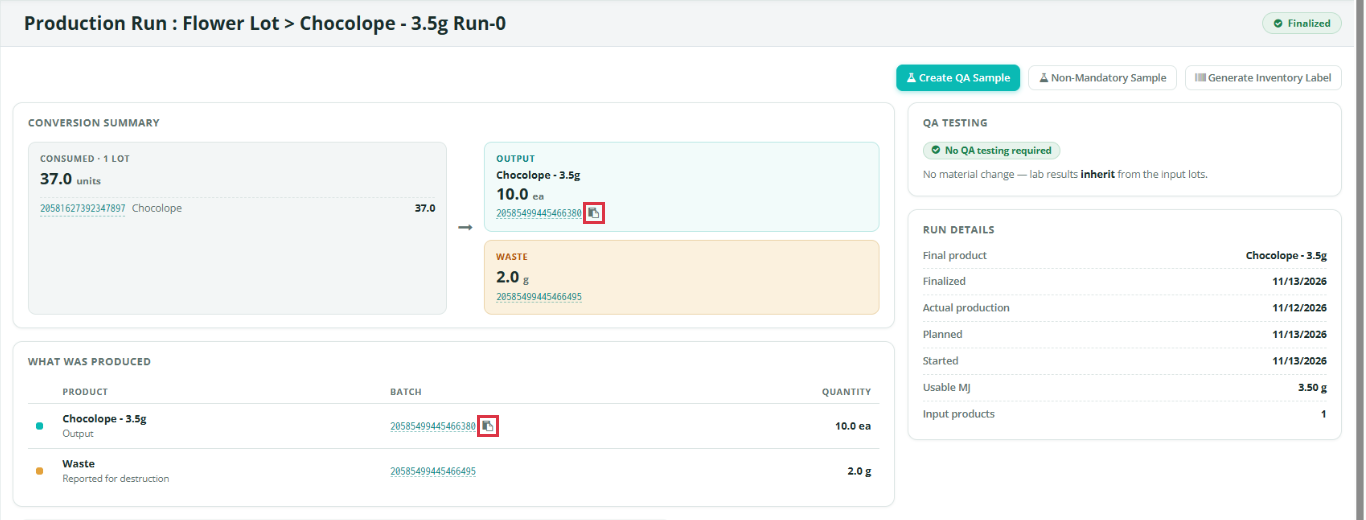
A finalized production run shows a copy icon beside the output batch barcode and any by-product barcode, in both the summary and the What was produced table.
Across Pro
Read the release notes inside Pro
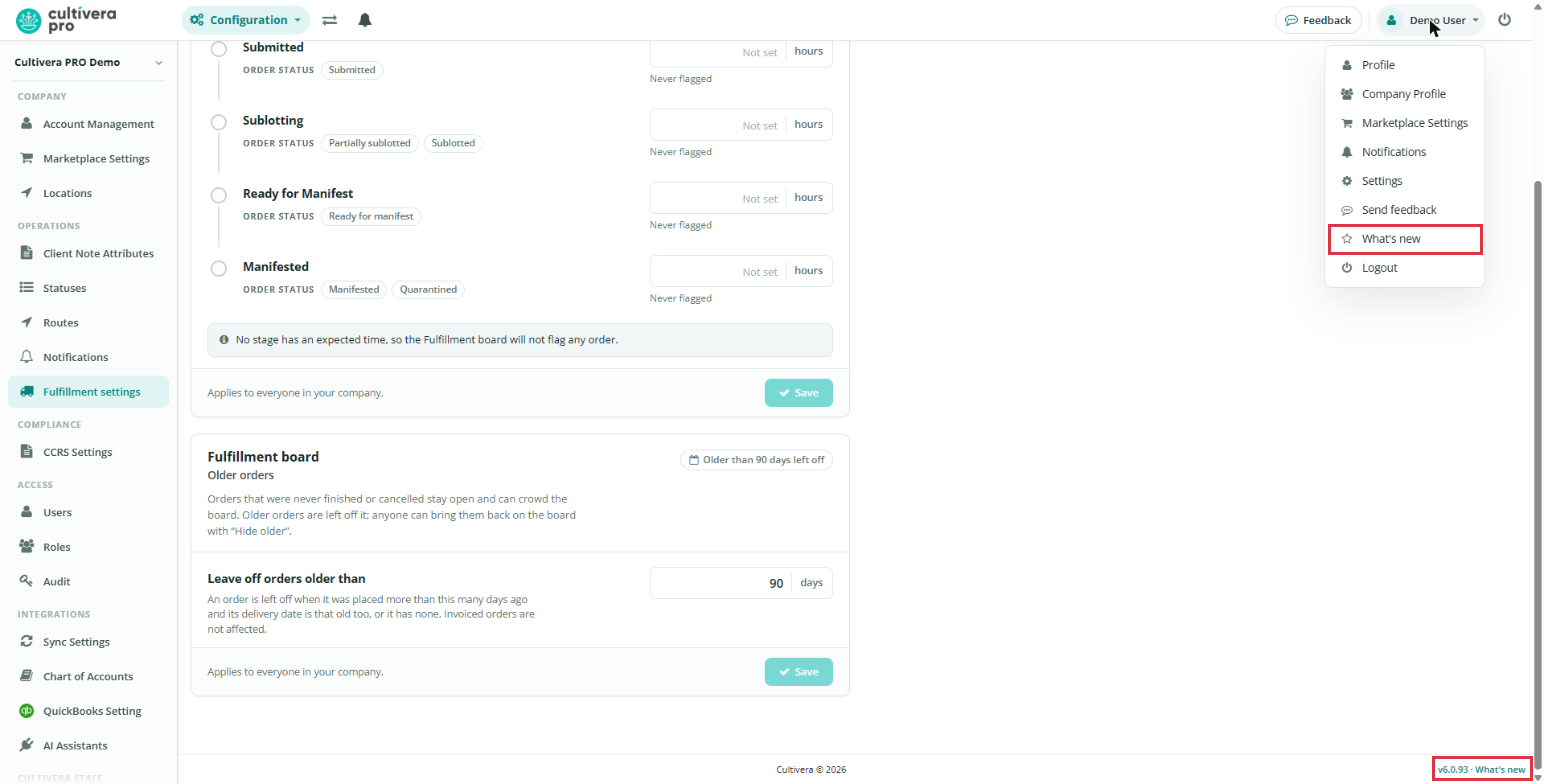
Choose What's new in the menu under your name at the top right, or select the version number at the bottom of any page, to read the notes for this release and the ones before it. When a release has notes you haven't read, a small dot appears on your name. It goes away once you open them.
Documents
Clearer messages when a document can't be generated
If a document template is missing, the message now says what is missing and what to do next. This covers invoices, manifests, multi-stop manifests, pick lists, purchase orders, and labels. For labels, the message names the product, so you can pick a label template for it and try again.
