Zebra ZD411 / ZD421 USB Windows Setup Guide (Cultivera POS Back Office & POS Web)

Zebra ZD411 / ZD421 USB Windows Setup Guide (Cultivera POS Back Office & POS Web)
This guide covers how to install a Zebra ZD411 or ZD421 label printer on a Windows PC or laptop using a USB connection. These instructions are intended for Cultivera POS Back Office and POS Web (browser-based label printing).
Requirements
- Zebra ZD411 or ZD421 label printer
- USB B to A or C cable (printer to PC or laptop)
- Power cable connected to the printer
- Windows PC or laptop
- Internet access to download drivers from a web browser
Download Zebra Drivers
- Navigate to the Zebra support site:
Zebra Technologies printers download page - Select your printer model:
- ZD411 or ZD421
- Download the latest driver:
- Zebra Windows Printer Driver (v10)
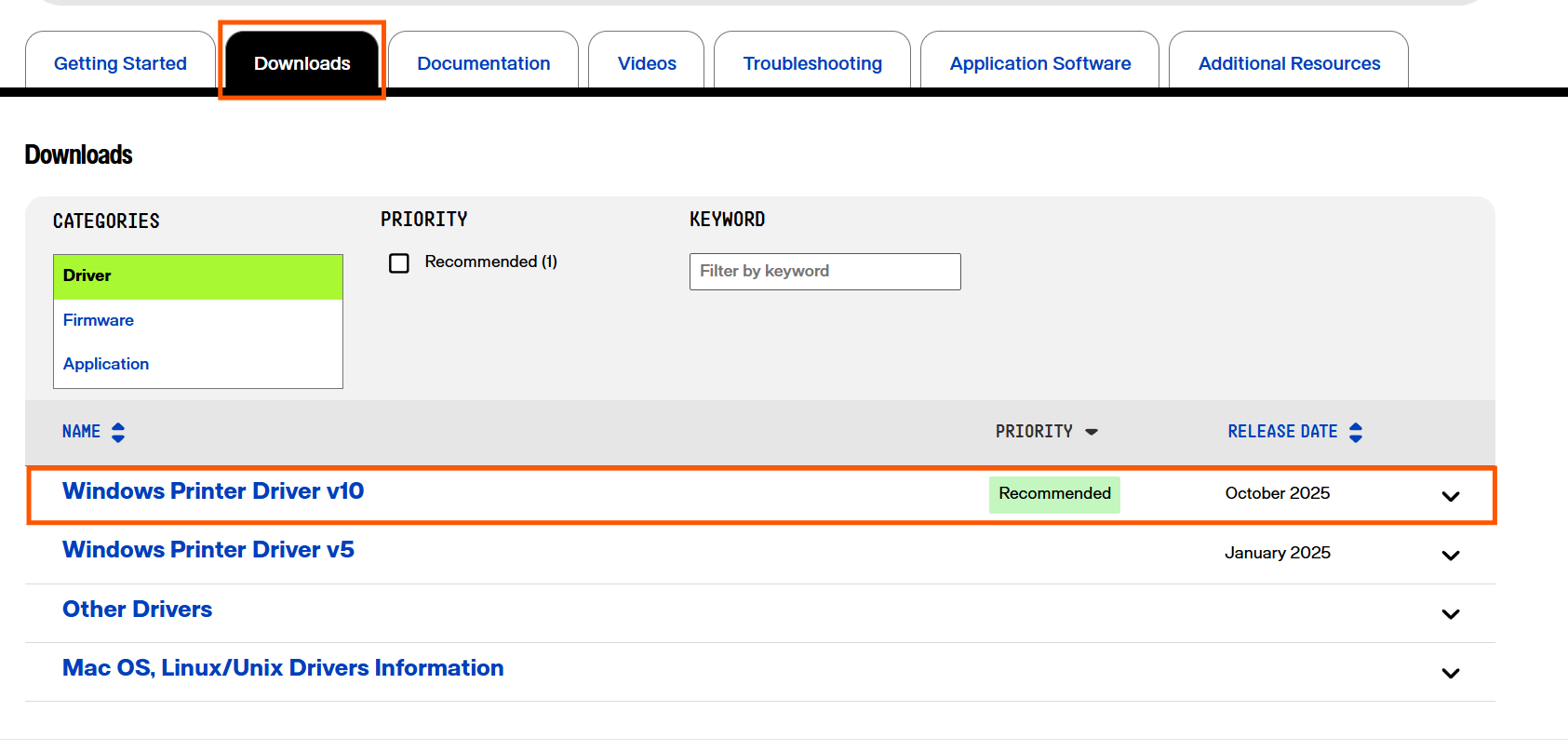
- Zebra Windows Printer Driver (v10)
Install the Driver
- Locate the downloaded driver file.
- Run the installer.
- Follow the on-screen prompts to complete installation.
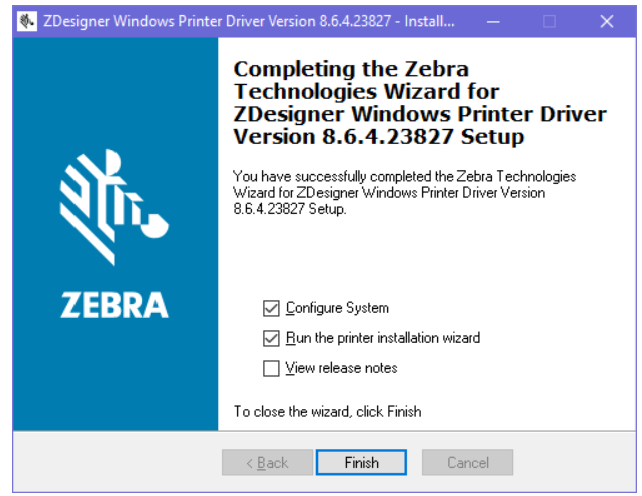
This installs the required Zebra printer drivers on the system.
Connect the Printer via USB
- Power on the Zebra printer.
- Connect the printer to the PC or laptop using a USB cable.
Windows will detect the device and associate it with the installed Zebra driver.
Calibrate Label Printer
Zebra printers almost always need a "Smart Calibration" after the first time you load labels, or they will skip stickers or flash a red light.
With the printer on and labels loaded, hold the Pause and Cancel buttons down for two seconds to allow the printer to measure the label length.
Add Printer in Windows
- Open the Start Menu > Settings > Bluetooth & Devices > Printers & scanners
- Locate your printer in the list:
- Select Add device
- Select the Zebra printer when it appears in the list and complete the setup.
The Zebra ZD411 or ZD421 printer is now installed and available as a selectable printer for:
- Cultivera POS Web
- Back Office label printing
Select the Printer When Printing
- Initiate a label print from:
- Cultivera POS Web or
- Cultivera POS Back Office
- In the print preview, open the destination dropdown menu.
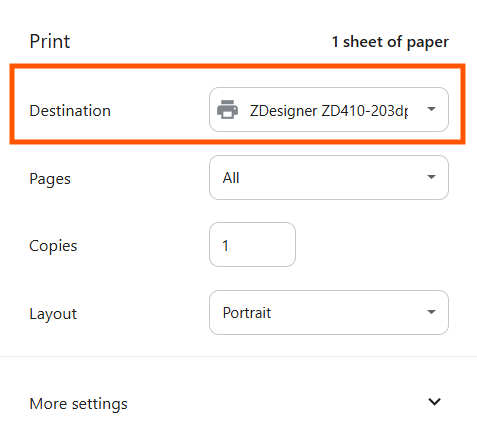
- Select the Zebra ZD411 or ZD421 printer from the list of available devices.
- If the printer is not immediately visible:
- Select “See More” (or similar option, depending on web browser)
- Choose the Zebra printer from the expanded list of available devices
If the printer does not appear or cannot be added after completing these steps, please get in touch with Zebra Support for further assistance with driver installation or device setup.
