POS - Back Office: How to Assign a Missing Patient to a Completed Transaction and Re-Report to METRC
 Updated
POS - Back Office: Assigning a Missing Patient to a Completed Transaction and Re-Reporting to METRC
If a transaction has been completed but shows a "Queued Status" in the Compliance module along with the error "Unable to locate patient info," it means a patient was not assigned to the transaction and the transaction has not been reported to Metrc.

To resolve this, simply assign the correct patient to the transaction. Once the patient is assigned, you can then re-report the transaction to Metrc.
Below you will find a brief walkthrough on how to assign a patient to a completed transaction and then re-report it to Metrc.
How to Locate a Queued Transaction and Assign a Missing Patient
- Locate the transaction within the Compliance module utilizing the provided filters, filtering by "Queued".

- Select the teal "Transaction #" link for the transaction needing modification.

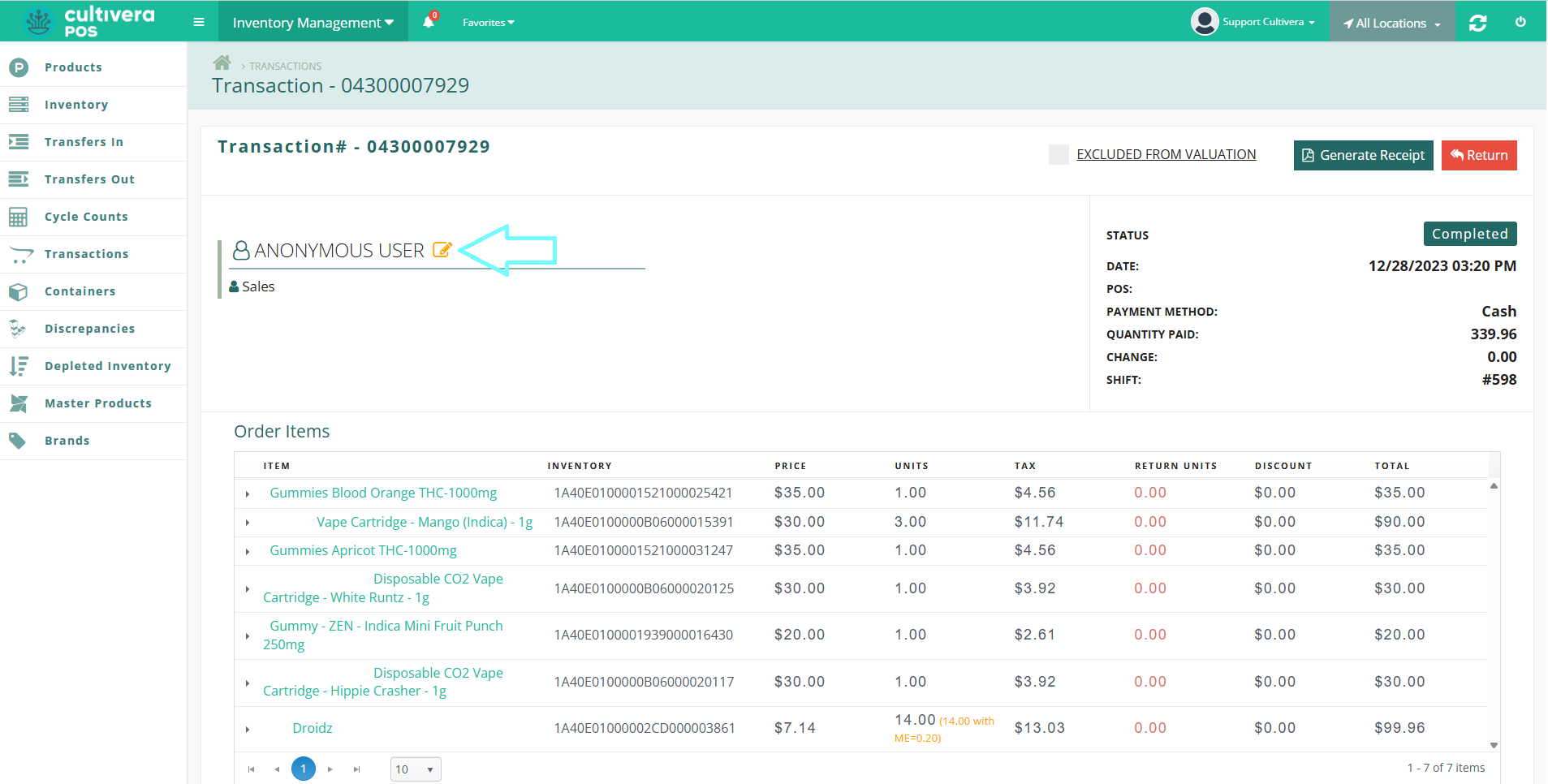
- This will bring you to the Transaction Details page. Select the orange "pencil box".
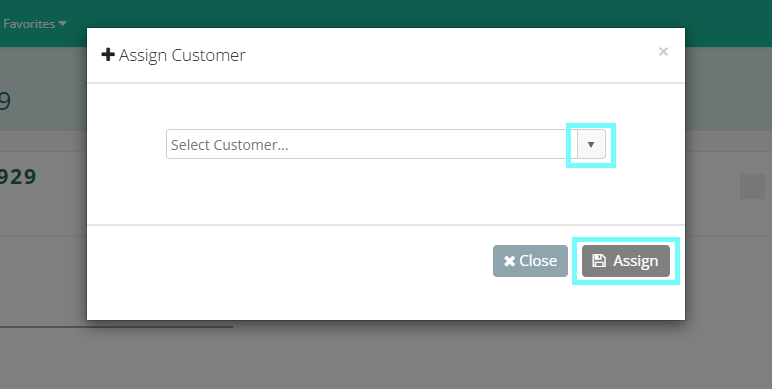
- Select the correct patient from the drop-down menu, then select "Assign".
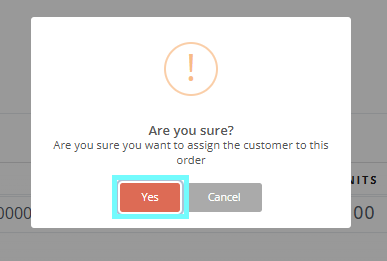
- Select "Yes" for the final confirmation.
- Once the transaction has a patient assigned to it, it can then be re-reported to Metrc within the Compliance module.
How to Re-Report a Queued Transaction to Metrc
- Locate the transaction within the Compliance module utilizing the provided filters, searching by "Queued" or by "Transaction #".

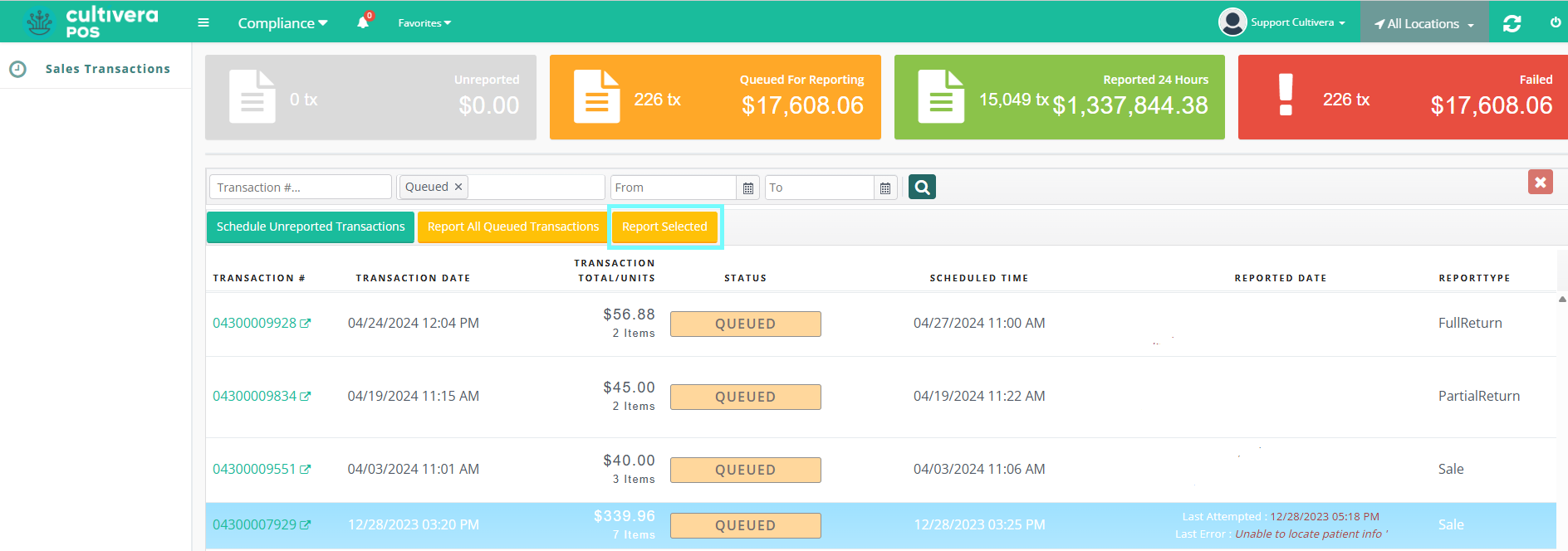
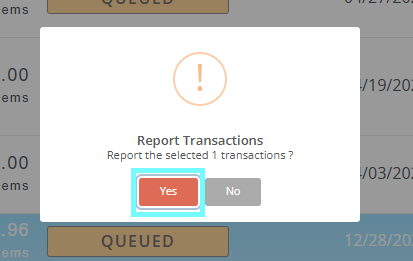
- Click on the transaction to highlight it in blue, and then select the yellow "Report Selected" button at the top of the page.
- Select "Yes" for the final confirmation.
- The Transaction Status will then display as "Reported".

Congratulations! You now know how to assign a patient to a completed transaction and re-report it to Metrc!
