Cultivera Exchange (Buyer): Exchange - Submitting Purchase Bids / Purchase Orders
 Updated
Cultivera Exchange
This guide provides an overview of the Buyer Exchange page within the Cultivera Exchange. This page serves as the exchange market where you can view items for sale, submit bids, or place orders.
Filtering Listings on Exchange
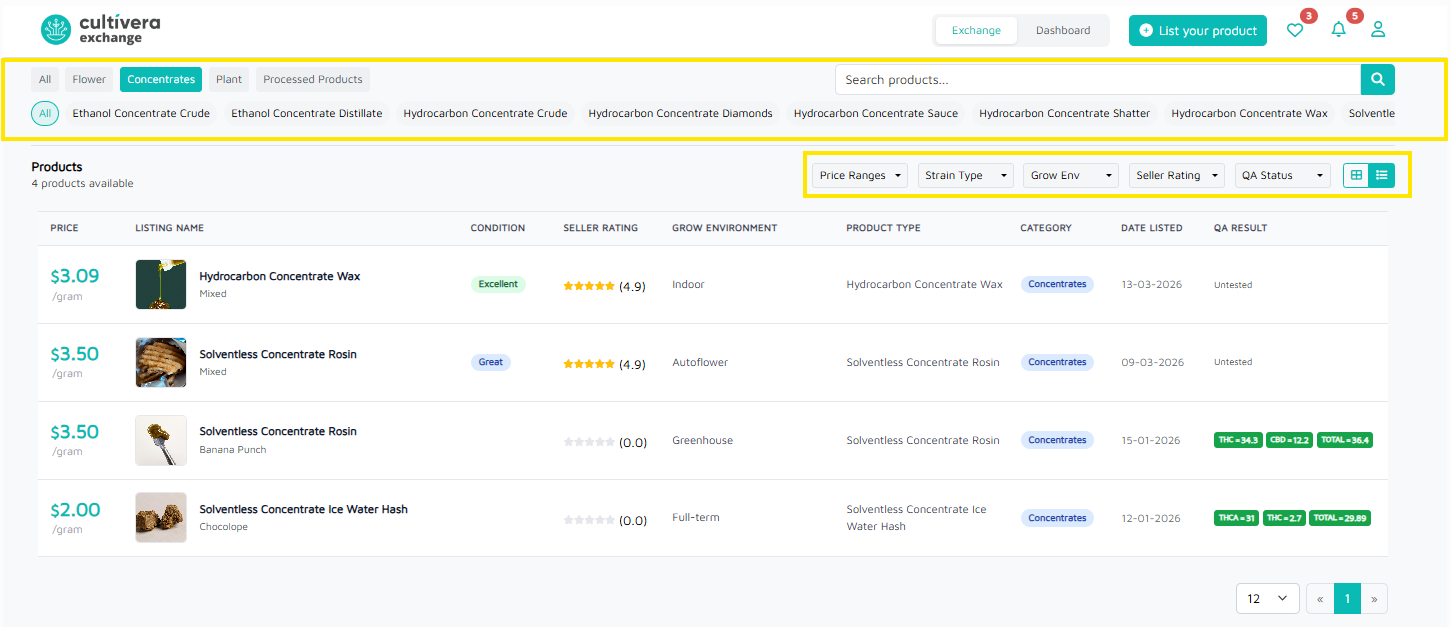
You can apply filters in Cultivera Exchange to narrow down the Listings.
You can filter by Product Category (Flower, Concentrates, Plants, Processed Products) and/or Product Type (A Flower, Fresh Frozen, Stripped, etc).
You can also filter this page by Price Range, Strain Type, Grow Environment, Seller Rating, and/or QA Status.
Changing the View on Exchange
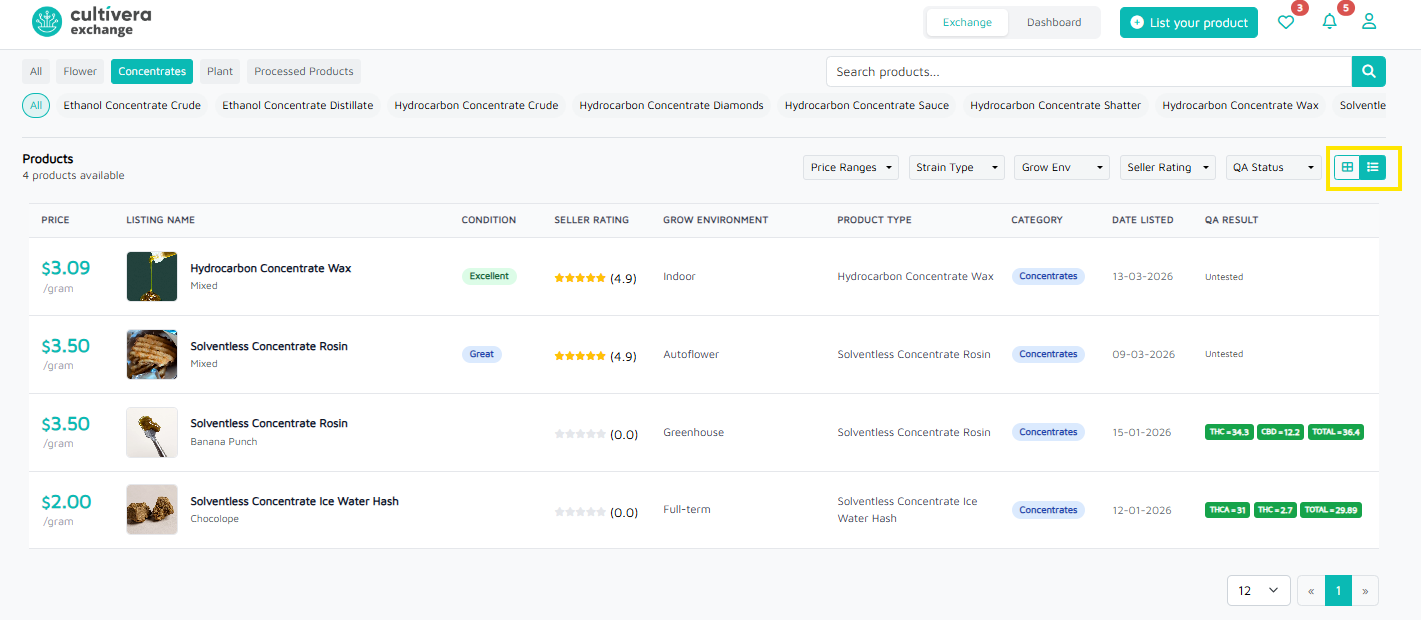
The exchange "view" can be set to List View or Grid View. To update this view, select the grid/list icons in the upper right corner:
Submitting Orders & Bids
- Navigate to Cultivera Exchange
- Filter by intended listing parameters (if any) to narrow down the Listings page.
- Click on the Listing Name to submit an order or bid
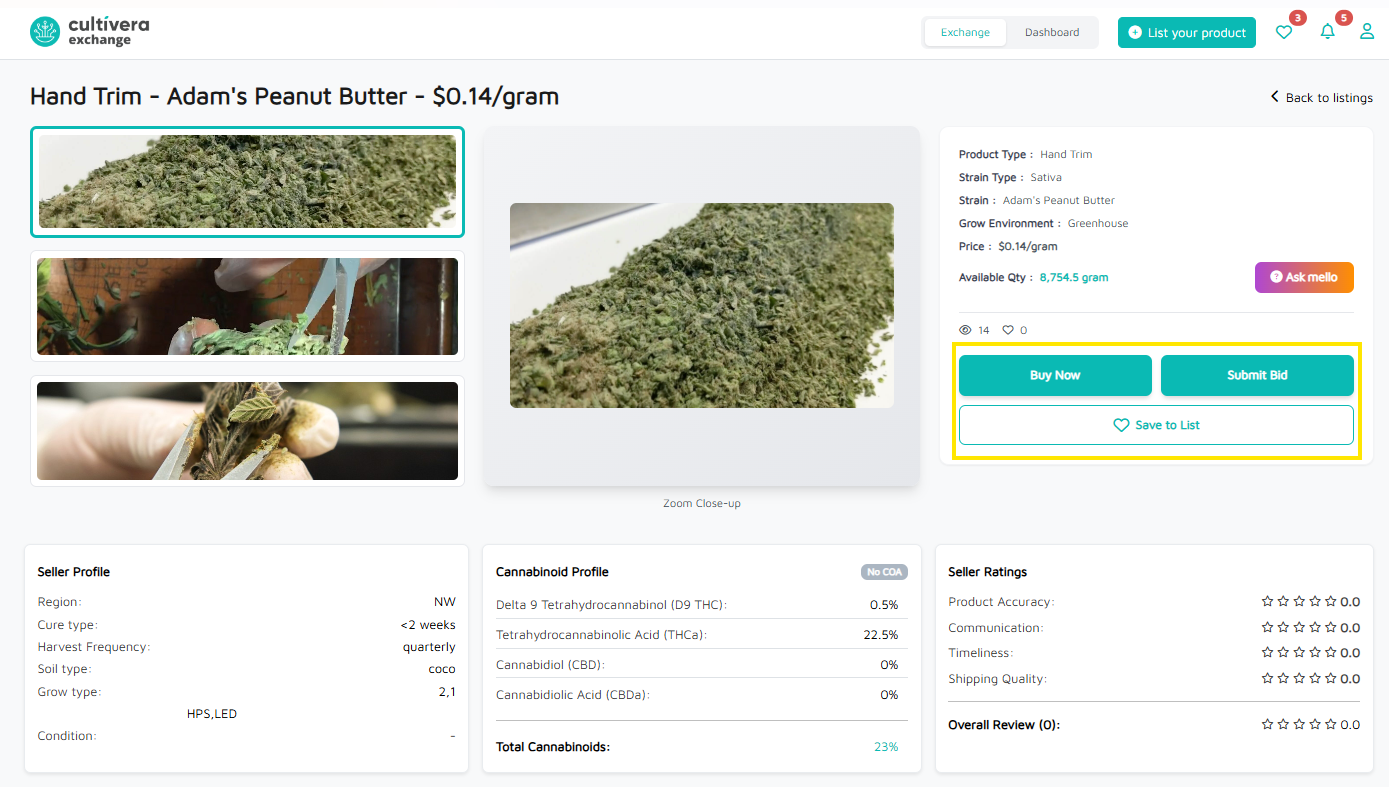
Submit Bid: allows you to submit a bid to the seller (seller will need to review and accept/reject the bid on their end).
Save to List: click this button to save any Listings (you can see all saved Listings by clicking on the heart icon in the upper right corner of Cultivera Exchange.