PRO (WA): New CCRS Features in Cultivera Pro (April 2026)
 Updated
This article summarizes the new CCRS features available in Cultivera Pro for Washington State.
Fulfillment > CCRS
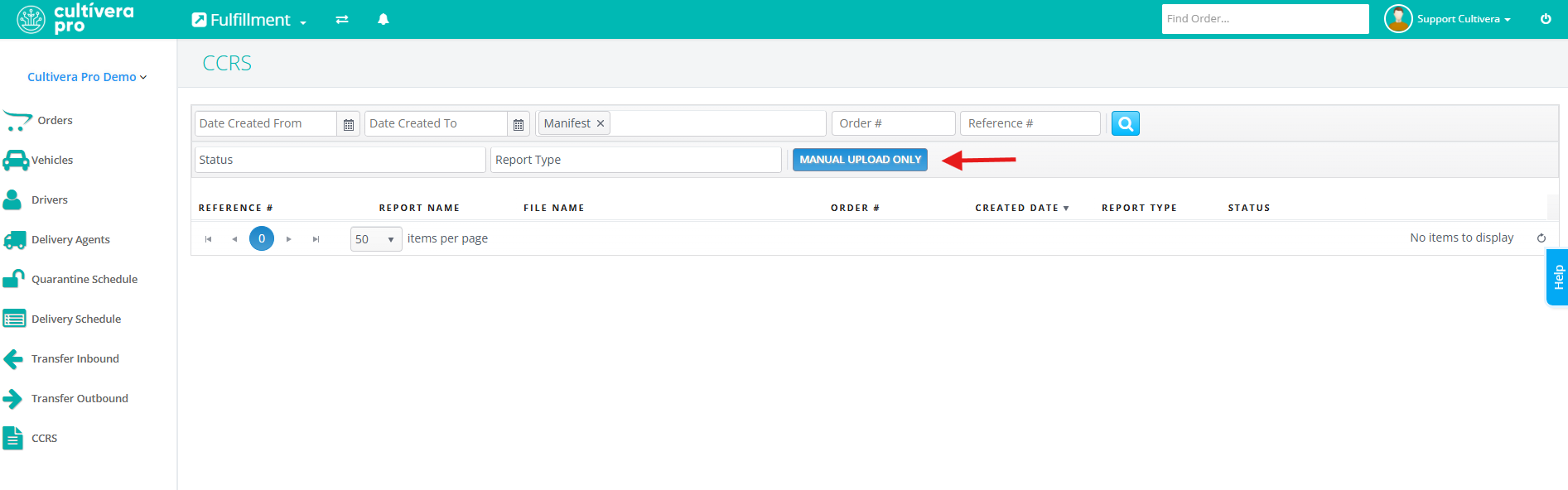
You can now access the CCRS tab within Fulfillment to view CCRS submissions and responses.
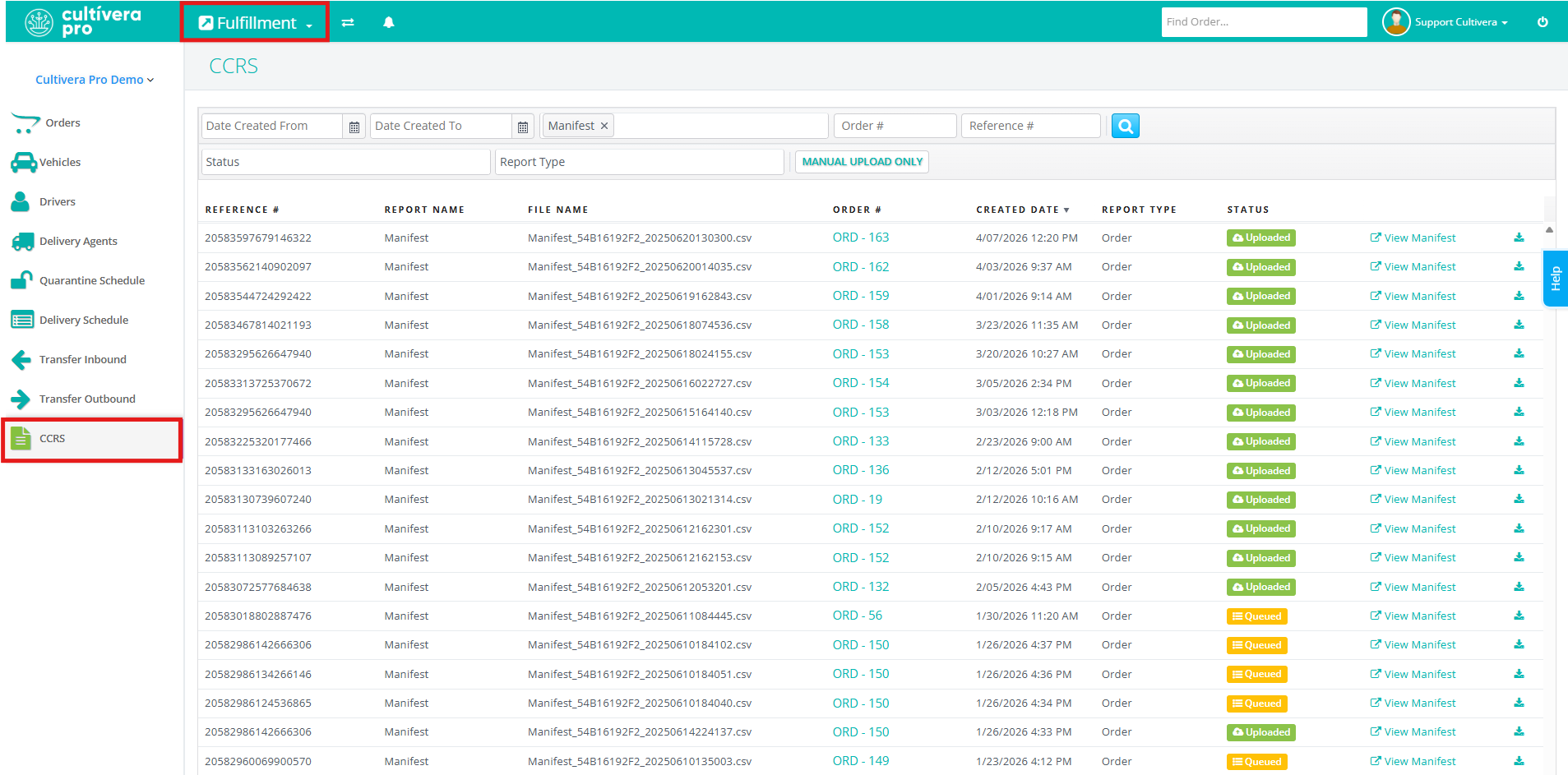
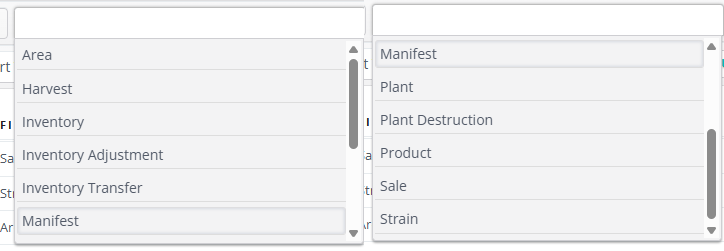
When you navigate to this page there will be a filter applied by default to view only "Manifest" submissions (QA Sample Manifests and Order Manifests).

You can remove or adjust this filter to view other submission types, including:
- Harvests
- Adjustments
- Transfers
- Sales
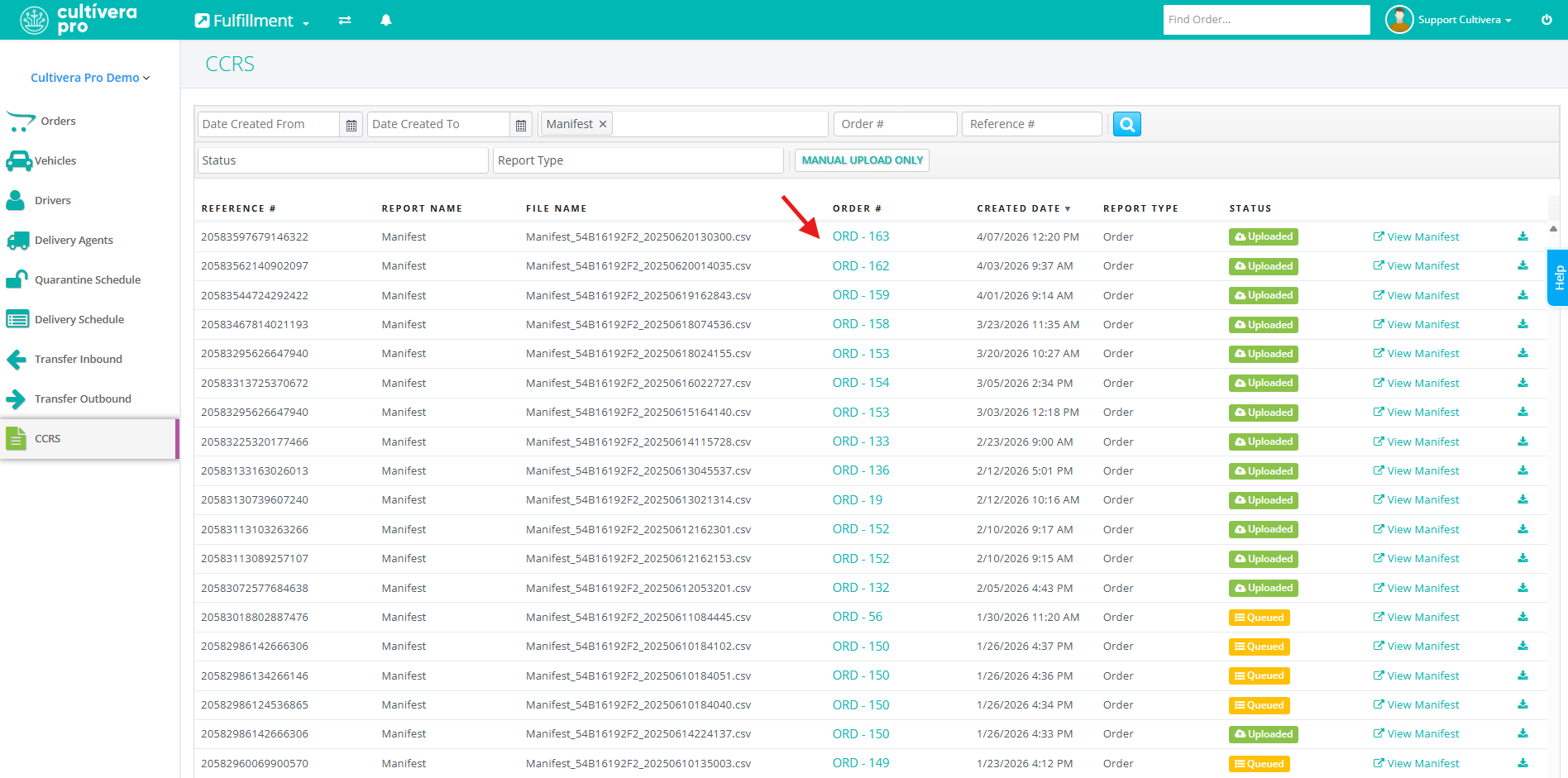
Clicking an Order number on the Fulfillment > CCRS page will take you directly to that Order’s details page within Fulfillment.
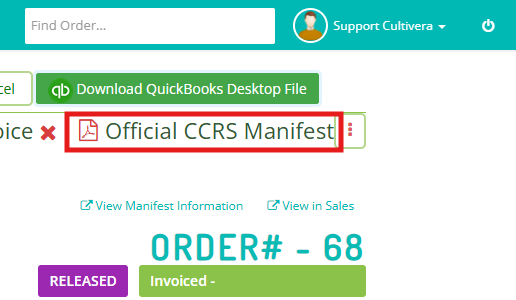
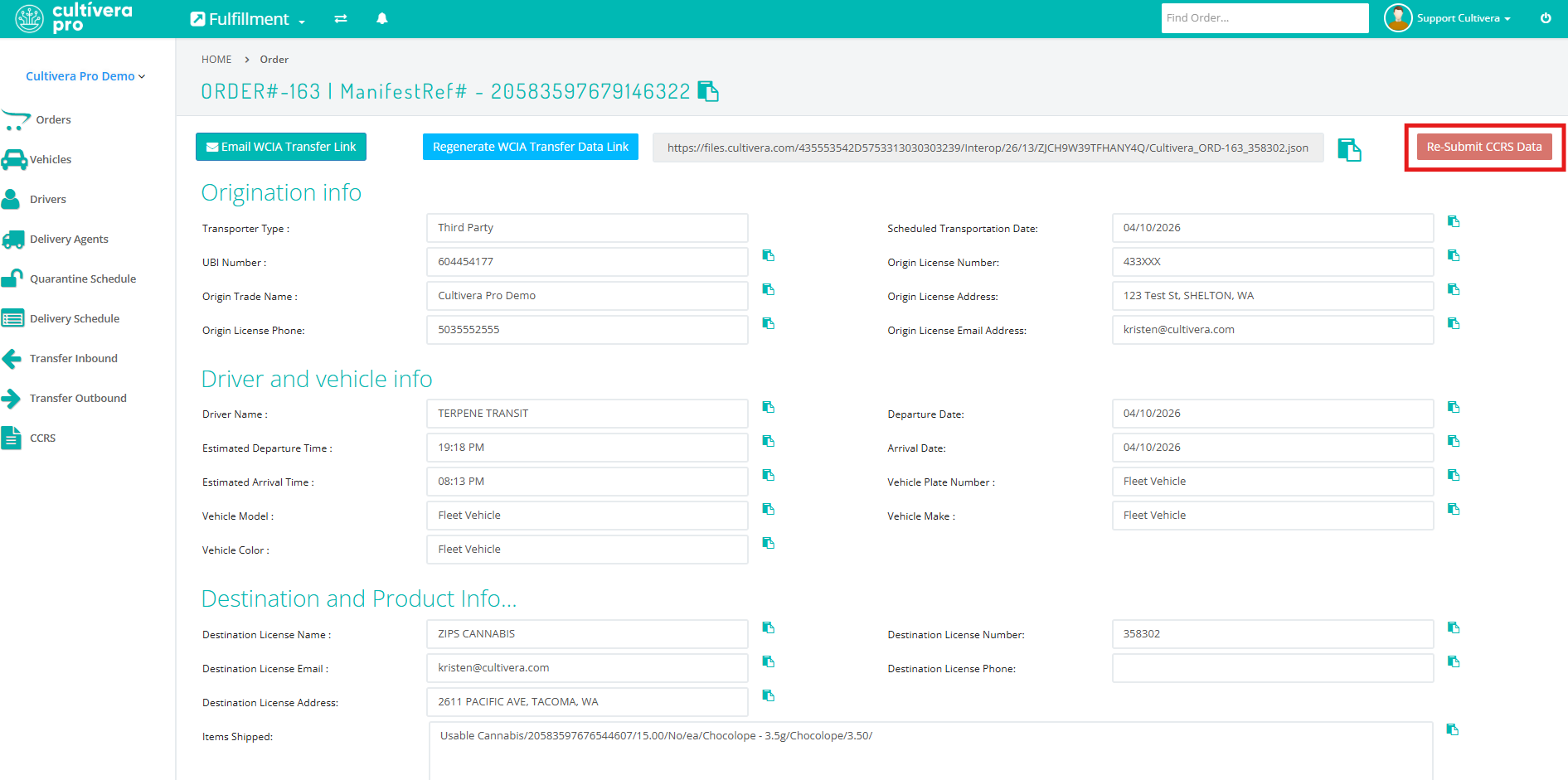
Clicking “View Manifest” opens the Order’s View Manifest Information page.
- From there, you can use the “Re-Submit CCRS Data” button if needed.
Click the Download Report icon to the right of any Order to generate a .csv file containing the required CCRS data.

- This file can be used for manual entry into the CCRS system.
Use the “Manual Upload Only” filter to view submissions that were only reported manually.
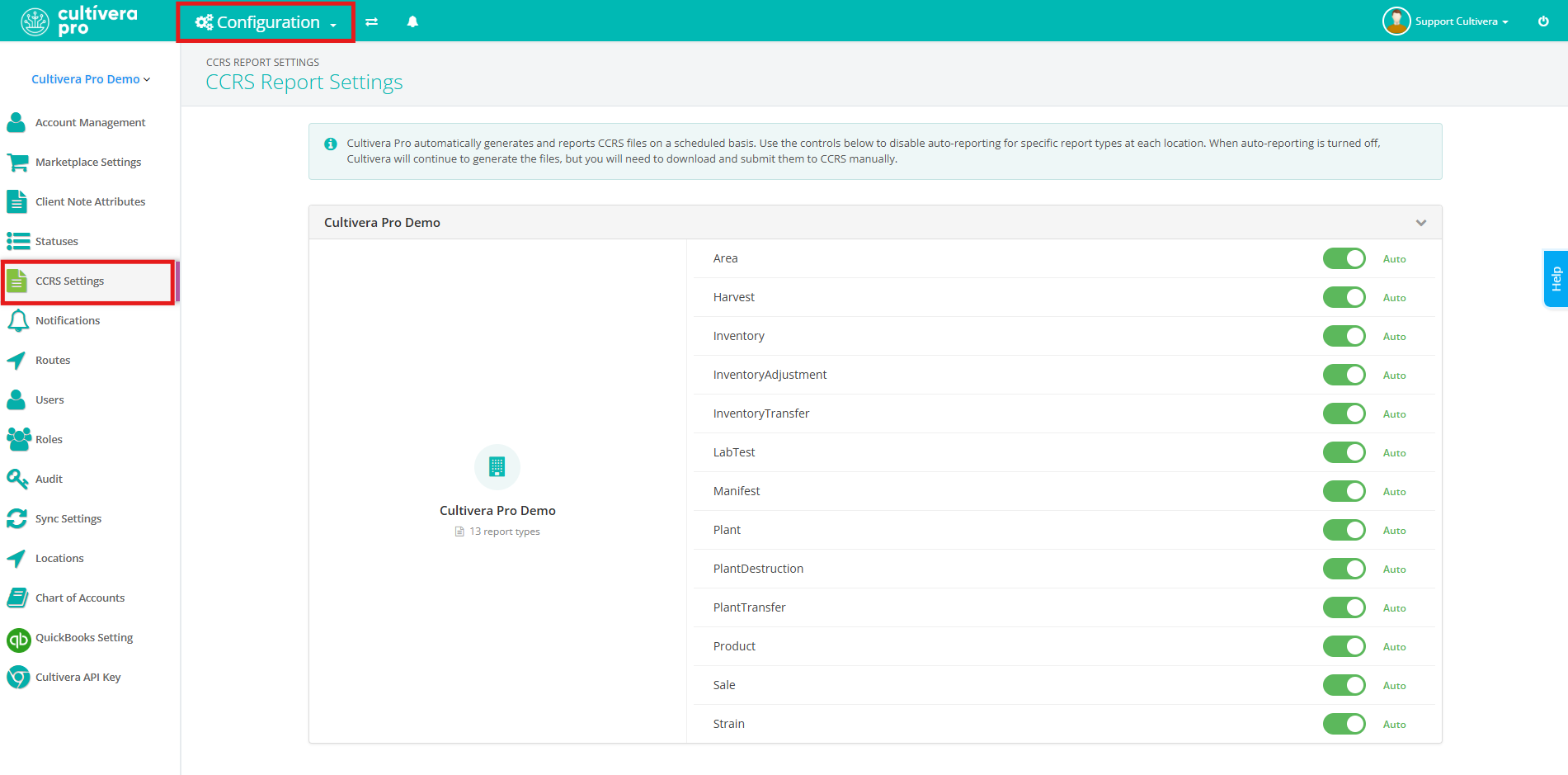
Configuration > CCRS Report Settings
Cultivera automatically generates and reports CCRS files on a scheduled basis. On average, we report every third day.
From this page, you can:
- Enable or disable auto-reporting by report type.
- Configure settings for multiple locations/licenses.
Configuration > Roles
Access to CCRS features in Cultivera Pro can be managed via Configuration > Roles.
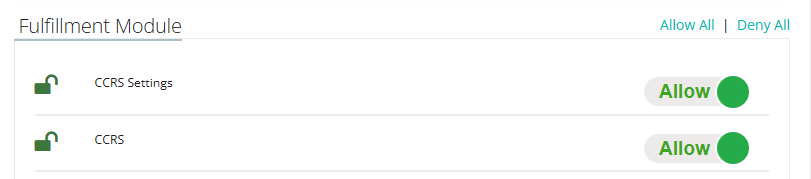
Within the details page of any Role, the Fulfilment Module section includes two CCRS-related permissions that can be configured as either 'Allow' or 'Deny', depending on your needs.
- CCRS Settings
- Grants access to Configuration > CCRS Report Settings
- CCRS
- Grants access to Fulfillment > CCRS
