PRO (WA): Troubleshooting Common Errors in Cultivera
Updated
by
Cultivera Team
Common Errors Troubleshooting Guide
This guide is intended to help you troubleshoot some of the common user errors that you may encounter within Cultivera.
The troubleshooting guide is organized into sections corresponding to the different modules within the Cultivera system for ease of use. Please reference the relevant section when troubleshooting any issues.
Inventory Management
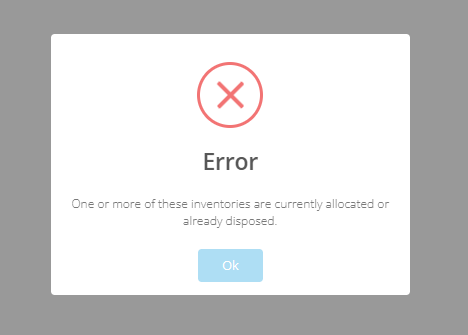
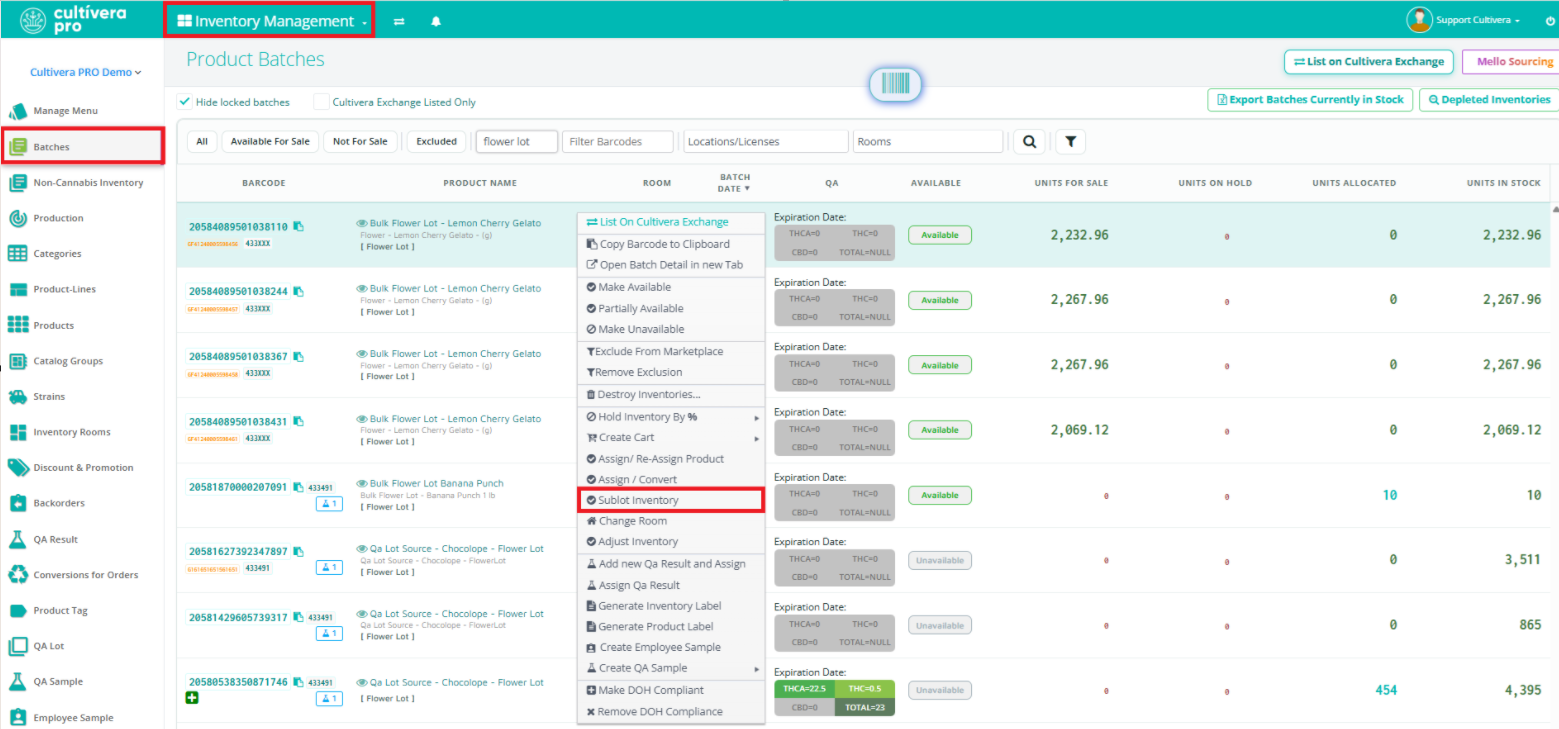
"Destroy Inventories"Error:One or more of these inventories are currently allocated or already disposed.Resolution: You can sublot the batch via Inventory Management > Batches > right-click and select "Sublot Inventory" to give it a new barcode. At that point, you should be able to schedule the sublotted batch for destruction to bypass the error message.
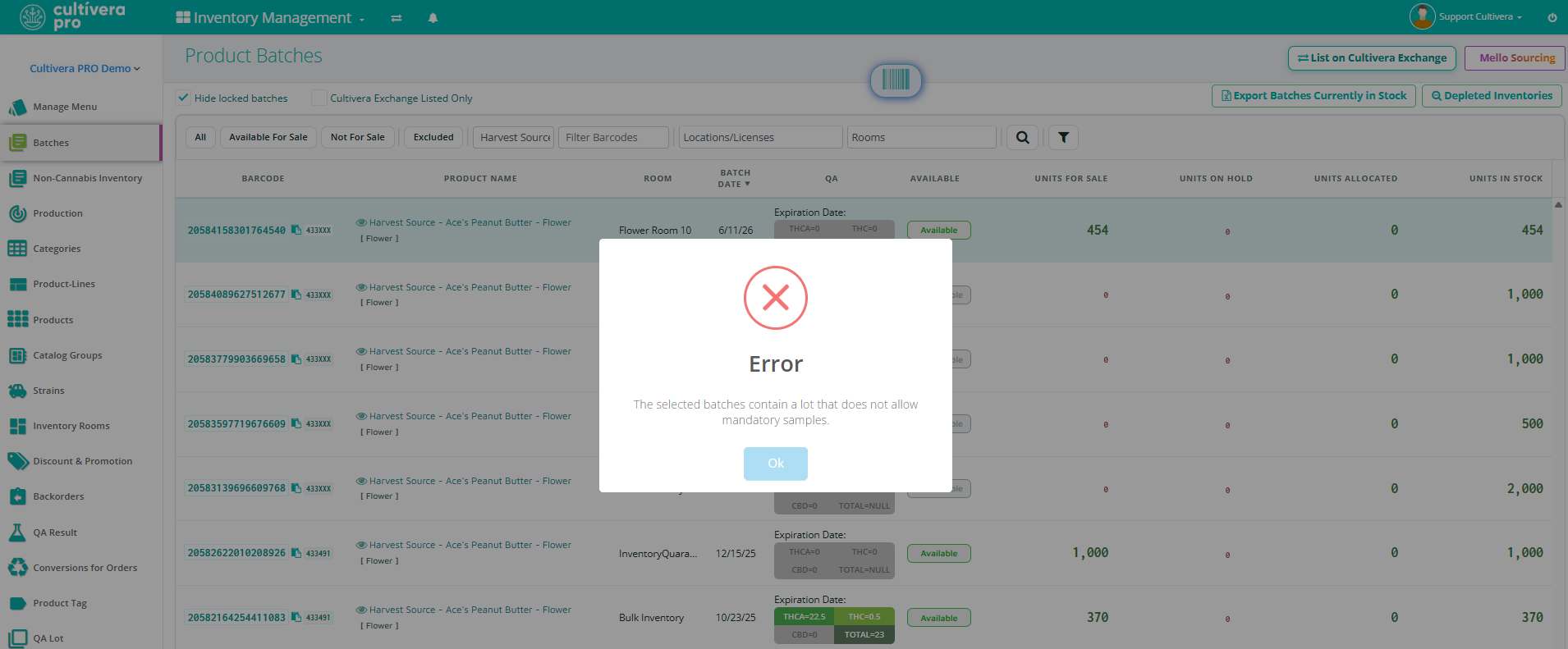
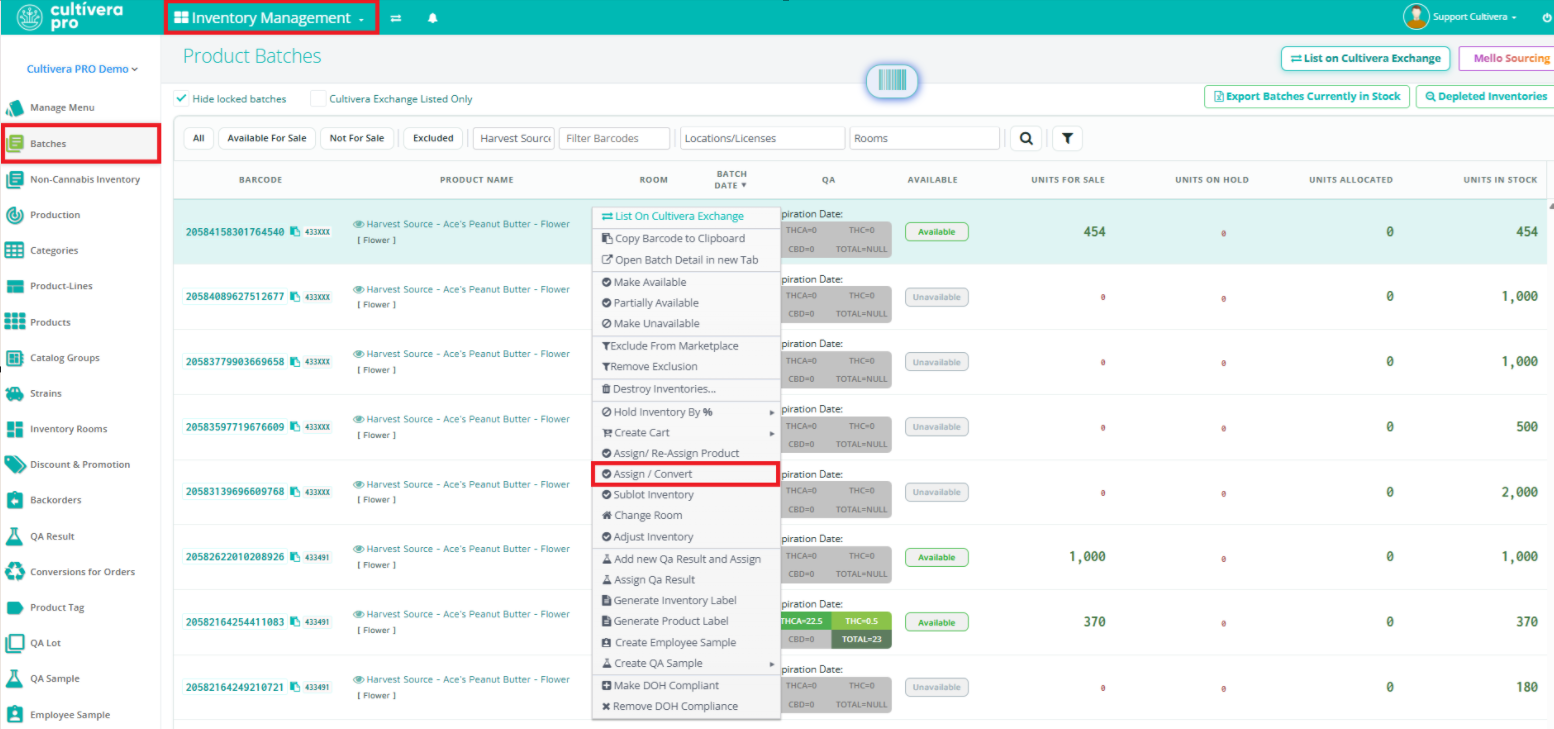
"Mandatory QA Sample" Error: The selected batches contain a lot that does not allow mandatory samples.Issue: The batch intended to be sent out for testing is assigned to a Product of the inventory type [Flower]. Resolution: Convert the batch to a product that is of the inventory type [Flower Lot] to create the mandatory sample. This can be done by right-clicking on the batch (under Inventory Management > Batches) and selecting 'Assign/Convert'.
"Assign/Convert"Error:Product [Bulk Flower Lot - Strain]Cannot be converted to [Packaged Flower - Strain - Pck Size]. (The products in this error may differ from this example) Resolution: This is a true error message. You will need to complete the conversion via Inventory Management > Production. You can refer to the following self-help guide for step-by-step instructions on this workflow: PRO: Production - Creating a Bill of Materials and Production Run.
We do not recommend using the 'Assign/Convert' feature when converting from a bulk inventory type to an end-product in your system (such as bulk flower lot > usable marijuana).
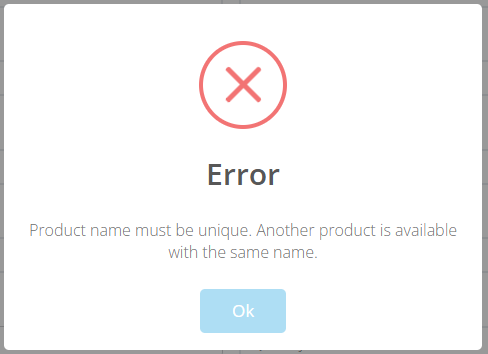
New Product Error:Product name must be unique. Another product is available with the same name.Resolution: This indicates that there is another product in your system with that same name. You can check your "Discontinued" products to confirm if that product already exists, and simply "Resume" it from the product details page if it does. Or, you can create a new Product with a slightly different Product Name.
Sometimes this error can also occur if you've just deleted a Product with the same product name as the new product you're creating.
If this is the case, you'll need to either wait 24 hours to create the new product, or you can simply create the product with a slightly different naming convention and change it back to the other product name after 24 hours have passed.
Sales
Products Unavailable On "Add Products from Inventory":
This is not an error, but rather a very common question we receive. Typically, the question here is, why can't I see or add my product to a Sales > Cart?
Resolution: If a product isn't showing up on the 'Add Products from Inventory' page, this indicates the product is not "Available" under Inventory Management > Manage Menu. Navigate to the 'Manage Menu' page, filter for the intended product, right-click on it, and select 'Make Available'. The product will then be available to add to a Sales > Cart as needed.
ProductsOut of Stock on "Add Products from Inventory":
This is not an error, but rather a very common question we receive. Typically, the question here is, why does this product show 'Out of Stock' when adding it to a Sales > Cart, when I actually have units in stock?
Resolution: Typically, if a product shows Out of Stock on the "Add Product from Inventory" page, this indicates the batch(es) of that product is not "Available" under Inventory Management > Batches. Navigate to the 'Batches' page, filter for the intended product/batch, right-click on it, and select 'Make Available'. The product will then show those "Units for Sale" as intended.
This is only the case for "prepackaged" workflows. If you work with "pack-to-order" workflows, it is expected that the product will show "Out of Stock" on the 'Add Products from Inventory' page.
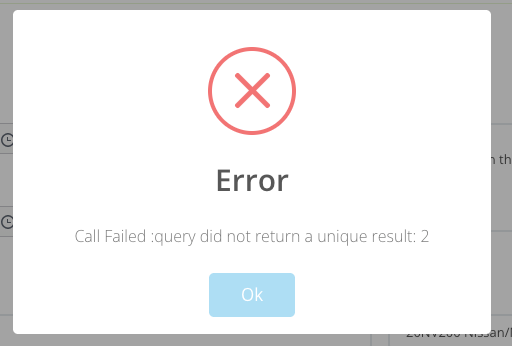
"Manifest" Error:Call Failed: query did not return a unique result: 2Resolution: This indicates two or more line items were erroneously sublotted with the same barcode. To resolve this, simply cancel the sublot for those two line items, reselect each line item, and then select "Sublot Selected" to give each line item a unique ID. At that point, you can remanifest the order (please be sure to regenerate the JSON Link and Order Docs).
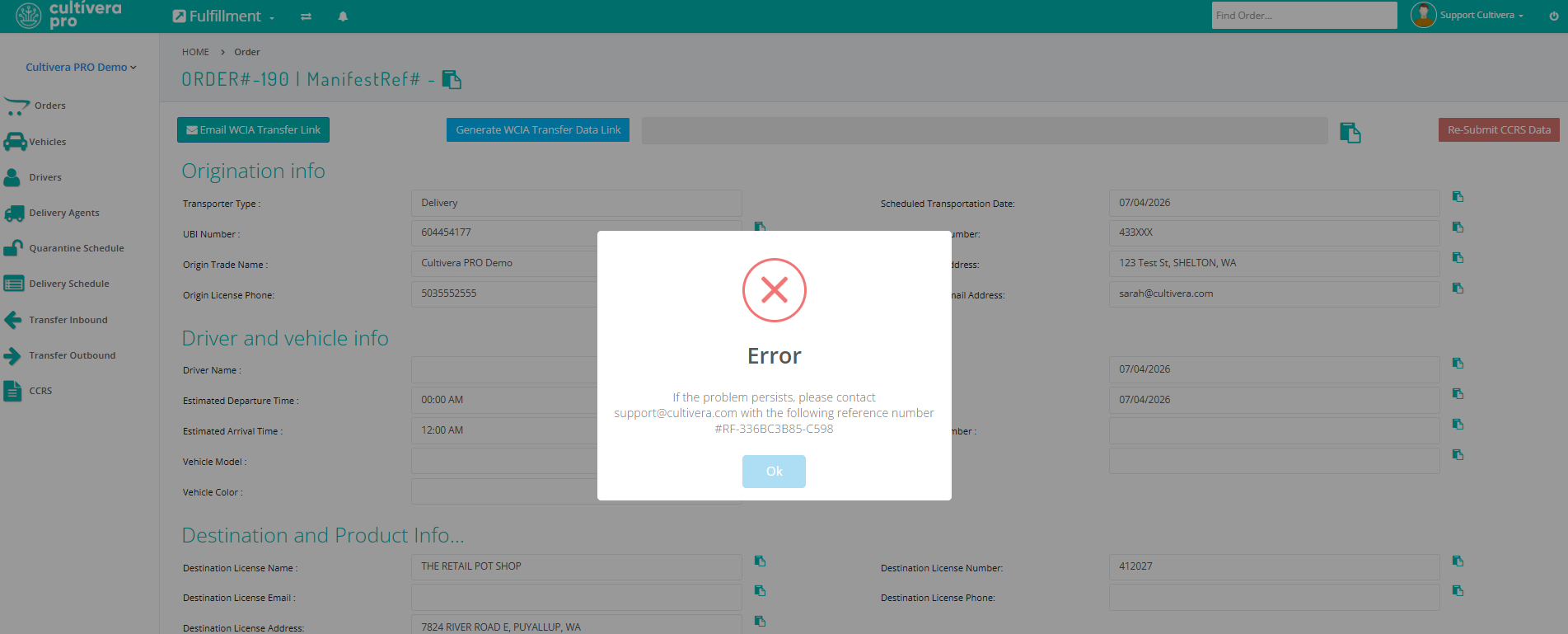
"Generate WCIA Transfer Data Link" Error:If the problem persists, please contact support@cultivera.com with the following reference number.Resolution: This error typically occurs when attempting to generate the JSON Link before the order has been manifested. To move forward, simply "Manifest" the order, and then come back to the 'View Manifest Information' page to generate the JSON Link.
"Label Generation" Error:Unable to generate label : No Label template Defined for item line "_____ " Resolution: This error indicates that one or more products on the order do not have a Label Template assigned on the Product Details page. You can navigate to the Product Details page for any products on the order, and update the Label Template assignment accordingly. Alternatively, you can right-click on the Product via Inventory Management > Manage Menu and select "Update Label Template" to assign a label to the selected product(s).
Transfer Inbound "The transfer is from an unknown licensee and/or Inactive License 'XXXXXX#- WCIA Transfer Schema'" Error Resolution: This error indicates the sending license is not present under Sales > Accounts in your system. Please reach out to support@cultivera.com with the JSON Link in question and request that we insert the sending license to your system. Once the sending license is present in your Sales > Accounts, you'll be able to import the transfer as intended.
Grow
"Create Harvest" Error:One of the selected plants is in an invalid phase for harvest.
Resolution: This indicates one or more of the selected plants is not in the 'Ready for Harvest' phase/stage. You'll need to select those plants and promote them to 'Ready for Harvest' or deselect them from the group of plants you wish to harvest.
 Updated
 Sometimes this error can also occur if you've just deleted a Product with the same product name as the new product you're creating.